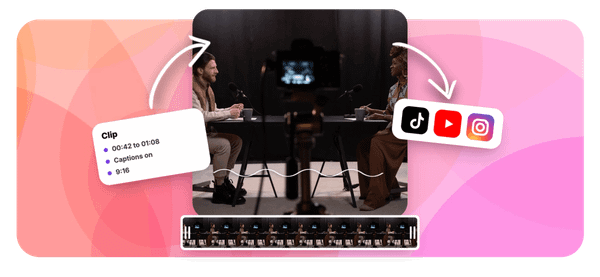


Turning a two-hour webinar into short, shareable clips used to mean hours of manual editing. Now, AI video tools are changing that, and if you've been searching for the best AI podcast clip generator to speed up your content workflow, you've likely already heard of Vizard. But Vizard isn't the only option worth your time. This article walks you through 7 solid alternatives that can help you pull great clips from your webinars in 30 minutes or less.
One tool that stands out in this space is Crayo's clip creator tool, which takes long-form video content and quickly identifies the most engaging moments worth sharing. No complex setup, no steep learning curve. You get clean, ready-to-post clips without spending your afternoon in a timeline editor. If your goal is faster turnaround on webinar content, social media clips, or highlight reels, Crayo gives you a practical starting point before you explore the full list ahead.
Table of Contents
- Why Teams Struggle to Find the Best Tools Like Vizard for Webinar Clips
- The Hidden Cost of Choosing a Clipping Tool on Price Alone
- 7 Best Tools Like Vizard for Webinar Clips in 30 Minutes
- The 30-Minute Workflow to Choose Your Webinar Clipping Tool
- Test Webinar Clips Faster With Crayo
Summary
- AI video tools use fundamentally different credit models, which makes direct price comparisons misleading. Vizard counts upload minutes against plan caps, so a 90-minute webinar consumes 90 credits, regardless of how many clips you export. A competing tool may meter processing minutes differently, meaning teams comparing credit totals across platforms are comparing labels, not equivalent units.
- Long-form content breaks per-minute pricing faster than any other content type. On Vizard's Creator plan, which includes roughly 600 upload minutes per month, four standard 90-minute webinars consume 360 of those minutes before you export a single clip. Short-form creators uploading five-minute highlights feel none of this pressure, while teams processing full webinar recordings absorb the entire cost at the source.
- The most reliable filter before evaluating any tool is calculating monthly source minutes. Webinars per month multiplied by average length produces one number that eliminates half the tools on any comparison list before you read a single feature description. A 600-minute plan sounds generous until four 90-minute panel sessions land in the same month, leaving almost no buffer for re-edits or additional formats.
- Multi-speaker handling only reveals itself on real webinar footage, not short test clips. Speaker framing, screen-share handling, and caption accuracy across overlapping voices differ significantly between tools designed for solo creators versus those built for panel recordings. Most teams discover this gap after committing to a paid plan, because free trial testing defaults to shorter, simpler content.
- Fragmented workflows across multiple subscriptions add hidden overhead that compounds over time. Teams running separate tools for clipping, captions, and publishing manage multiple credit systems, renewal dates, and migration risks simultaneously. Each tool switch adds setup time, rebuilt templates, and another round of testing on real footage, and switching twice often costs more than a more thorough initial evaluation would have.
- Structured tool selection consistently outperforms browsing-based decisions because it anchors the choice in actual usage data. Testing the same 20 to 30-minute webinar segment across shortlisted tools, then counting how many clips require no manual correction before publishing, produces a score that reflects real workflow fit rather than feature-page impressions.
Crayo's clip creator tool fits into this evaluation process by consolidating clipping, subtitle styling, voiceovers, and background removal into a single workflow, which reduces the number of post-processing steps a team needs to count when scoring clips against a consistent checklist.
Why Teams Struggle to Find the Best Tools Like Vizard for Webinar Clips

Credits feel like a universal currency until you run a 90-minute webinar through your first paid plan and watch half your monthly allowance disappear before a single clip hits your feed. The core problem is unit confusion. When every pricing page leads with a credit number, teams naturally treat credits as comparable units, like gigabytes or seats. But credits are not standardized across AI video tools. Vizard counts upload minutes against your plan cap, so a 90-minute webinar consumes 90 credits regardless of how many clips you export. A competing tool might count processing minutes differently, and what that minute costs shifts again depending on your tier. You're not comparing the same thing. You're comparing labels.
Why Long-Form Content Breaks the Credit Model Fastest
Webinar footage is the worst-case scenario for per-minute pricing. A 60-minute product demo, a 90-minute panel discussion, a two-hour training session: each one burns through your allowance at the source, not at the output. The math is punishing. On Vizard's Creator plan, which includes roughly 600 upload minutes per month, four standard 90-minute webinars consume 360 of those minutes, 60 percent of the plan, before you've exported a single clip. Short-form creators uploading five-minute podcast highlights feel none of this pressure. Teams processing long recordings feel it all.
The Hidden Trap of Credit-Based Video Pricing
Most teams handle this by testing tools on their free plans first, which seems logical. The problem is that Vizard's free tier caps at 60 credits per month, exports at 720p with a watermark, and deletes projects after three days. You cannot process a full webinar on those terms. So you test on a 20-minute segment, form an opinion about the tool's clip quality and speaker detection, then upgrade expecting the same experience at scale. What you find instead is that your monthly webinar schedule eats the plan alive. The tool didn't change. The footage size did.
Teams that consolidate their workflow tend to avoid this trap more effectively. Crayo's clip creator tool measures differently, prioritizing output speed over source-minute accounting, which changes the economics for creators who need volume without watching a credit counter tick down on every upload. When your pricing model rewards output rather than penalizing input length, the incentive aligns with what creators actually want: more publishable clips, faster.
Why Comparison Articles Rarely Solve This
The same issue shows up in software reviews and grocery store unit pricing: the number on the label only helps if the unit behind it is consistent. When you compare 600 credits to 1,500 credits across two tools, you're doing arithmetic on incompatible measurements. Nearly every article comparing these tools is published by one of the tools being compared, which doesn't make the facts wrong, but it does mean each piece leans toward its own product's strengths. Prices and caps also shift quarterly, so a comparison written six months ago may reflect plans that no longer exist. Teams that get this right work out their average source minutes per month first, then price each tool directly against that number. But knowing the credit model's flaw is only the beginning of what this decision actually costs you.
Related Reading
- Best AI Podcast Clip Generator
- What Is An Audiogram Podcast
- How Long Does It Take To Trim A Zoom Recording
- Content Repurposing Examples
- Webinar To Short Clips AI
- Clipping a YouTube Video
- Podcast Clips For Social Media
- Video Clipping For Social Media
- How Do I Repurpose My Interview To Social Media
- Sermon Clips AI
The Hidden Cost of Choosing a Clipping Tool on Price Alone
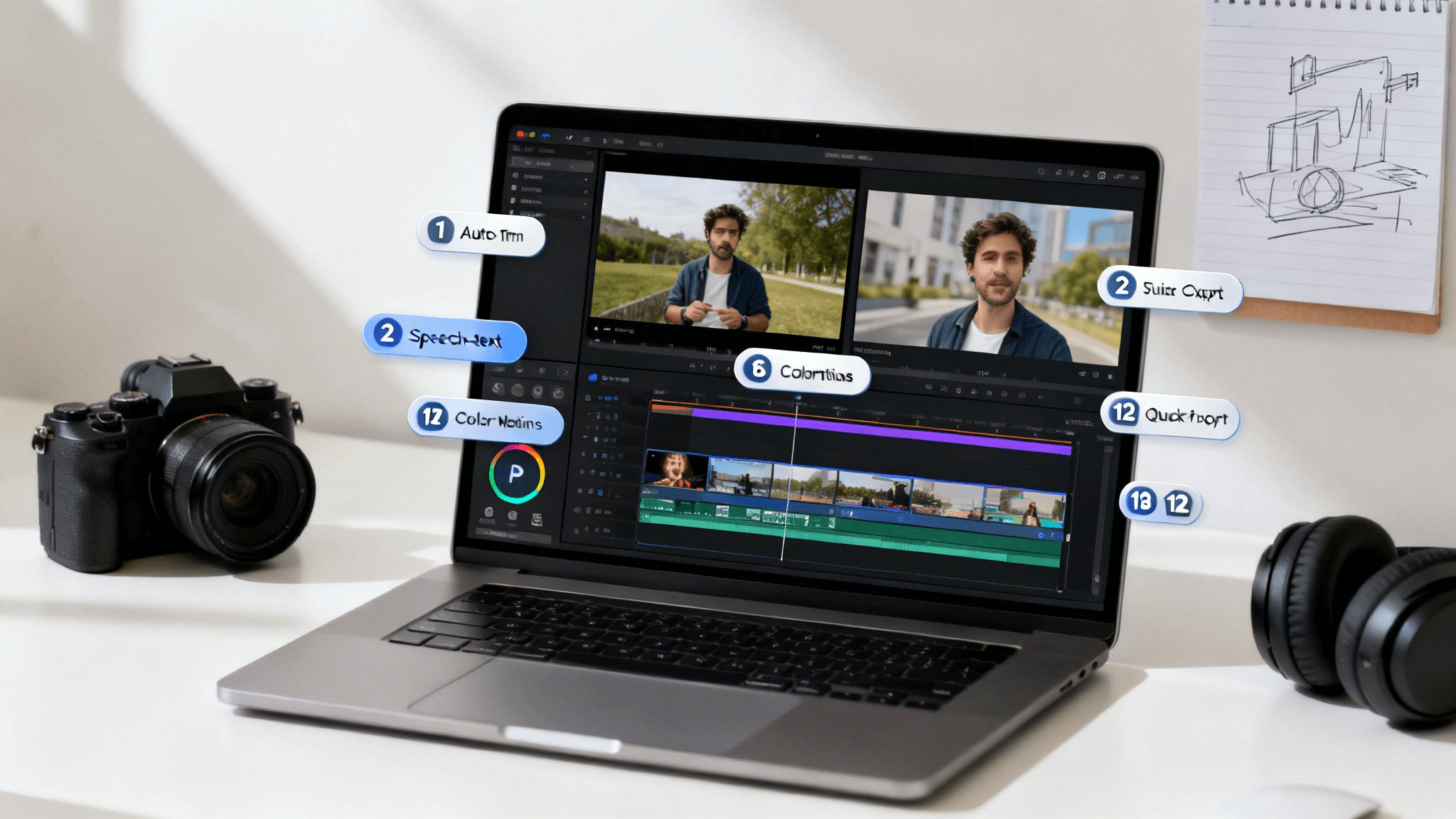
Choosing the wrong AI video tool for webinars costs more than the difference in monthly subscription fees. The real loss shows up in three places:
- A plan that empties before the month ends.
- A tool that handles multi-speaker panels poorly.
- The setup time burned on a second migration when the first choice doesn't hold.
Price is the easiest number to compare. It's also the least predictive of whether a tool actually fits your webinar workflow.
Where the Math Breaks Down
The failure point is usually the gap between plan descriptions and real usage. Most plans describe limits in credits or upload minutes, not webinars, so the buyer has to do the conversion. A team running two 60-minute webinars per week hits roughly 480 source minutes per month before accounting for re-edits, re-runs, or a second format. On a 600-minute plan, that leaves almost no buffer. One source notes a single weekly two-hour stream consumes 480 credits monthly on its own, which is most of a comparable plan's entire allowance. The arithmetic isn't hidden; it just requires you to do it before you pay, not after.
The Trial-to-Scale Pitfall in Webinar Tools
The same issue surfaces across short-form clipping tools and enterprise video platforms: a tool built for solo creators handles panel webinars differently than a tool designed for multi-speaker recordings.
- Speaker framing
- Screen-share handling
- Caption accuracy across overlapping voices
Only reveal themselves on real webinar footage, not on a three-minute test clip uploaded during a free trial. Most teams handle this by testing with shorter content because it's faster, then discover the gap after committing to a paid plan.
Workflow Consolidation and Cost Efficiency
Most clipping workflows also fragment across multiple subscriptions:
- One tool for auto-clipping
- Another for captions
- A third for publishing
Crayo consolidates clipping, subtitle styling, AI voiceovers, and background removal into a single workflow, removing the per-tool credit arithmetic and cutting migration risk from three to one.
What Switching Actually Costs
The limits don't disappear when you switch to a cheaper tool; they just change shape.
- One alternative drops short-form publishing.
- Another locks scheduling behind a higher tier.
- A third only works if you record inside its own studio environment.
Each migration carries setup time, rebuilt templates, and another round of testing on real webinar footage. Switching twice costs more than spending thirty minutes calculating your actual source minutes before choosing the first time. That calculation, your webinar count multiplied by average length, is the only number that makes any comparison between AI video tools meaningful. And once you know that number, the tools that survive the filter look very different from the ones that win on a features-versus-price grid.
7 Best Tools Like Vizard for Webinar Clips in 30 Minutes
Seven tools survive the source-minutes filter, and each one earns its place by solving a specific problem in the webinar clipping workflow. Credits, speaker handling, and publishing paths differ enough between them that treating any two as interchangeable will cost you time and money.
1. OpusClip
Panel webinars expose a specific weakness in most clipping tools: multi-speaker framing breaks down when the camera needs to follow whoever is talking. OpusClip handles this more reliably than most alternatives, according to published tool comparisons, and its clip-ranking system surfaces the strongest moments rather than leaving that judgment entirely to you. Its free plan runs 60 credits with a watermark and a three-day expiry, which is enough to test it on a real segment of your actual webinar footage, not a demo clip. For interview-format or panel webinars, this is the logical first test.
2. Descript
The failure point in most transcript-based editing is that precision and speed pull in opposite directions. Descript solves this by letting you cut video by deleting text, so a 90-minute webinar becomes editable the same way a document is. One published comparison notes it lacks short-form social publishing and a scheduler, so clips post elsewhere, and a 2025 pricing change made credit consumption harder to predict for some reviewers. The tradeoff is clear: maximum control over every word that stays in a clip, with publishing handled as a separate step.
3. Riverside Magic Clips

When recording and clipping sit in the same workspace, the upload step disappears entirely. Riverside Magic Clips generates clips during the recording session, and one roundup lists it as bundled into plans at around $19 per month. It also works from audio recordings, which matters for teams that produce podcast-style webinars. The honest limitation is equally clear: if your webinar runs on Zoom, Teams, or any platform outside Riverside, this tool offers no advantage.
4. Klap
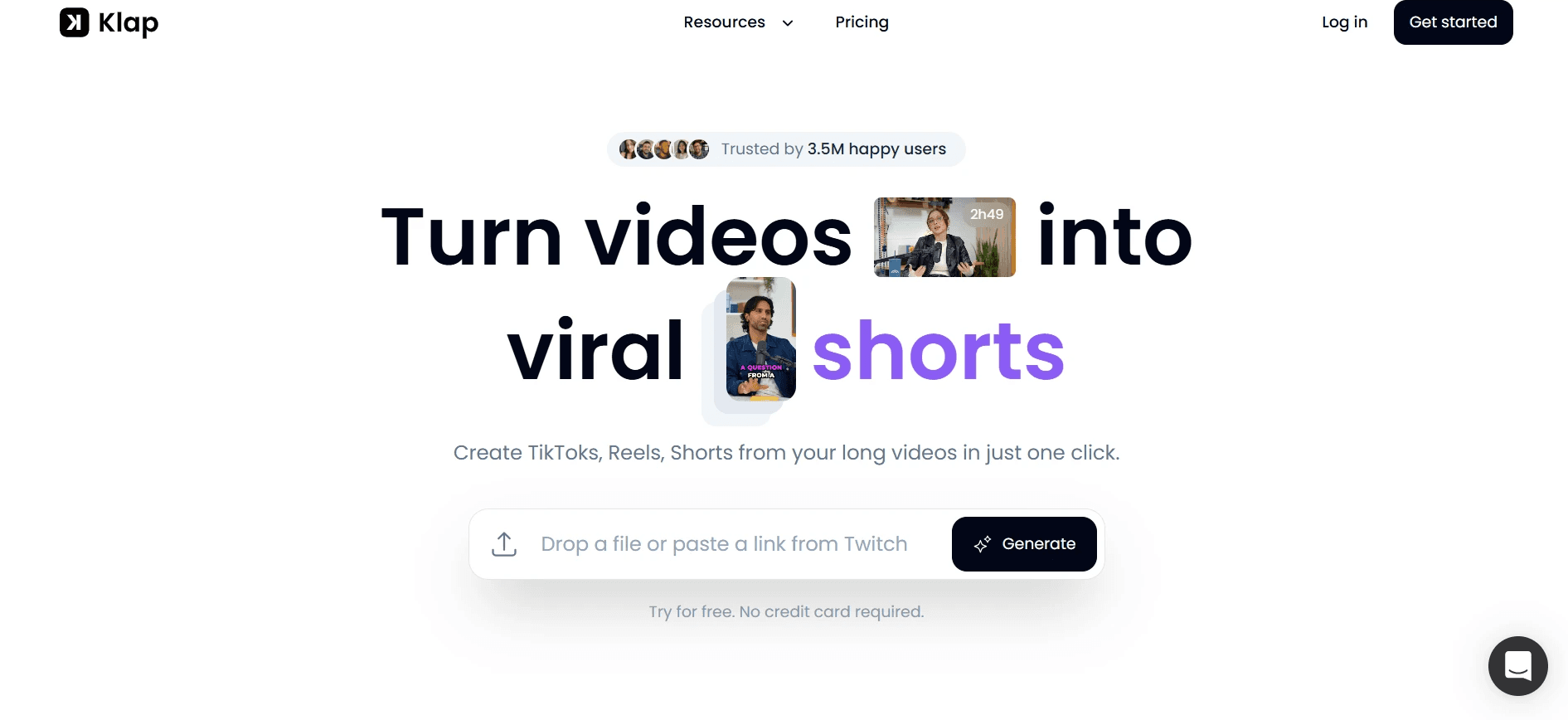
The same pattern appears in batch clipping tools and photo editing apps: the less you configure, the less you control. Klap operates on a single-upload flow where you paste a link and receive clips with minimal setup. One roundup describes it as hands-off batch clipping, which is accurate in both directions. It moves fast and leaves speaker-framing decisions to an algorithm that hasn't seen your specific panel layout. Check the output on multi-speaker footage before you commit. Most teams that juggle clipping, caption styling, and scheduling across three separate subscriptions don't realize the overhead until they're six weeks in and managing three renewal dates. Crayo consolidates auto-clipping, subtitle styling, AI voiceovers, and publishing into a single three-step workflow, removing coordination costs and keeping output volume high without adding tools to the stack.
5. Submagic
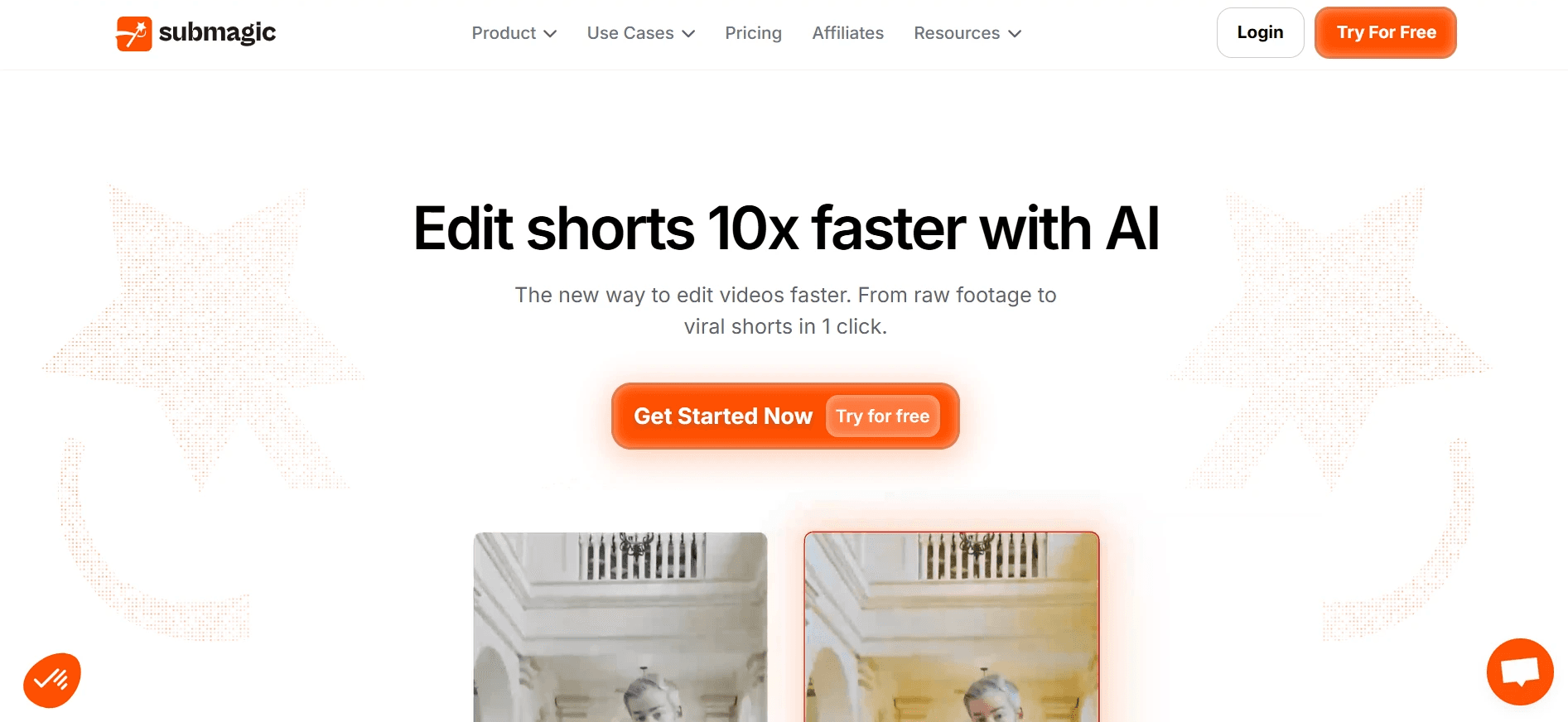
If your webinar pipeline already runs on automation, the clip picker matters less than the connections surrounding it. Submagic lists API access, webhooks, Zapier, Make, and n8n integrations in published comparisons, with TikTok, Instagram, and YouTube Shorts publishing on higher-tier plans. Pricing sources vary, but it's about $12 per member on yearly billing and around $20, with a separate Magic Clips add-on that changes the effective cost. Check which automation connections your specific plan includes before assuming they're available.
6. Quso.ai
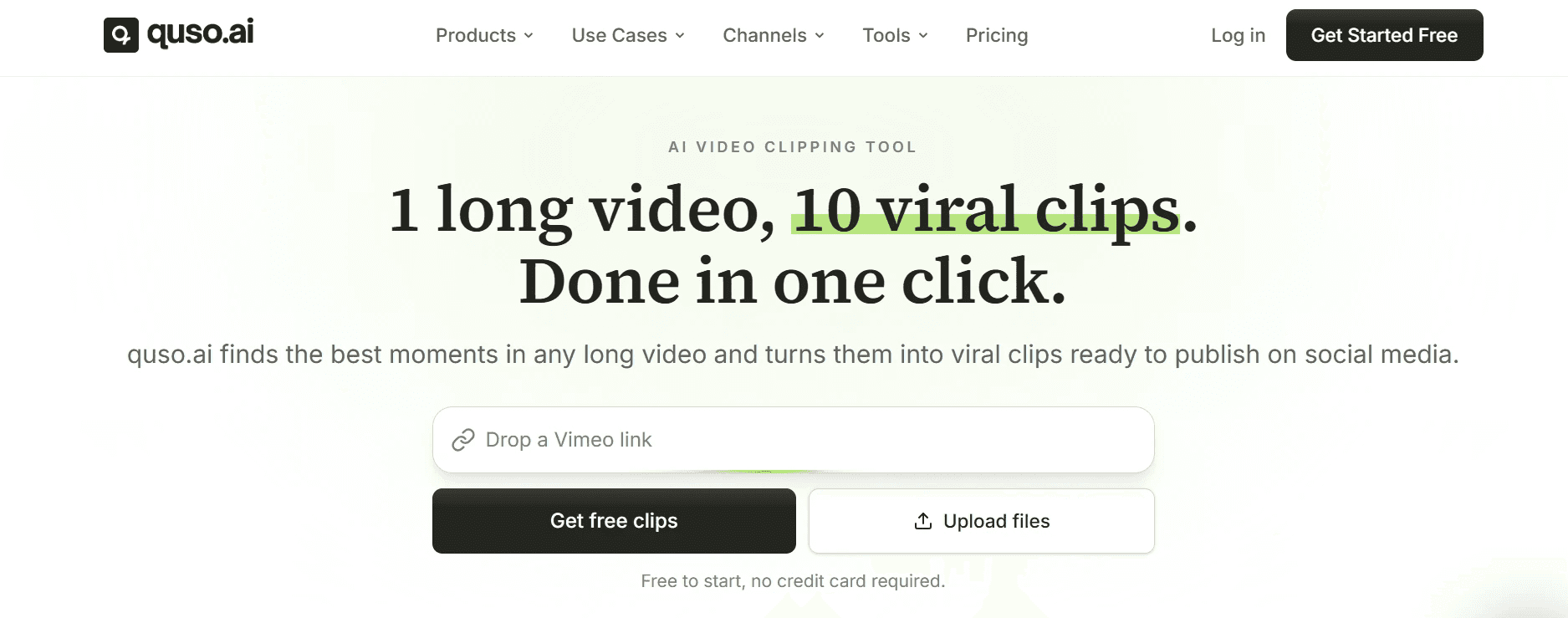
Constraint-based thinking clarifies this one quickly: if moving clips between a clipping tool and a scheduling tool costs you 20 minutes per webinar, and you run four webinars a month, that's 80 minutes of workflow friction every month. Quso.ai combines clipping, captions, and scheduling in one product, and one comparison lists a free tier of 75 credits per month. The same comparison notes that scheduling sits behind a higher plan and that its credit system is as restrictive as Vizard's. The value is consolidation, not generosity.
7. CapCut
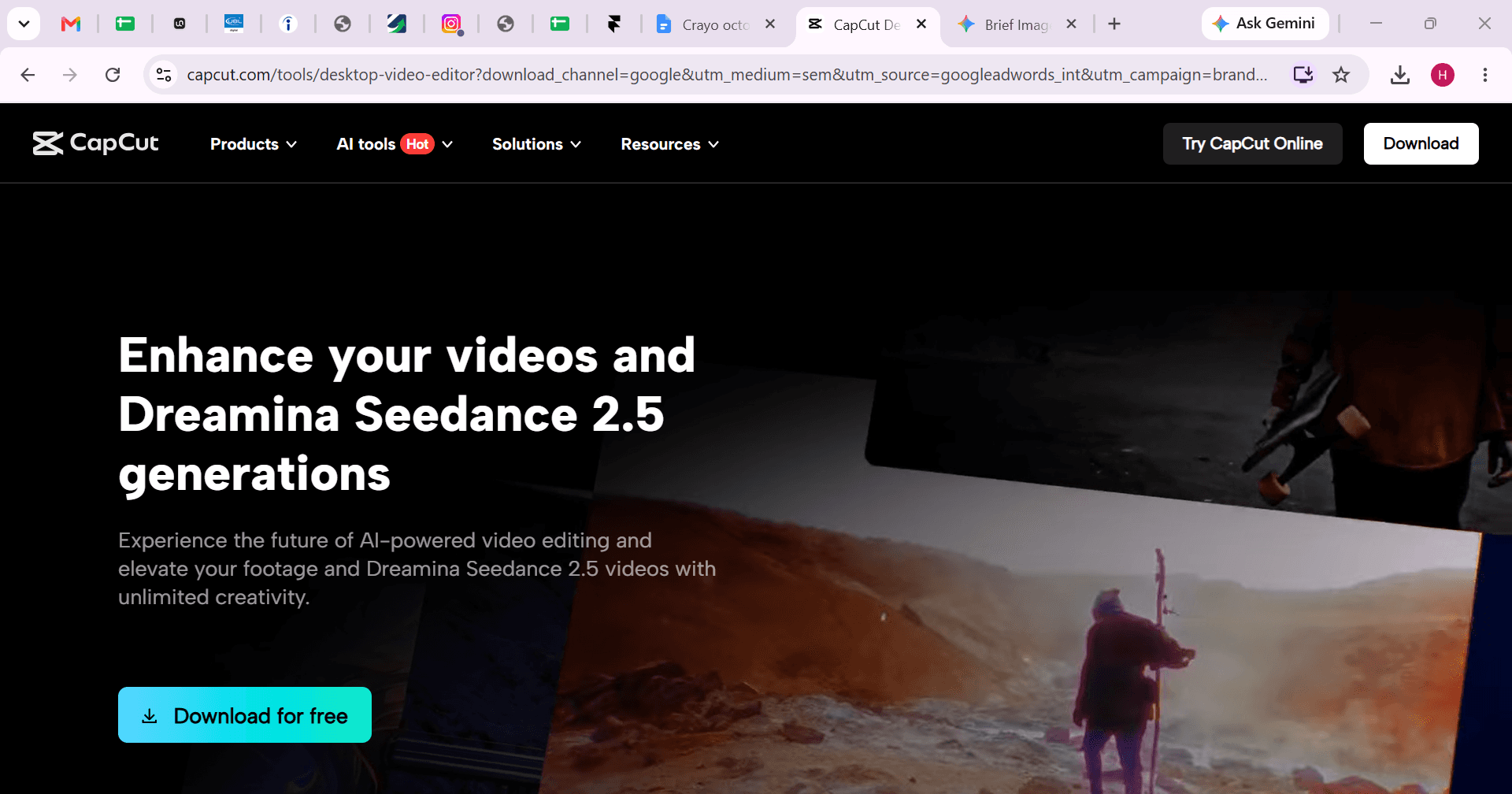
Zero credits, zero watermark, zero automation. CapCut is a free editor where every clip selection happens manually, which makes it the right answer only when volume is low and time is available. One roundup confirms no watermark on exports, with all selection left to the user. At three or four clips a month from a single webinar, the time cost is manageable. At scale, it becomes the most expensive tool on this list, measured in hours.
Which Tool to Test First
Test two tools, not all seven.
- Panel or interview webinars point toward OpusClip.
- Transcript-level editing precision points toward Descript.
- Webinars recorded inside the Riverside studio point toward Magic Clips.
- Hands-off batch output points toward Klap.
- Automation-connected pipelines point toward Submagic.
- Combined clipping and scheduling in one product points toward Quso.ai.
- No budget and low volume point toward CapCut.
The matching criterion is always the same: your source minutes, your speaker format, and your publishing path.
When Staying With Vizard Makes Sense
One published comparison notes that Vizard's model tends to stretch further per dollar on two-hour recordings and full webinars than several alternatives, and it includes API access alongside a wide language range. If your source minutes fit within the plan allowance and those capabilities align with your workflow, switching introduces cost and disruption without a proportional return. This list is for deliberate selection, not reflexive replacement. Choosing on purpose, with your actual numbers, is what separates a tool that works from one that just looked good in a free trial, and the next step is where that choice gets tested against real footage in real time.
Related Reading
- Church Reels Editing
- Podcast Shorts
- How To Start Clipping On Instagram
- Best Video Clipping Tool For YouTube
- Repurposing Content For Social Media
- How To Add Audio To A Video
- How To Repurpose Webinar Content For Marketing
The 30-Minute Workflow to Choose Your Webinar Clipping Tool

Testing is where the decision stops being theoretical and starts costing real time. The workflow below runs in 30 minutes and produces a defensible choice, not a gut feeling. According to RepurposeYourContent.com's comparison of 10 top tools, the market has enough capable options that the bottleneck is rarely the tool itself. The bottleneck is the process of choosing one.
Minute 0-4: Run the Math First
Write down your webinar calendar before you open a single pricing page.
- Count the webinars per month
- Multiply by average length
- You have your monthly source-minute total
That number is the only filter that matters at this stage. Most teams skip this and end up comparing features on plans they cannot actually use. A 600-minute plan sounds generous until four 90-minute panel sessions land in the same month, and you are 360 minutes over.
Minutes 4-10: Build a Short Shortlist
Take your must-haves, the non-negotiables like multi-speaker framing, caption accuracy, or direct publishing to LinkedIn and Instagram, and cross-reference them against your minute total. Any tool whose entry plan cannot absorb your volume without overage charges drops off immediately. The failure point is usually a list that is too long. Three tools is a real test. Seven tools is a skim that produces no useful data.
Minutes 10-20: Test on One Real Segment
Pull a 20- to 30-minute segment from an actual webinar, one with at least two speakers and a screen share. Run the same segment through every shortlisted free plan. Same clip, same settings, every time. This constraint matters because free plans cap upload length. A 20-minute segment fits most free tiers honestly. A full 90-minute recording does not, and testing with the latter produces errors, not insight.
Minutes 20-26: Score Every Clip the Same Way
Use one checklist across every tool.
- Does the clip contain a complete idea?
- Is the right speaker on screen?
- Are names and technical terms spelled correctly in the captions?
- Does the branding match what you would actually publish?
Count how many clips from each tool you would publish without touching them. That number is the only score that matters. Opinion without a consistent rubric is just preference.
Objective Evaluation Through Consolidated Workflows
Most teams handle this scoring stage by watching clips and forming impressions. That approach feels efficient but produces bias toward whichever tool ran last, because recency shapes perception more than quality does. A shared checklist removes that drift. Crayo is worth including in this scoring stage because they consolidate clipping, subtitle styling, voiceovers, and background removal into a single pass. When you are counting how many clips need post-processing before they are publishable, a tool that outputs ready-to-publish content in one workflow will consistently outscore one that requires a second application to finish the job.
Minutes 26-30: Make the Choice and Set the Review Date
Take your scores and your minute total. Choose the tool whose plan fits your volume and whose clips required the least manual correction. Write down the expected monthly cost per published clip. Then set a review date exactly one month out. Not a mental note. A calendar event. The review is what converts a first choice into a confirmed one, because the real minute usage after a full paid month will either validate your estimate or correct it cheaply.
If the Scores Are Close
Break ties in a fixed order.
- Speaker framing comes first, because a wrong face on screen during a key moment is not fixable in post without significant time.
- Publishing integrations come second, because a clip that cannot reach your audience without a manual download adds friction every single week.
- Cost per published clip comes third.
The truth is, most shortlists will eliminate themselves. One tool will fail a must-have outright, one will exceed your budget at your actual minute volume, and the decision will be clearer than the feature comparison pages suggested.
What the Review Date Actually Measures
After your first full paid month, compare the minutes you actually used against the estimate you made during the workflow. If the real number is higher, you learned the gap in 30 days and not after a 12-month contract renewal. If it matches, your planning model is solid, and you can scale with confidence. The structured approach to tool selection consistently outperforms browsing-based decisions because it anchors the choice in actual usage data rather than projected features. The review date is what keeps the decision honest over time.
One Constraint Worth Naming
This workflow tests two to three tools on one segment in 30 minutes. It does not process full webinars, because free plans are not sized for that. The segment test is honest about what free tiers can show you, which is enough to make a first choice. The full picture comes from the paid month. That boundary is not a limitation of the workflow. It is the point. A decision made on real constraints beats one made on ideal conditions every time. What surprises most people is how much faster the whole process moves once the right tool is in their hands.
Test Webinar Clips Faster With Crayo
Upload a 20 to 30-minute segment of a real webinar to Crayo, generate vertical captioned clips, and score the results with the same checklist you used for every other tool on your shortlist. That single test gives you something pricing pages never will: actual output from your own footage. Most teams skip this step because running separate uploads across multiple tools feels slow. But that friction is the point. The teams that choose well treat the test as the decision, not the pricing comparison afterward.
Fast-Tracking Tool Evaluation Through Workflow Testing
Crayo's three-step workflow:
- Upload
- Style
- Generate
It compresses that test into minutes rather than an afternoon, so your checklist scores faster and your shortlist gets shorter without guesswork. The decision you make after that test will hold longer than one made on credit counts or monthly fees. And the clips you generate will tell you more in ten minutes than a feature comparison page tells you in an hour.
Related Reading
• Best Audiogram Maker
• Content Repurposing Tool
• Best AI Video Repurposing Tools 2026
• Best AI Video Clipping Tools 2026
• How To Automate My Video Clipping
• How To Trim Google Meet Recording
• How To Trim A Zoom Recording
• Best Way To Make Podcast Clips
• Best AI Video Tools Like Vizard For Webinar Clips