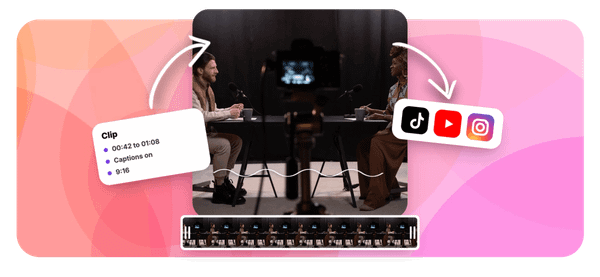


Ever sat through a 90-minute Zoom recording just to find the two minutes that actually matter? Trimming Zoom recordings can take a lot of time, and knowing what to expect before you start makes the process less frustrating. Whether you are editing a team meeting, a client call, or a recorded webinar, the time it takes depends on the footage length, the tools you use, and how precise you need the cuts to be. This article breaks down realistic time estimates and practical ways to speed things up, especially if you also want to repurpose your content using the best AI podcast clip generator available right now.
That is where the Crayo clip creator tool becomes genuinely useful. Instead of manually scrubbing through long recordings frame by frame, Crayo helps you identify and extract the strongest moments in a fraction of the time, significantly shortening your editing workflow. If you are working with Zoom footage and want to turn it into shareable clips without spending hours on post-production, Crayo gives you a faster, cleaner path to finished content.
Table of Contents
- Why People Underestimate How Long Trimming a Zoom Recording Takes
- The Hidden Cost of Assuming Zoom's Trim Tool Is Instant
- How Long Trimming a Zoom Recording Actually Takes
- The 15-Minute Workflow to Trim a Zoom Recording Without Missing a Deadline
- Skip the Wait Entirely With Crayo
Summary
- Zoom's cloud trim tool is not a simple marker adjustment. Every trim triggers a full server-side reprocessing job across the video, audio, and transcript files simultaneously, which means the recording is completely inaccessible to anyone, including the host, until the job finishes. Zoom's own documentation states this process can take up to two hours, and that window applies regardless of how small the trimmed section is.
- The five-trim limit per 12-hour window creates a compounding problem for anyone who edits iteratively. Most people refine cuts the same way they work in any other tool, trimming, reviewing, adjusting, and repeating, but that habit burns through a finite budget quickly. By the third or fourth attempt, each carrying its own multi-hour processing delay, the math stops working in favor of hitting a deadline.
- Timing is where the real cost surfaces. A recording that finishes processing after a scheduled share, a client handoff, or a content publishing slot is functionally the same as a recording that failed entirely. According to CloudNuro.ai's Zoom Pricing and Optimization Guide, enterprises can waste up to 30 percent of their Zoom cloud storage budget on unedited or redundant recordings, suggesting that many trimming attempts simply never get completed.
- The average employee attends 62 meetings per month according to Zoom's own meeting statistics blog, and people spend between 31 and 39 percent of their working hours in meetings. That volume means Zoom recordings are created and edited constantly, and the assumption that trimming is a quick, low-friction task has real consequences at scale when repeated dozens of times per month.
- The most effective fix is behavioral, not technical. Front-loading every editing decision, starting the trim the moment a recording becomes available, confirming timestamps in a single deliberate pass, and downloading a backup before the trim runs, allows the fixed processing window to run in the background rather than against a deadline. The outcome is identical in processing time, but entirely different in whether the file is ready when it needs to be.
Downloading the raw file and editing locally is a reasonable workaround for avoiding Zoom's constraints, but it still requires manually scrubbing footage, identifying key moments, and formatting for different destinations. Crayo clip creator tool addresses this by letting creators auto-clip, caption, and export short-form content from longer recordings without touching Zoom's trim queue.
Why People Underestimate How Long Trimming a Zoom Recording Takes

Trimming a Zoom recording feels like it should take thirty seconds. You drag a slider, click Confirm, and you're done. That assumption is reasonable, but almost always wrong. The failure point is the gap between how trimming feels conceptually and how Zoom actually processes it. Zoom's trim tool is not a local edit that adjusts playback markers. It is a server-side reprocessing job that rebuilds the video, audio, and transcript files together.
According to the Zoom Meeting Statistics Blog, people spend an average of 31% to 39% of their working hours in meetings, which means Zoom recordings are created constantly, and assuming editing them is equally fast has real consequences at scale. Zoom's own documentation says the process can take about two hours, and during that time, nobody can view the recording, including the host.
Why Zoom's Trimming Delay Catches Users Off Guard
The same pattern surfaces in consumer video apps and professional editing tools: a simple trim adjusts markers without reprocessing the source file. Zoom behaves differently because it is managing synchronized layers, video, audio, and a searchable transcript, not just one file. When you expect one behavior and get another, you lose more than time. You lose access to the file precisely when you needed it most.
Most people who hit this problem are not careless. They start trimming fifteen minutes before a scheduled share, fully confident the edit will finish in time. The mental model they use works for every other tool they use. Zoom's implementation is the exception, and it isn't clearly labeled when you click trim.
The Hidden Risk of Zoom's 5-Trim Limit
The five-trim limit per twelve-hour window compounds this further. Someone who trims, reviews, adjusts slightly, and repeats a few times to get the cut exactly right can hit a hard cap without realizing one exists. The average employee attends 62 meetings per month, so this isn't a rare edge case. It is a workflow that repeats constantly, and the trim limit can quietly block progress mid-edit with no obvious warning that you are approaching it.
Avoiding Post-Production Bottlenecks with Dedicated Clipping Tools
The familiar approach when working with Zoom recordings is to treat post-production as an afterthought, something handled in the last few minutes before sharing. That works fine with most tools. With Zoom's cloud trim function, it creates a reliable bottleneck. Creators who want to extract short-form clips from longer Zoom sessions often find that Crayo sidesteps this entirely, letting them identify and clip the strongest moments without waiting on server-side processing or bumping into platform-specific limits. But knowing the trim delay exists is only part of the picture. What it actually costs you when you assume otherwise is a different problem entirely.
Related Reading
- Best AI Podcast Clip Generator
- What Is An Audiogram Podcast
- Content Repurposing Examples
- Webinar to Short Clips AI
- Clipping A YouTube Video
- Podcast Clips For Social Media
- Video Clipping For Social Media
- Repurpose Webinar Content
- Can You Trim The Middle Of A Zoom Recording
- How Do I Repurpose My Interview To Social Media
- Sermon Clips AI
The Hidden Cost of Assuming Zoom's Trim Tool Is Instant

Assuming the trim tool works like cutting a clip on your phone is the most expensive mistake you can make with Zoom recordings, and the cost doesn't show up until exactly the wrong moment. The failure point is almost always timing. Someone finishes a meeting, realizes they need to share a clean version of the recording within the hour, and starts trimming with confidence. According to CloudNuro.ai's Comprehensive Zoom Pricing and Optimization Guide, Zoom's video trimming tool can take up to 72 hours to process recordings, and during that time, the recording is completely locked out. No partial access, no preview, no workaround. The recording simply disappears from view until the process finishes.
When the Five-Trim Limit Compounds the Problem
The timing issue is one thing. The iteration trap is another. Most people refine edits the same way they work in any other tool:
- Trim
- Review
- Adjust
- Repeat
That habit burns through Zoom's hard cap of five trims per recording within any 12-hour window faster than expected, especially when each attempt adds a multi-hour processing delay. By the third or fourth attempt, the math stops working in your favor.
Automating Highlight Extraction With Crayo
Most creators who need to extract polished, shareable clips from longer Zoom sessions handle this by downloading the raw file and editing locally. That's a reasonable workaround, but it still requires manual effort: scrubbing through footage, identifying the strongest moments, exporting, and formatting for short-form platforms. Crayo takes a different path entirely, letting creators auto-clip the highest-impact moments from longer recordings and move directly to captions, voiceovers, and publish-ready formatting without touching Zoom's trim queue.
What Gets Lost When the Recording Is Unavailable
The practical cost worth naming is this: a recording that finishes processing after your deadline is functionally the same as a recording that failed. It doesn't matter that the trim worked correctly. It doesn't matter that the edit was clean. If the window collides with a scheduled meeting, a client handoff, or a content publishing slot, the result is the same as if nothing happened. Enterprises can waste up to 30% of their Zoom cloud storage budget on unedited or redundant recordings, suggesting that many trimming attempts never get completed, leaving raw, unedited files in storage indefinitely.
Managing Trims Around Zoom Constraints
The fix isn't complicated, but it requires treating the trim as a scheduled task rather than a quick action. Start trimming immediately after the meeting ends, identify your exact cut points before you begin, and plan your sharing deadline around the documented processing window rather than assuming it won't apply to you. That's not extra work. It's just sequencing the same work differently. And yet, even when you plan perfectly around Zoom's constraints, there's still a more fundamental question most people skip entirely.
How Long Trimming a Zoom Recording Actually Takes

Zoom's trim tool takes up to 2 hours to process a trimmed cloud recording, according to Zoom's own support documentation. That window isn't a worst-case edge case reserved for massive files. It's the standard expectation, and the processing time scales with the full length of your original recording, not the size of the section you cut.
What's Actually Happening Inside That Processing Window
The failure point is usually a misread of what "trimming" means at the system level. Most people assume it works like scrubbing a timeline in a desktop editor, where the software simply updates markers and the file stays intact. Zoom's process is different. Every trim triggers a full reprocessing job across the video, audio, and transcript files simultaneously, which is why it feels more like re-rendering than editing. The recording isn't just adjusted. It's rebuilt.
That distinction matters because it explains why you can't simply trim, wait thirty seconds, and share. The recording is completely inaccessible to anyone, including the host, until the reprocessing finishes and the page is manually refreshed. Planning a share around a recording that's mid-trim is like scheduling a flight on a plane still in the hangar.
Bypassing Delay via Crayo
Most content creators handle this by trimming right before they need to share, then refreshing repeatedly and hoping the file surfaces in time. That approach works until it doesn't, and when it fails, it usually fails publicly.
A cleaner path exists: Crayo lets creators auto-clip, caption, and export short-form content from recordings without touching Zoom's trim queue, sidestepping the processing window entirely for anyone focused on speed-to-publish.
Why the Five-Trim Limit Changes Your Editing Strategy
The constraint most people discover too late: Zoom Support's cloud recording documentation says each recording can be trimmed only five times within any 12-hour period. That limit sounds generous until you're making iterative cuts, nudging start points by a few seconds, and realizing your fifth attempt still isn't quite right. At that point, you're locked out for the remainder of the window, with a recording that's neither the original nor the version you wanted.
The practical fix is to treat each trim attempt as a committed decision, not an exploratory one. Watch the full recording first, note your exact timestamps, and trim once with intention. If your workflow regularly involves multiple rounds of refinement, that habit alone eliminates most of the friction Zoom's limit creates.
The 15-Minute Workflow to Trim a Zoom Recording Without Missing a Deadline
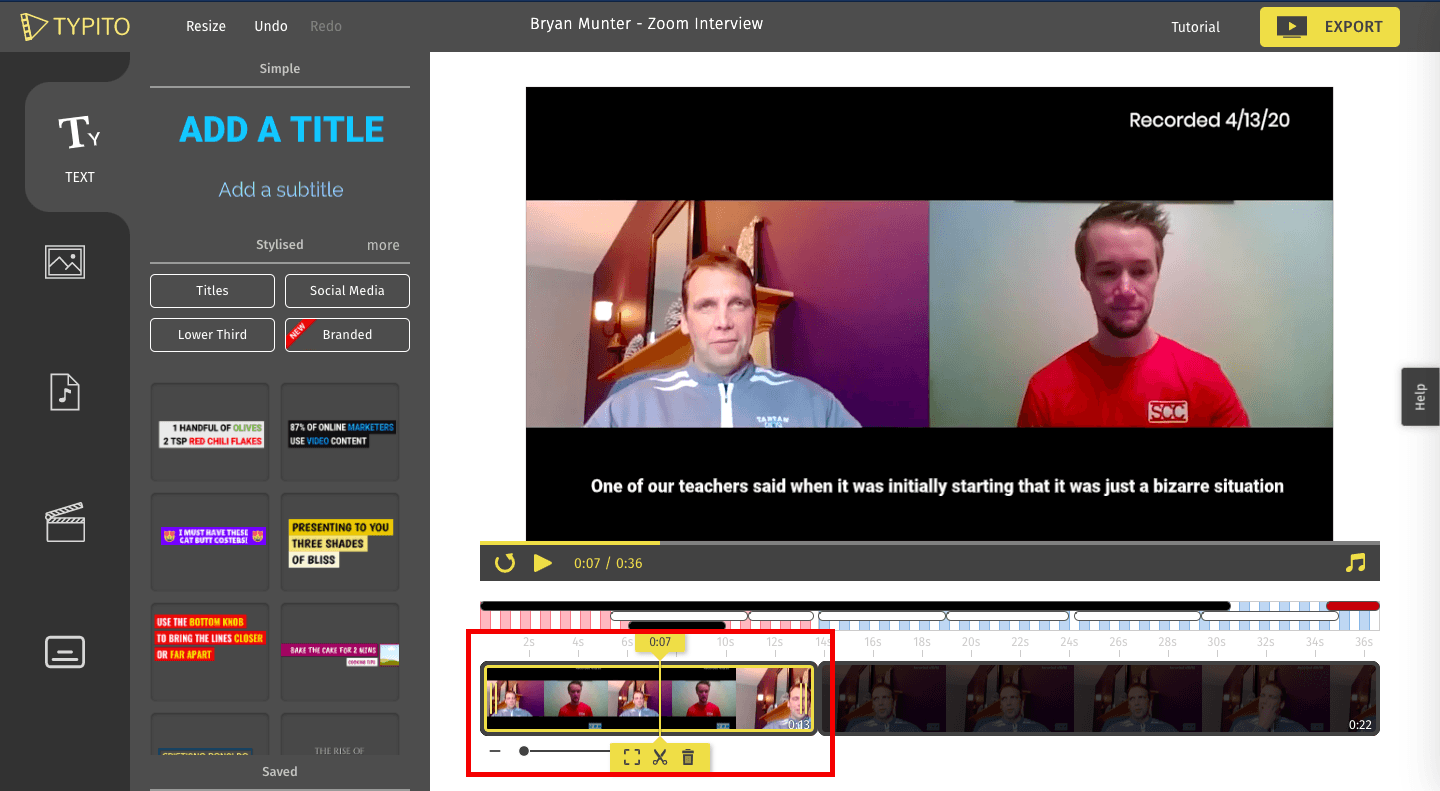
When both constraints land on the same deadline, the solution isn't a faster tool. It's a smarter sequence. The workflow below front-loads every decision so that Zoom Support's documented processing window of up to 2 hours runs in the background while you're doing something else entirely, not while you're watching a clock and refreshing a browser tab.
Trim the Moment the Recording is Available
As soon as Zoom finishes processing your cloud recording and marks it as ready, open it and start the trim. Not in an hour. Not after you've drafted the email you're sending it in. Right now. This single habit is what separates people who hit deadlines from people who miss them by ninety minutes. The processing window doesn't care about your schedule, but you can care about it by giving it a head start.
Set Your Start and End Points in One Deliberate Pass
Review the full recording first, note your exact timestamps, then set your trim points intentionally. Each recording is limited to five trims every twelve hours, so every careless adjustment chips away at a finite budget. The failure point here is treating the trim interface like a scratchpad. It isn't. One pass, clean timestamps, confirm. That's the discipline the limit is quietly demanding from you.
Confirm and Note Your Expected Completion Window
After you confirm the trim, write down roughly when you expect it to finish based on your recording's length. A thirty-minute recording will finish faster than a ninety-minute one, and knowing that prevents you from assuming something's broken when it isn't done in five minutes. Set a calendar reminder or a phone alarm for that window. Then close the tab and go work on something else. Checking repeatedly doesn't accelerate server-side processing. It just costs you focus.
Download a Backup Before the Trim Runs
If you need to preserve the original version separately, download it before confirming the trim or immediately after. Zoom's trim tool overwrites the source file by default, which means once the process completes, the untrimmed version is gone. This matters most when you're editing a recording that multiple people need in different forms. A department head might need the full session. A social media manager needs ninety seconds. Download first, then trim, and keep both versions separate.
Scaling Output Beyond Zoom Bottlenecks
Most creators handle this by keeping everything inside Zoom's cloud interface and managing versions manually. That works when you have one recording and one destination. When you regularly pull clips from webinars, team calls, or interviews for short-form content, that workflow quickly becomes a bottleneck. Crayo bypasses the trim queue entirely by letting you auto-clip, caption, and format content for publishing in seconds, so processing wait time becomes irrelevant to your output timeline.
Why the Sequence Matters More Than the Speed
This workflow improves your workflow, not just trimming speed. Zoom's processing time is fixed. What changes is when that fixed window runs relative to your deadline. Starting immediately after the recording is available means the two-hour window closes well before you actually need the file. Starting an hour before you need to share it means you're handing someone a link to a recording that's still locked. Same tool, same processing time, completely different outcome.
Before vs. After the Workflow
Before: trim started close to the deadline, multiple small adjustments eating into the five-trim limit, no backup of the original, and a locked recording at exactly the wrong moment.
After: trim starts the moment the recording is ready, timestamps are confirmed in a single pass, a backup is downloaded if needed, and the processing window runs quietly in the background while you move on.
The difference isn't technical. It's behavioral. And behavioral changes are the ones that stick, because they don't depend on Zoom changing how its tool works. But the real question isn't just how to survive Zoom's limits. It's whether those limits should be part of your workflow at all.
Related Reading
- Podcast Shorts
- Repurpose Keynote Into Social Media Clips
- Church Reels Editing
- How To Start Clipping On Instagram
- How To Trim A Zoom Recording Saved On My Computer
- Best Video Clipping Tool For YouTube
- Repurposing Content For Social Media
- How To Add Audio To A Video
- Podcast Reels
- How To Repurpose Webinar Content For Marketing
Skip the Wait Entirely With Crayo
Zoom's trim tool was built for access, not speed. If your timeline is tight, uploading your downloaded recording to Crayo removes the server-side processing wait entirely. You trim to your intended cut points, export, and share on your own schedule, not Zoom's. The people consistently hitting same-hour turnarounds aren't working harder inside Zoom's constraints. They've simply stopped treating those constraints as fixed. A clip creator tool built around a three-step workflow handles the editing decisions that matter, without the processing window that doesn't.
Related Reading
• Content Repurposing Tool
• Best AI Video Repurposing Tools 2026
• Best AI Video Clipping Tools 2026
• Best Way To Make Podcast Clips
• Best AI Video Tools Like Vizard For Webinar Clips
• Best Audiogram Maker
• How To Automate My Video Clipping
• How To Trim A Zoom Recording
• How To Trim Google Meet Recording