

You record a podcast episode, write a blog post, film a tutorial, and somehow still feel like your content is not reaching enough people. Sound familiar? The real problem is not the quality of your work but how you distribute it. A content repurposing tool changes that by turning one piece of content into multiple formats, whether that is short video clips, social media posts, or audiograms, so your message travels further without doubling your workload. If you have been searching for the best AI podcast clip generator to squeeze more value from your recordings, this guide breaks down the 7 best content repurposing tools for creators in 2027 to help you find the right fit.
One tool worth knowing before you scan the full list is Crayo, which also covers the 7 best AI video clipping tools to edit faster in 2026. Crayo is built for creators who want to transform long form video and audio into short clips ready for platforms like TikTok, Instagram Reels, and YouTube Shorts without spending hours in a traditional video editor. Understanding what Crayo offers gives you a useful benchmark before comparing the other tools on this list.
Summary
- AI video clipping tools are becoming a practical solution to a problem most content teams already feel but rarely name: the gap between a finished recording and a publishable short is not a trimming problem; it is a workflow design problem. The edit itself takes minutes. The surrounding decisions, locating the source file, confirming permissions, identifying the right moment, and verifying the export, account for the majority of time lost in most content workflows.
- Context loss during trimming creates downstream costs that go well beyond a rejected export. When a clip drops the qualifying condition or cuts the framing sentence, the damage extends to credibility and distribution, requiring retractions, reposts, and direct corrections to viewers who already watched the incomplete version.
- Permission and ownership are the most commonly skipped steps in meeting recording workflows. A recording link grants viewing access, not editing or redistribution rights, and that distinction catches teams every time. According to a LinkedIn discussion cited in the article, the inability to manage recordings is one of Google Meet's most consistently frustrating limitations, with the gap between viewing a file and having the right to edit or share it creating repeated friction for training teams and marketing departments alike.
- Non-destructive trimming is a specific technical risk that most editors do not account for. Some editing tools, including Clipchamp's video player trim feature as documented by Microsoft, hide sections during playback without removing them from the underlying file. If the original recording contains sensitive client information, unreleased pricing, or private conversation, a preview trim does not make the file safe to share.
- A structured 20-minute workflow covers one accessible, already-processed recording into one reviewed excerpt, according to the Tinrec Blog, but that estimate holds only when the file is short, familiar, and already within reach. Recordings that exceed Google Vids' 35-minute or 4 GB file constraint, or that require access requests before download, fall outside that window entirely.
- The choice of trimming method has compounding consequences at scale. According to IT Genius, Google Meet recordings can run up to 8 hours long, and at that length, a tool requiring a full download before any editing can begin adds friction that multiplies across every clip a team produces in a week.
To help readers know the 7 best AI video clipping tools to edit faster in 2027, this article addresses the structural gap between raw meeting recordings and publishable short-form content by comparing tools that handle trimming, caption generation, and vertical reformatting within a single workflow rather than requiring separate applications for each step.
Why People Struggle to Trim Google Meet Recordings

Trimming a Google Meet recording is technically straightforward. The struggle is almost never about the tool. It is about where people look, what they assume they own, and what they think "done" means after they cut.
Why Google Meet Recording Access Doesn't Always Mean Editing Permission
The failure point is usually location. Google Meet automatically stores recordings in the organizer's Google Drive folder, but the person who wants to edit is often not the organizer. They receive a link, can watch the file, and reasonably assume that watching equals access. It does not.
According to a LinkedIn post by Markiyan Matsekh that drew 28 comments from users discussing Google Meet limitations, the inability to manage recordings is one of the platform's most consistently frustrating pain points. The gap between viewing a file and having permission to edit or redistribute it catches people every time.
Why Trimming a Video Doesn't Always Remove Sensitive Content
The same issue affects both training teams and marketing departments: someone trims a video, exports a preview, and shares it, believing the edit is final. Some editors use non-destructive trimming, which hides sections during playback without removing them from the underlying file. Microsoft explicitly documents this distinction in Clipchamp.
This becomes a risk when the original recording contains:
- A client name that should not be shared externally
- An unreleased price that must remain confidential
- A private conversation not intended for external audiences
A preview trim does not make the full file safe to share externally.
How to Repurpose Video Content Without Losing Important Context
Most teams handle content repurposing by downloading the full recording, opening it in whatever editor is available, and making quick cuts.
That workflow feels efficient until the final clip reaches an audience with:
- Missing context: The question that made the answer meaningful is gone.
- An overlooked disclaimer: The editor cut a 30-second disclaimer they assumed was filler.
Not all cuts have the same impact:
- Removing an awkward pause is harmless.
- Removing a statement like "this only applies to enterprise accounts" is not.
Content repurposing tools built for speed can accelerate these mistakes if the editor hasn't first identified a complete, self-contained moment. Platforms like Crayo are designed to work with long-form media and identify clip-worthy segments.
Why Fast Video Downloads Don't Mean Content Is Ready to Publish
According to the Tinrec Blog, Google Meet recordings can be downloaded in as little as 30 seconds, meaning someone can have the raw file almost immediately after a meeting ends.
Speed isn't the problem. Fast access can create a false sense of readiness:
- The recording exists: The meeting has ended, and the file is available.
- The download is complete: The raw recording is already in someone's hands.
- The impulse to publish takes over: Editing begins before important checks are completed.
The risk comes from skipping these checks:
- Confirming authority to edit and publish the recording.
- Reviewing the full segment before making cuts.
- Checking whether the clip makes sense without its surrounding context.
5 Steps to Safely Repurpose and Share Video Content
The better approach to content repurposing isn't complicated, but it requires a deliberate process.
Follow these five steps:
- Locate the source file: Find the original recording in Google Drive.
- Confirm your permissions: Make sure you have the right to edit and redistribute the recording.
- Identify a complete moment: Select a segment that keeps both its setup and resolution intact.
- Export a new file: Create a separate file containing the edited content.
- Verify the exported file: Check the new file before sharing it with anyone.
When teams skip that sequence at scale, the consequences are more consequential than most people expect.
Related Reading
- Best AI Podcast Clip Generator
- What Is An Audiogram Podcast
- How Long Does It Take To Trim A Zoom Recording
- Content Repurposing Examples
- Webinar To Short Clips AI
- Clipping a YouTube Video
- Podcast Clips For Social Media
- Video Clipping For Social Media
- How Do I Repurpose My Interview To Social Media
- Sermon Clips AI
The Hidden Cost of Trimming Google Meet Recordings Incorrectly

The real cost is not the edit itself. It is everything around the edit: the file hunt, the format mismatch, the accidental overshare, the approval loop that starts over because the clip lost context somewhere between recording and export.
Scale that across a content team producing weekly highlights, training clips, or podcast-style repurposed segments, and the math becomes uncomfortable fast. The individual steps feel minor. The cumulative drag is not.
Where the Workflow Actually Breaks Down
The failure point is usually invisible until it happens a third or fourth time. A team member exports a clip, sends it for review, and gets it back with a note: "This doesn't make sense without the slide before it." So they go back to the source file, locate the right timestamp, re-export, and re-share.
That cycle, repeated across eight recordings a month, is not an editing problem. It is a workflow design problem. The trim handle is the last five percent of the job. The other ninety-five percent is process.
Why Content Repurposing Needs a Repeatable Workflow
Most teams handle this by treating each recording as a one-off task rather than a repeatable content repurposing workflow. That works fine when recordings are rare. When a team is pulling the following from multiple meetings per week, the absence of a consistent process compounds:
- Short-form clips
- Audiogram segments
- Highlight reels
According to Bloomberg Tax, Google Cloud itself was trimming hundreds of millions in operational losses through structural changes rather than surface-level fixes, a reminder that sustainable efficiency comes from redesigning the system, not patching individual steps.
The same logic applies here: patching one export at a time is not a content repurposing strategy.
How Clip Extraction Tools Address Workflow Gaps
Tools like Crayo exist precisely because this gap is structural, not personal. When a content creation tool is built around clip extraction rather than general-purpose video editing, it removes the following steps that create the rework cycle in the first place:
- Format-checking
- Timestamp-hunting
- Context-guessing
Why Context Loss Costs More Than Time
When a clip loses its setup, the damage is not just a rejected export. It is a credibility problem.
For example:
- A training snippet that drops the qualifying condition.
- A highlight reel that cuts the speaker's framing sentence.
Both send viewers in the wrong direction. Correcting that after distribution requires more than a re-edit. It requires:
- A retraction
- A repost
- Sometimes, a direct message to everyone who already watched the incomplete version
For teams using video as a primary content distribution channel, that is a reputational cost with no clean dollar figure attached. The better metric to track is simpler:
- First review: How many clips passed a context-and-permission check?
- Second round: How many clips required another review?
The trimming method you choose changes everything about whether that first-review pass rate improves or stays flat.
7 Ways to Trim a Google Meet Recording
The method you choose shapes more than the output file. It shapes the entire downstream workflow:
- Who reviews it
- Where it lives
- Whether you add captions
- Whether the final clip has enough context to stand on its own
That chain of decisions is where most teams lose time, not in the editing itself.
1. Google Vids: Start Where the File Already Lives

When a recording sits in the organizer's Google Drive, opening it through Google Vids skips the download-and-reupload cycle entirely. You create a new editable project from the existing file, trim or split scenes, and export a clean MP4 without touching the original. The limit worth knowing before you start: Google's documented Drive-to-Vids route caps individual clips at 35 minutes or 4 GB and supports only specific file types under qualifying account conditions.
The failure point is usually assuming the file qualifies before checking. A 90-minute all-hands recording will not fit that constraint, and discovering that mid-edit wastes more time than the shortcut saved. Confirm the file size and format first, then open Vids.
2. QuickTime Player: One Trim, No Setup

If the goal is to remove the first four minutes of small talk or cut the last ten minutes of wrap-up, QuickTime Player on a Mac handles it in under two minutes. Download the approved recording, open it, go to Edit, select Trim, drag the yellow handles to the section worth keeping, and export a separate copy. That is the entire process.
The constraint is also the feature. QuickTime does one continuous trim. If you need to remove a section from the middle of a recording, or produce three separate clips from one file, you need a timeline editor instead. Matching the tool to the cut you need is what keeps the first-review pass rate high.
3. Clipchamp: For Cuts That Aren't at the Edges
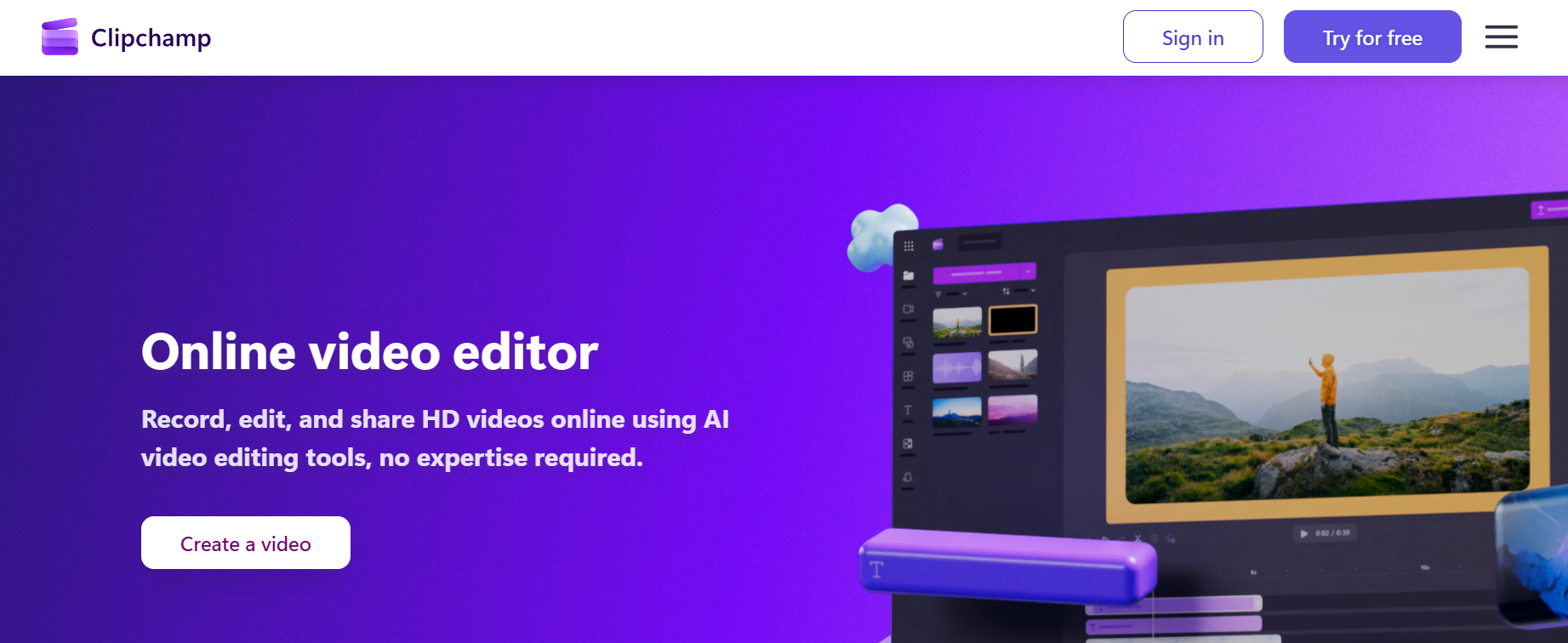
Microsoft's Clipchamp timeline editor solves the problem QuickTime cannot. You can split a recording at any point, remove a middle segment, rearrange what remains, and export a new file. A two-minute setup delay buried inside a seven-minute demo is gone without touching the beginning or end.
One distinction that matters: Clipchamp's full editor and its video player trim feature are not the same tool. Microsoft's own documentation notes that the player's non-destructive trim can still expose original content to users with sufficient access permissions. Always use the full editor and export a new file when the goal is a clean, shareable clip.
4. Descript: Edit the Words, Not the Waveform

The same issue surfaces in interview-heavy recordings and spoken tutorials: finding a specific moment on a long visual timeline takes longer than it should. Descript solves this by generating a transcript first, letting you delete sentences or paragraphs in the text view, then automatically reflecting those cuts in the video. For dialogue-driven content, that is a faster path to the right moment.
The honest limit here is transcription accuracy. Technical terms, proper nouns, and numbers get misheard often enough that you should treat the transcript as a navigation tool, not a final accuracy check. Review the actual audio cuts before export, especially if the clip will be shared publicly.
5. Crayo: When the Clip Needs to Travel
Most teams handling approved webinar content or public-facing Q&A sessions run into a second problem after trimming: the raw cut is not social-ready. It needs captions, vertical reframing, and a hook that works without sound. That is where trimming tools blur into content repurposing tools, and the workflow changes.
How Integrated Content Repurposing Tools Simplify Video Editing
The familiar approach is to trim in one tool and then import into a second app for captions and formatting. That works until:
- The file format changes between steps.
- The caption timing drifts.
- The export settings differ between platforms.
Crayo addresses this by combining the following in a single session:
- Trimming
- Caption generation
- Vertical format controls
This means an approved one-minute answer about a product feature can become a finished Shorts or Reels clip without a second tool in the chain.
According to the Tinrec Blog, three distinct methods were tested for Google Meet recording workflows in 2027, and the gap between single-purpose trimmers and integrated clip-to-publish tools was one of the clearest differentiators across use cases.
6. CapCut Works Best for Short-Form Video Editing
CapCut covers similar ground for creators working primarily on a phone. The workflow involves:
- Import the approved clip.
- Split at the desired start and end points.
- Apply captions.
- Export in 9:16.
The mobile-first workflow is genuinely fast for short-form social content. It is not the right fit, though, for:
- Large files
- Sensitive recordings
- Teams that need consistent formatting across multiple clips in a single session
7. iMovie: When Polish Matters More Than Speed
Educators and trainers building multi-segment replays need more than a single trim. iMovie lets you import a downloaded recording, split it into labeled chapters, remove irrelevant sections, and add titles before exporting. The result carries more structure than a raw clip, which matters when the audience is expected to follow a sequence.
The tradeoff is rendering time. As the project grows in length or segment count, export takes longer. For a single clean replay under 20 minutes, that is manageable. For a full-day workshop broken into eight chapters, plan the export around a time when the machine can run uninterrupted.
Choosing by Use Case, Not by Feature Count
The decision is not about which editor has the most AI features or the cleanest interface. It is about matching the output requirement to the tool that gets you there in the fewest steps. A private internal training clip needs an approved source, a simple cut, and a separate exported file. A public-facing short from an approved webinar needs captions, reframing, and a hook.
According to IT Genius, Google Meet recordings can run up to 8 hours long. At that length, the choice of trimming method stops being a minor preference and becomes a workflow decision with real-time consequences. A tool that requires a full download before editing a 6-hour file adds friction that compounds across every clip a team produces.
The right method gets a clip to the right audience without a second round of edits. The clip must be:
- Context-checked
- Permission-verified
Every extra step between the raw recording and the final file is a place where something gets:
- Missed
- Delayed
- Shared incorrectly
But knowing which tool fits which job is only half the equation, and the half that trips people up is usually the part nobody maps out in advance.
The 20-Minute Workflow to Trim a Google Meet Recording

The part that trips people up is rarely the trim itself. It is everything that happens before the cursor touches the timeline:
- Finding the right file
- Confirming who owns it
- Knowing exactly which 3 minutes and 42 seconds are worth keeping
A structured 20-minute workflow covers one accessible, already-processed recording into one reviewed excerpt, and that estimate holds only when the file is short, familiar, and already within reach. That qualifier matters. A long webinar with a slow download or a recording locked behind an access request will not fit a 20-minute window. The workflow is not a speed trick. It is a decision sequence, and each decision has its place.
Minutes 0 to 3: Locate and Confirm the Source
Start with the following details:
- Meeting date
- Organizer name
- Recording link
Then follow these steps:
- Open Google Drive.
- Find the recording inside "Google Meet" or the relevant meeting folder.
- Check "Legacy Meet Recordings" if the file is older.
- Confirm the title and date before touching anything else.
The permission question comes here, not later. If you do not have authorization to download, edit, and share the intended portion, every subsequent step is built on a broken foundation. Confidential content should never move to an external editor without explicit approval.
Minutes 3 to 6: Identify the Exact Moment
Then follow these steps:
- Note the start and end timecodes.
- Listen 10 seconds before and after each boundary.
- Confirm that the following all land intact:
- The question
- The condition
- The conclusion
A practical example: your target is 12:15 to 15:50, but the answer at 12:15 only makes sense if the question at 12:08 is included. Trimming the wrong sentence efficiently is still a failed edit. The timecode pair you record here becomes the single source of truth for everything that follows.
Minutes 6 to 11: Trim in the Appropriate Editor
The tool choice follows the outcome, not the other way around.
Choose the tool based on your editing needs:
- Google Vids: For an eligible Drive file, Google Vids handles trimming directly inside the platform.
- QuickTime Player: For a downloaded Mac file, QuickTime Player covers a single continuous cut cleanly.
- Clipchamp: For multiple internal cuts, Clipchamp gives you a full timeline.
Most teams handle this step by opening whichever editor they already know and working backward from there. The hidden cost is discovering a format mismatch or a file size constraint halfway through, which forces a restart with a different tool. Choosing the editor after the outcome is defined prevents that loop entirely. For approved recordings destined for vertical social formats, Crayo trims and reformats the excerpt for short-form use without requiring a separate reformatting pass afterward.
Minutes 11 to 15: Verify Meaning and Privacy
Watch the beginning, the middle transition, and the final sentence of the edited timeline.
- Check that no speaker is cut off mid-thought.
- Confirm that no confidential client names, unreleased figures, or visible chat content made it into the clip.
If you are adding captions, correct names, numbers, and technical vocabulary manually before the file leaves your hands. AI-generated captions distort proper nouns and domain-specific terms so often that a single wrong number can undermine the credibility of an otherwise solid clip. This review step catches context loss and privacy exposure before the file is shared.
Minutes 15 to 18: Export a New File
Export an actual MP4 rather than saving an editor preview state. Name the file clearly, for example, "ProductDemo_Approved_03m42s.mp4," and keep the original in its protected folder. Check the exported file's duration directly rather than trusting the editor's timeline counter.
The naming convention is not a formality. When a team produces clips regularly, an unnamed or generically titled export becomes unidentifiable within days. A clear name with an approval status and duration embedded in it removes one more decision from the handoff process.
Minutes 18 to 20: Final Playback and Handoff
Open the exported file outside the editing project and play it from the first frame. Check sound, subtitles, visible slides, and the final frame before sending anything. Share the edited copy with the correct recipients rather than forwarding the original recording link.
- Record the source
- Date
- Approver
- Intended use before closing the project
The job finishes when the right person receives the right version with enough context to use it correctly. Clicking the trim icon is not the finish line.
Before Sharing: Five Checks That Prevent Rework
The Tinrec Blog frames this kind of structured review across six dimensions when comparing recording approaches, and the pattern holds here: each checkpoint addresses a specific failure mode rather than a general sense of "looks good."
Run through these five before any clip leaves your hands.
- Is this the correct meeting recording?
- Did the owner approve the clip's intended use?
- Does the clip preserve the complete meaning?
- Did you export a new media file and play it back in a separate viewer?
- Did you confirm the recipient's access to the edited file, not just the original folder?
When the Workflow Breaks Down
No recording found means checking organizer ownership, meeting-specific folders, and the confirmation email sent when the recording started. Google Vids refusing to open a file usually points to a format mismatch, a file exceeding the 35-minute or 4 GB constraint, or an account access issue.
If only a sharing link is available and download rights are not granted, request edit authority through the organizer. Bypassing access restrictions creates a compliance problem that no amount of clean trimming can fix. AI captions distorting a name or number require manual correction before publishing, not after.
The Before and After That Actually Matters
The old pattern looks like this: search randomly, trim by rough estimate, share the original link, fix mistakes after someone flags them.
The new pattern is a sequence: locate, authorize, timecode, trim, context-check, export, verify.
Time savings in this workflow do not come from skipping the permission or accuracy steps. They come from giving each decision a fixed position in a repeatable process so nothing has to be reconstructed from memory under pressure. The difference between a 20-minute clip and a 2-hour fire drill is usually one skipped step early on. Once you lock in that process, the next question stops being about trimming at all.
Related Reading
- Church Reels Editing
- Podcast Shorts
- How To Start Clipping On Instagram
- Best Video Clipping Tool For YouTube
- Repurposing Content For Social Media
- How To Add Audio To A Video
- How To Repurpose Webinar Content For Marketing
Turn Approved Meeting Highlights Into Short Clips With Crayo
Once the workflow is locked and the approved excerpt is in hand, the remaining question is purely about output format. Most teams handle the publishing step by exporting a raw clip and dropping it into a social queue, which works until they realize the vertical framing is wrong, the captions are missing, and the opening ten seconds assume the viewer already knows the speaker. That gap between a verified clip and a publishable short is where editing time quietly doubles.
Iterative Optimization on a Unified Timeline
Crayo closes that gap. Its browser-based editor lets you trim the approved excerpt, reframe it for vertical formats, add captions, and adjust audio on a single timeline, without moving the file across three separate tools. If you want to explore whether a longer approved recording contains additional usable moments, the Find Viral Moments feature can surface candidates, though each one still needs your review before it becomes a post.
Start at Crayo, bring in one approved excerpt, and treat the first export as a test of your format, not a final product. Measure retention after 48 hours, adjust the hook or caption style, and repeat with the next approved moment.