
Podcasters know the struggle: you record a great episode, but getting people to actually listen feels like a separate job. Turning audio into eye-catching audiograms, short animated sound-wave clips that stop people mid-scroll, is one of the smartest ways to grow an audience on social media. If you have been searching for the best AI podcast clip generator to speed up the process, you are in the right place. This article breaks down the 6 best audiogram makers that can help you create shareable podcast clips in 30 minutes or less.
One tool to know early is Crayo's clip creator, which takes the guesswork out of turning raw audio into polished audiogram content. Instead of wrestling with waveform editors or audio visualization settings, you get a straightforward way to produce podcast clips that look good and fit platforms like Instagram, TikTok, and YouTube Shorts. Whether you need subtitles, sound wave animations, or custom backgrounds, Crayo keeps the process short so you spend more time making great content and less time editing it.
Table of Contents
- Why Podcasters Struggle to Choose an Audiogram Maker That Fits
- The Hidden Cost of Picking an Audiogram Maker by Its Free Plan
- 6 Best Audiogram Makers for Podcast Clips in 30 Minutes
- The 30-Minute Workflow Podcasters Use to Turn Audio Into Audiograms
- Turn Podcast Video Into Short Clips Faster With Crayo
Summary
- Short-form social video has changed what podcast audiograms need to do. Edison Research's Podcast Consumer 2026 data found that 82% of weekly podcast consumers watched video podcasts, compared to 78% who listened to audio only. A static waveform on a still image competes differently in a feed where audiences expect faces and captions, so format choice now shapes whether a clip earns attention or gets scrolled past.
- Free plan limits rarely match a real publishing schedule, and the mismatch tends to surface around week three. Headliner's free tier allows one unwatermarked audiogram per month, Wavve's Starter plan covers 18 exported videos, and Kapwing's free plan caps total monthly exports at 30 minutes while adding a watermark to every file. None of those restrictions appear in the demo video, but they determine whether the tool can sustain a weekly publishing habit without forcing an upgrade.
- Upload behavior quietly drains monthly quotas before creators notice. Sending a full 60-minute episode into an audiogram tool to find a 90-second clip consumes most of a plan's upload-minute allowance before a single finished clip exists. Trimming audio to the exact clip length before uploading is a small habit change that protects quota across every tool and every pricing tier.
- Switching audiogram tools mid-schedule carries a hidden cost that most creators underestimate. Brand colors, caption styles, animated waveform templates, and the visual identity an audience has started to recognize do not migrate between platforms. Rebuilding that visual consistency takes time at the exact moment a publishing schedule demands it, so evaluate any free plan's upgrade path before the first export, not after the fourth watermarked clip goes live.
- Platform format matching matters more than template choice. Vertical 9:16 is the native format for Reels and TikTok, and a square or landscape clip on a vertical feed wastes screen real estate and signals to the algorithm that the content wasn't built for that platform. Deciding the aspect ratio before export prevents a category of errors that no caption style or waveform animation can fix after the fact.
- Caption accuracy and watermark checks are the two review steps with the highest failure cost. Most mobile video is watched on mute first, so captions carry the clip before audio ever plays, and errors in guest names, numbers, or technical terms are visible to every viewer who reads. An unintentionally chosen watermark is a branding decision made by the tool, not the creator, and it becomes public the moment the clip goes live.
Crayo's clip creator tool solves this by combining auto-clipping, AI captions, and vertical video generation into one workflow, so creators working from video episodes don't have to split the process across separate subscriptions to produce one polished short-form clip.
Why Podcasters Struggle to Choose an Audiogram Maker That Fits
Picking an audiogram maker feels simple until you realize you've been comparing the wrong things. Most podcasters evaluate tools by their waveform animations, caption styles, and background templates. Those are the visible parts. The limits, export caps, watermark rules, and format assumptions sit quietly in a pricing table most people never open. The same pattern shows up across content creation and software decisions: people compare what the product shows them, not what it restricts.
- Headliner's free plan allows one unwatermarked audiogram per month.
- Wavve's Starter tier lists 70 upload minutes and 18 exported videos.
- Kapwing's free plan caps exports at 30 minutes per month and adds its watermark to every file.
None of these limits appear in the demo video. All of them determine whether the tool survives contact with a real publishing schedule.
Overcoming Usage Caps and Workflow Friction
The habit of uploading full episodes compounds this. When a cap is measured in upload minutes or export minutes, sending a 60-minute episode to extract a 90-second clip is an expensive habit. The bottleneck is not the tool's capability. It's the mismatch between how the tool counts usage and how the creator actually works. Trimming the clip before uploading, or choosing a tool that counts differently, changes the math entirely.
Most teams handle this by trying a free plan, building a short routine around it, and then hitting the wall in week three when the monthly cap resets and the fourth clip of the month is blocked or watermarked. That friction is predictable, not accidental. Free tiers are designed to demonstrate value, not to sustain a weekly publishing habit.
Streamlined Workflows for Video-First Audiences
Crayo approaches this differently, combining auto-clipping, captions, and video generation into a single workflow so creators don't juggle separate tools or count minutes across multiple subscriptions just to publish one polished clip.
Edison Research's Podcast Consumer 2026 data, reported by Sounds Profitable, found that 82% of weekly podcast consumers watched video podcasts, compared to 78% who listened to audio only. That shift matters because a static waveform on a still image is a different content object from a person talking on screen. Audiograms made sense when audio-only was the default format. When the audience watches, the format has to earn its place in the feed, not just check the "I posted something" box.
Evaluating Tool Limits and Audience Alignment
Choosing an audio visualization tool, a podcast clip maker, or a short-form video editor is ultimately a scheduling decision dressed up as a creative one. Match the tool's export limits to how often you publish, check whether the free plan watermarks your output, and confirm the format fits where your audience actually spends time. Get those three things right, and the template barely matters. Skipping that math and committing to a free plan before reading the fine print costs more than most creators expect.
Related Reading
- Best AI Podcast Clip Generator
- What Is An Audiogram Podcast
- How Long Does It Take To Trim A Zoom Recording
- Content Repurposing Examples
- Webinar To Short Clips AI
- Clipping a YouTube Video
- Podcast Clips For Social Media
- Video Clipping For Social Media
- How Do I Repurpose My Interview To Social Media
- Sermon Clips AI
The Hidden Cost of Picking an Audiogram Maker by Its Free Plan
Free plans don't cost money. They cost options, and the bill arrives the moment your publishing schedule outpaces what the plan was designed to support. The pattern repeats itself every time. A creator picks a waveform video tool, posts a few clips, and the workflow feels smooth. Then month two arrives:
- Three clips carry a watermark.
- The upload counter is nearly empty.
- The export format doesn't match the platform where the audience actually watches.
None of those problems appeared on the feature comparison page. According to SoundMadeSeen's review of the 6 best audiogram makers, significant differences in pricing, features, and limitations between free and paid tiers can trap creators into costly upgrades they didn't anticipate when they signed up.
What the Fine Print is Actually Saying
The failure point is usually a mismatch between what the tool counts and what the creator assumes. Uploading a full episode to find the best thirty-second clip sounds efficient. But if the platform counts upload minutes against your monthly quota, you've spent most of your allowance before a single audiogram goes live. The same logic applies to audio visualization tools that cap exports at a number that sounds generous until you multiply it across a four-episode month with three clips each. The math breaks before the month does.
The Hidden Cost of Free-Tier Workarounds
Most creators handle this by staying on the free tier and working around the limits:
- Skipping a clip here
- Dropping image quality there
- Posting the watermarked version and hoping nobody notices
The workaround feels low-cost until you realize every watermarked post is quietly building brand recognition for the tool, not the show. Crayo approaches this differently, bundling AI captions, voiceovers, and video generation into a single workflow so creators aren't counting minutes across three separate subscriptions just to produce one polished short-form clip.
Why Switching Tools Costs More Than Staying
The hidden cost that nobody adds up is the rebuild.
- Brand colors
- Caption styles
- Animated waveform templates
- The specific look your audience has started to recognize
None of that migrates when you move platforms.
Long-Term Costs of Switching Tools
Switching a podcast clip maker mid-publishing schedule means rebuilding the show's visual identity at the exact moment you can least afford the distraction. That's the real price of choosing a free audio clip tool without first confirming whether you'd actually be willing to move to its paid tier. The right question before committing to any free plan isn't "does this work?" It's "what does upgrading look like, and can I afford to rebuild if I don't?" Get that answer before the first export, not after the fourth watermarked clip goes live. Knowing the hidden costs is only half the equation, and the more interesting half is still ahead.
Related Reading
- Church Reels Editing
- Podcast Shorts
- How To Start Clipping On Instagram
- Best Video Clipping Tool For YouTube
- Repurposing Content For Social Media
- How To Add Audio To A Video
- How To Repurpose Webinar Content For Marketing
6 Best Audiogram Makers for Podcast Clips in 30 Minutes
1. Headliner
Headliner's free plan gives you:
- 1080p exports for videos up to 10 minutes
- One unwatermarked audiogram per month
- Unlimited watermarked ones
Basic steps up to 10 unwatermarked exports a month, and Pro removes the cap entirely. The pricing page has inconsistencies in places, so verify the live limits before you commit to a plan. The value here is simple: you can test a real episode in a real template before spending anything, then decide whether Basic's 10 monthly exports actually match your publishing schedule.
2. Wavve
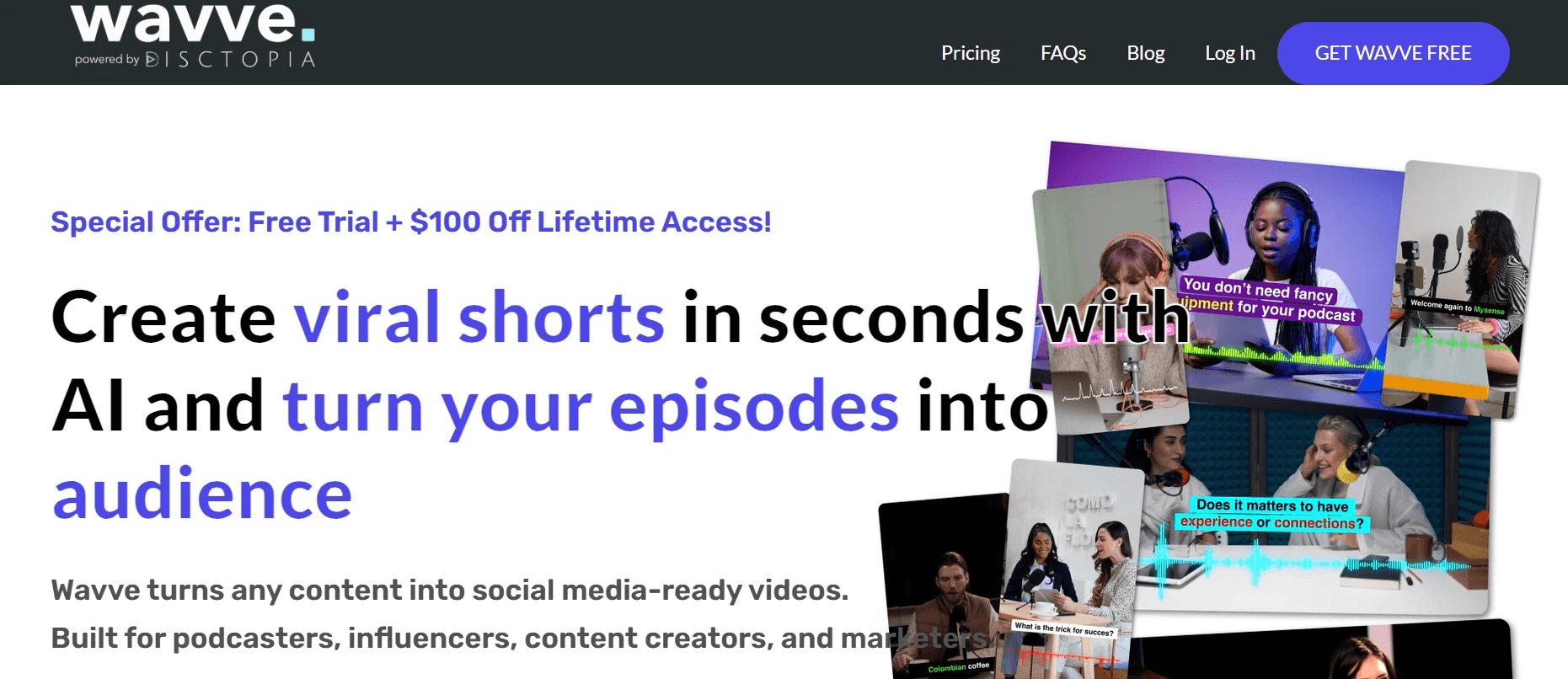
Wavve is built around audiograms specifically, which makes its cap structure easier to evaluate than most general editors.
- The Starter plan costs $7.99/month and includes 70 upload minutes and 18 exported videos, plus captions, templates, auto-resizing, and AI hot spot identification.
- Pro moves to $19.99 a month for 210 upload minutes and 33 videos.
The page does not state watermark rules for the free trial, so export one test clip before you assume the result is clean.
3. Descript
The pattern that surfaces across transcript-first editors is this: the editing experience is strong, but the audiogram workflow is secondary. Descript's free plan gives you one media hour a month, 720p export, and a watermark. Hobbyist unlocks 10 media hours and watermark-free 1080p at $16 or $24 a month, though the page does not label which price is monthly. If you already edit by deleting words from a transcript, Descript keeps clips inside the same workspace. If you want a dedicated waveform tool, it is not the fastest path.
4. Kapwing
Kapwing's free plan caps exports at 4 minutes per video, 720p resolution, 30 minutes of total exports a month, and adds a watermark. Pro runs $16 per member per month billed annually, or $24 billed monthly. The 30-minute export ceiling is workable for a single test, but a weekly show posting three clips per episode will hit it fast. Check that the 4-minute length cap does not cut off the moment you actually want to share before you decide this is your tool.
Most creators handle the multi-tool problem by signing up for one platform to caption, another to animate the waveform, and a third to resize for each platform. The friction compounds quickly. Crayo takes a different path: AI captions, voiceovers, and short-form video generation live in one workflow, so work that typically crosses three dashboards happens in one place.
5. Canva
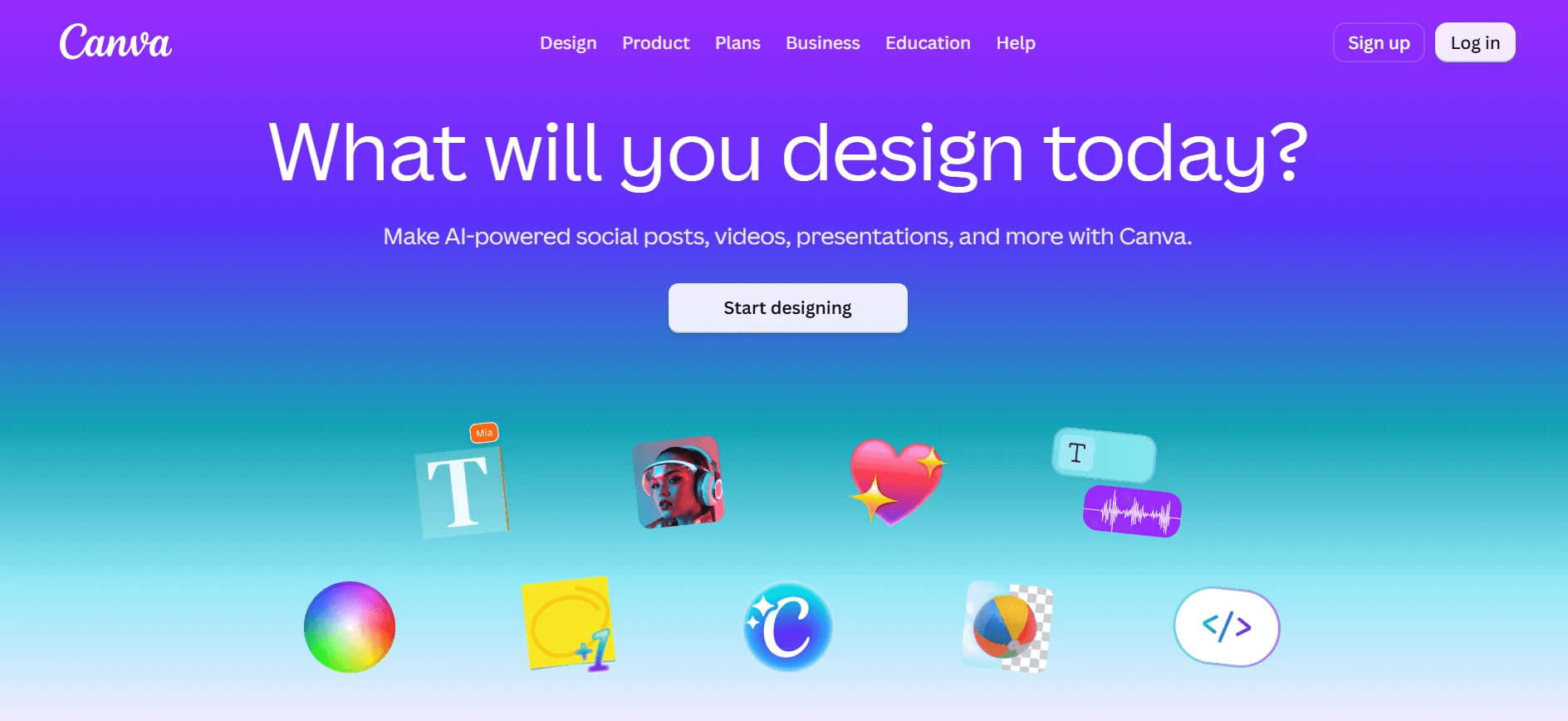
If your brand assets already live in Canva, the case for using it on audiograms is straightforward: your colors, fonts, and logo are already there. The free plan is $0, and Pro runs $144 a year, with video editing listed on both. The gap is that the pricing page doesn't state watermark rules or maximum video length, and waveform animation depends on your plan. Export one test clip first to see exactly what it carries before you build a publishing workflow around it.
6. WaveVisual
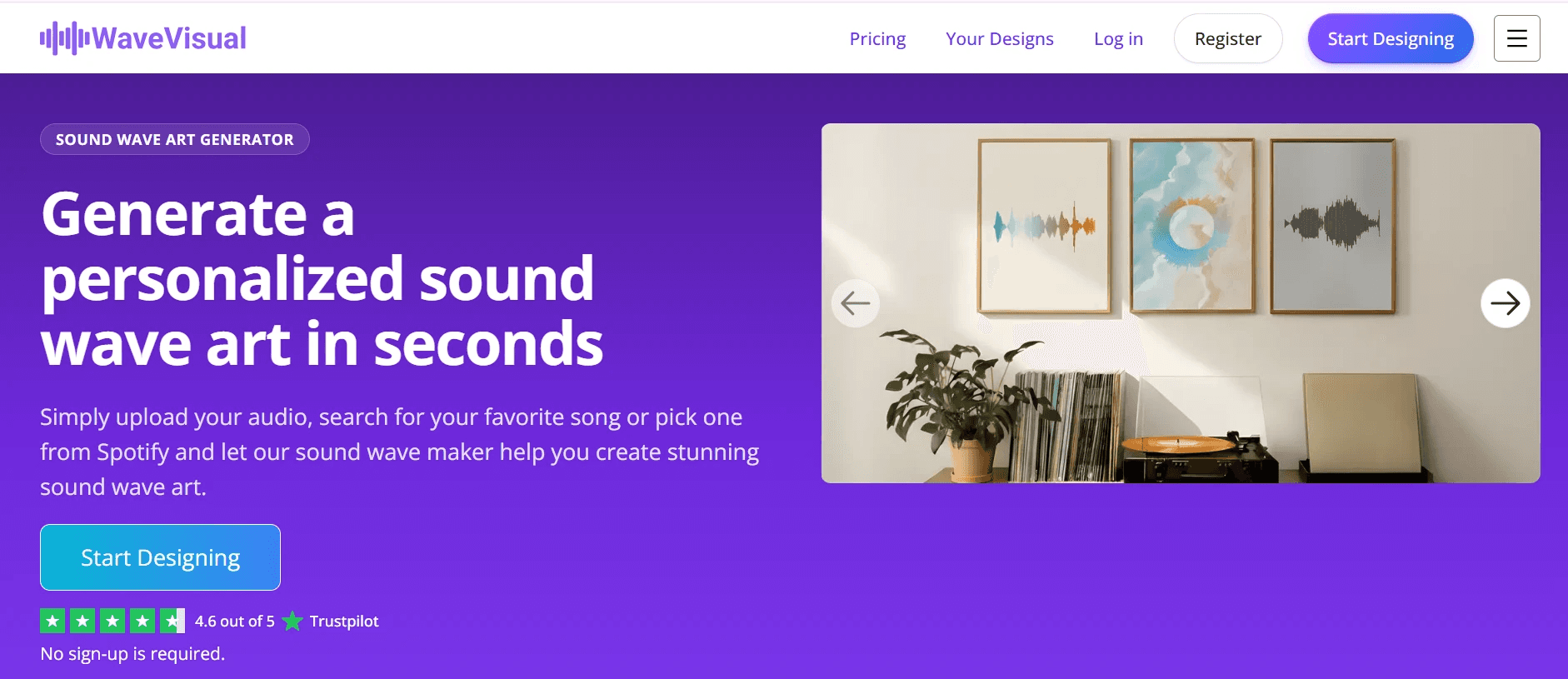
WaveVisual lets you upload a clip, add captions and waveform motion, and preview the result before paying anything. Paid exports carry no watermark, and the tool outputs 1080p MP4 at 60fps in 1:1, 9:16, and 16:9 ratios. A 100-credit pack runs $39. The ratio options matter practically:
- 9:16 for Reels and TikTok
- 1:1 for feed posts
- 16:9 for YouTube
The page does not make clear whether free previews are watermarked on export, so confirm that before you treat the preview as your final file.
Do the Math Before You Pick
Write down your monthly clip count before you open any of these tools. According to the QuickReel Blog, pricing was verified as of June 2026 across six tools, which means the numbers above reflect a real snapshot, not estimates. A weekly show posting three clips per episode needs roughly 12 clean exports a month. Compare that number to each tool's listed cap, and the shortlist writes itself. Upload minutes can matter more than export counts if you send full episodes into the tool. Trim the audio to the clip before you upload, not after. That single habit protects your quota on every plan listed above.
When a Waveform is the Wrong Format Entirely
The failure point is usually a format mismatch, not the tool's quality. If you record your show on video, a static waveform animation may not resonate with your audience. A Ssemble Blog review that tested a 90-minute episode across 10 AI podcast clip makers found that format choice shapes audience engagement as much as the clip content itself. A vertical captioned clip of the real conversation, faces visible and words on screen, often outperforms an audiogram when the source material includes video. Crayo is built for that scenario: it takes uploaded video and generates vertical, captioned clips without requiring a separate audiogram workflow.
Three Questions That Filter Every Tool
Ask these before you commit to any plan:
- Does the cap cover my monthly clip count?
- Does the free export carry a watermark?
- Can I see the result before I pay?
A tool that fails any one of the three is a trial, not a publishing plan. These are not preference questions. They are the difference between a workflow that holds and one that breaks on week three. The surprising part is not which tool wins. It is how much faster the whole process moves once you know exactly how long each step should take.
The 30-Minute Workflow Podcasters Use to Turn Audio Into Audiograms
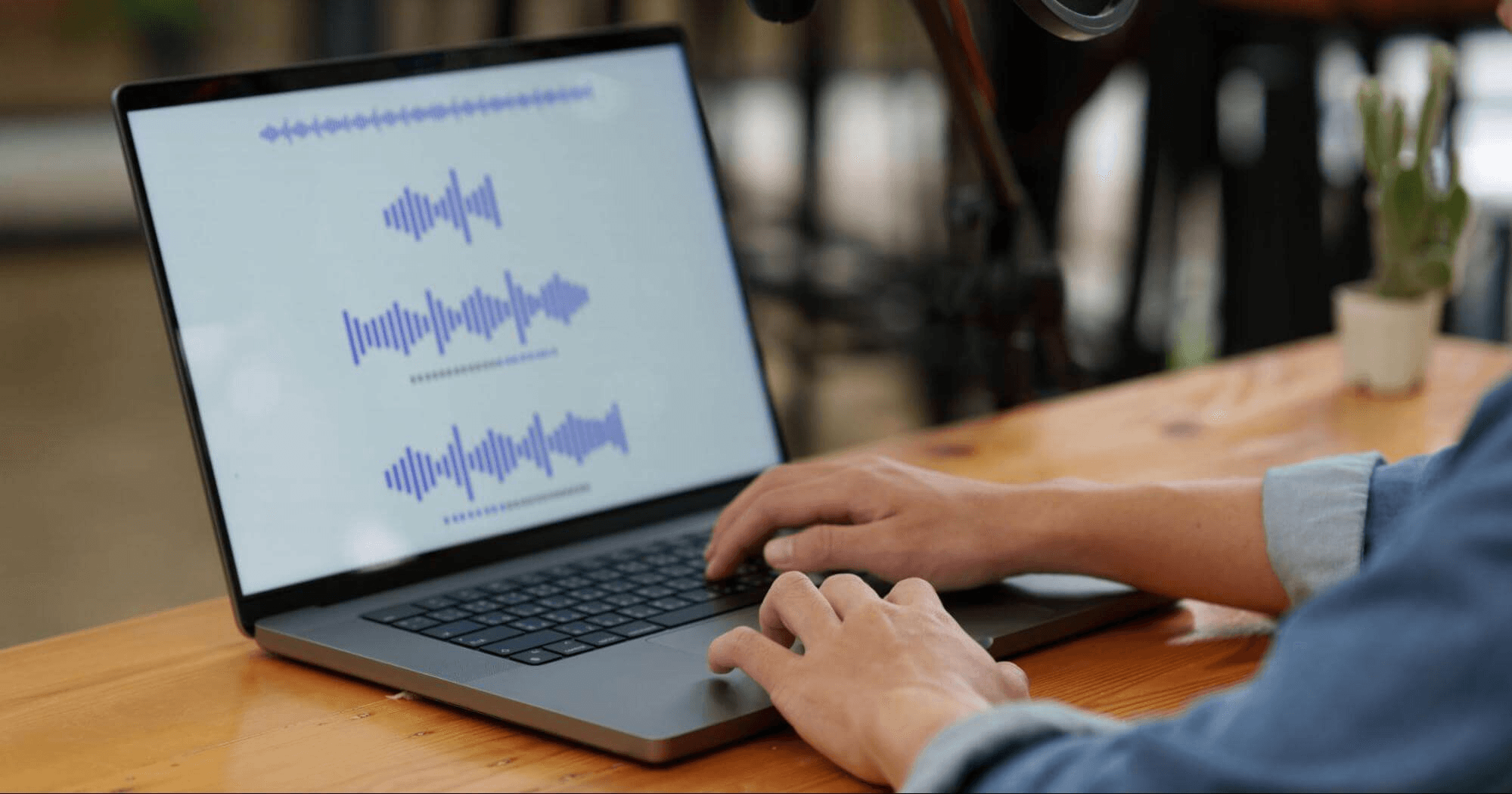
Thirty minutes gets you one finished clip. Not a content calendar, not a viral moment guaranteed, but one complete audiogram that is ready to post and worth posting. That distinction matters more than most workflow guides admit.
Minute 0-4: Decide Before You Open Any Tool
Make the clip decision first, before you touch an upload button or choose a template. Write one line:
- The platform
- The length
- The point the clip makes
30 seconds, Reels, the guest's counterintuitive tip on pricing is a decision. Something good from this episode is a search party. The difference shows up at minute 20 when you are either reviewing a finished file or re-cutting for the third time. Constraint-based thinking works here. If you post on TikTok or Reels, vendor research from The Podosphere puts the effective window at 15-30 seconds. That is not a creative limit; it is a platform behavior pattern. Audiences on those feeds decide in the first two seconds whether to keep watching, so a 55-second clip needs to earn 53 more seconds it rarely gets.
Minutes 4-12: Find the Moment, Then Write the Opening Line
The transcript is your map, not your script. Scan it for the sentence where the guest says something that would stop a stranger mid-scroll. That sentence becomes your first caption line, not a summary of the episode, not "in this week's episode." The claim itself. "Most new podcasts quit before episode ten" earns a second. "We talk about podcasting today" does not. Write the opening caption line before you trim the audio. This order matters because it forces you to confirm the clip actually delivers on the promise the caption makes. If you trim first, you tend to fall in love with the audio and write a caption to fit it, even when the clip isn't that strong. Caption first, then trim to match.
Minutes 12-20: Upload the Clip, Not the Episode
The failure point is usually the upload stage, and it is almost always the same mistake: uploading the full episode to save time finding the moment later. That approach burns through upload-minute caps fast and leaves the heavy editorial work inside a tool built to format clips, not find them. Trim the audio in your podcast editor first, then bring only that file into your audiogram tool. Export in 9:16 for Reels and TikTok. This is not a preference; it is the native format for those feeds. A square or landscape clip on a vertical feed loses screen real estate and signals to the algorithm that the post was not made for that platform. One aspect ratio decision, made once, before you hit export.
Consolidating Fragmented Audiogram Workflow
Most audiogram workflows at this stage involve at least two separate tools:
- One for transcription and caption generation
- Another for waveform animation and export
That fragmentation adds friction and, depending on your plan, adds cost. Crayo consolidates AI captions, waveform visuals, and export into a single workflow, which means the clip you trimmed in minutes 4-12 moves directly into a finished, captioned audiogram without a detour through a second subscription.
Minutes 20-26: Watch it Twice, For Two Different Reasons
Watch the clip once with the sound off. Captions carry the clip on a muted feed, and most social video is watched that way first. If the captions alone do not communicate the point, the clip is not finished. Then watch it again with the sound on and read every caption against the audio, word by word. Errors concentrate in guest names, numbers, and technical terms, and they go public the moment you post.
Check the watermark before you export, not after. A watermark in the lower corner of a clip is a branding decision you didn't make, and it signals to viewers that the tool matters more to you than the content. If your free export carried a watermark you did not expect, that is the moment to decide whether your publishing plan fits the tier you are on, not after the clip is already scheduled.
Minutes 26-30: Post It, Then Record What Happened
The record is the part most creators skip, and it is the only part that makes the next clip faster.
- Save the episode name
- The clip length
- The date
One week later, add the view count and the watch time. Two data points per clip, tracked consistently, will show you within a month which lengths and which opening styles hold attention on your specific feed with your specific audience. "It did okay" is not a data point. 30 seconds averaged 68% watch time versus 42% for the 55-second version is a publishing insight. The difference between those two statements is the difference between guessing on the next clip and knowing.
The Checklist That Prevents the Obvious Mistakes
Run this before every post.
- Does the first line start on the claim, not the setup?
- Are names and numbers spelled correctly in the captions?
- Does the clip finish its idea, or does it cut off mid-thought?
- Is the aspect ratio matched to the platform?
- Is there a watermark you did not choose?
Five checks, under two minutes, each catching a different category of error. The watermark check and the caption accuracy check are the two that matter most. Watermarks are visible to every viewer. Caption errors are visible to every viewer who is reading, which on mobile is most of them.
When Something Breaks Mid-Workflow
- Cap reached mid-session: stop uploading and wait for the reset.
- Trimming the next clip to the exact length you need before uploading prevents this from happening again.
- Watermark appeared on export: check whether your session used a free allowance that has already been consumed.
- Clip feels flat on review: the problem is almost always the opening line, not the waveform animation.
A stronger first caption fixes more flat clips than any visual change. The honest scope of this workflow is one clip per session. A month of consistent posting takes repeated runs, and the results depend on your audience's behavior, not the tool you choose. This workflow removes decision paralysis and the re-cutting loops that turn a 30-minute task into a three-hour one.
Turn Podcast Video Into Short Clips Faster With Crayo
If your podcast is recorded on video, upload one episode to Crayo, generate vertical captioned clips, and review what comes out. That single test costs you minutes, not a month of posting mistakes. The familiar approach is to export a full episode, trim it manually, add captions in a separate tool, and repeat that sequence every week across two or three subscriptions. The hidden cost is not the money. It is the decision fatigue that accumulates across every step, turning a simple clip into a half-day project. Crayo consolidates that sequence into one workflow, auto-clipping, captions, and video generation handled together, so the only decision left is which clips to keep.
Related Reading
• How To Automate My Video Clipping
• Best AI Video Repurposing Tools 2026
• Best Audiogram Maker
• How To Trim Google Meet Recording
• Content Repurposing Tool
• How To Trim A Zoom Recording
• Best AI Video Clipping Tools 2026
• Best AI Video Tools Like Vizard For Webinar Clips
• Best Way To Make Podcast Clips