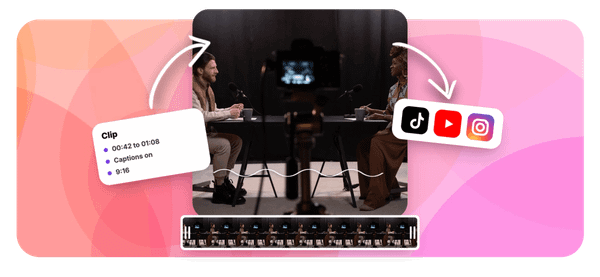


You spent weeks preparing a keynote. The slides are sharp, the talking points are clear, and the delivery landed well. But once the presentation ends, that content often just sits there, doing nothing. If you want your ideas to reach more people on platforms like Instagram, LinkedIn, or TikTok, knowing how to repurpose a keynote into social media clips in 30 minutes can completely change how far your message travels. The best AI podcast clip generator tools have made this process faster than most people expect, and this article walks you through exactly how to turn your presentation footage into short, shareable video clips without spending hours in an editing timeline.
That is where Crayo's clip creator tool becomes genuinely useful. Instead of manually scrubbing through your keynote recording to find the strongest moments, Crayo helps you quickly identify and extract highlight clips, add captions, and format them for different social platforms in one straightforward workflow. Whether you are pulling a 60-second insight for a LinkedIn post or cutting a punchy clip for TikTok, Crayo handles the heavy lifting so you can focus on getting your ideas in front of the right audience.
Summary
- Audio quality is the most common reason keynote clips fail on social platforms, and the problem is structural, not fixable in post-production. Venue recordings carry low-frequency rumble from air conditioning systems and ambient noise that overlaps the speaker's voice. According to Nomono's research, audio quality is the number one reason listeners abandon content within the first three minutes, and professional audio quality drives up to 25% higher listener retention.
- The hidden cost of poor audio isn't the failed edit itself, but the opportunity cost of the time spent trying to fix it. According to High Fidelity's analysis of audio production costs, fixing audio issues after the fact can cost up to six times more than preventing them during the original recording. High Fidelity also reports that poor audio quality causes 50% of users to abandon a video within the first minute, which is especially damaging for short-form keynote clips where the entire runtime may only be 60 to 90 seconds.
- A disciplined selection process, not better editing tools, is what makes the 30-minute repurposing workflow achievable. Scanning a full keynote recording at 1.5x speed to timestamp standalone claims takes roughly eight minutes, and a 45-minute conference talk typically yields 10 to 15 platform-ready clip candidates according to Komet Media. Running a 30-second audio check on each candidate before committing to an edit prevents a creator from investing significant formatting time in a clip that was never usable.
- Making platform decisions before export, rather than after, eliminates the re-editing loop that inflates production time. A two-minute highlight fits LinkedIn's tolerance for longer professional content when the opening earns it, while Instagram rewards a 30-second insight and shorter-form platforms rely on captions to do most of the delivery work. Komet Media reports that AI tools handle 70 to 80% of the cutting work when repurposing conference talks into social clips, which makes the 30-minute window realistic when the tool handles structure and the creator handles judgment calls.
- Captions function as the primary delivery mechanism for muted viewers, not as an accessibility add-on, and building them into the export step rather than treating them as a finishing pass keeps the workflow linear. Auto-generated captions require only a single review pass focused on proper nouns, numbers, and technical terms that speech-to-text tools consistently misread. A caption that misquotes a speaker's key claim does more damage than no caption at all because the mismatch registers as a credibility problem rather than a technical one.
- Repetition turns a 30-minute workflow into a publishing rhythm. Kyle Racki documented on LinkedIn that a single session of prompting and editing produced 18 pieces of content in about 30 minutes, a pace that holds only when selection and quality-check steps are already internalized. According to the MindStudio Blog's guide on multi-step AI automation, building the core repurposing pipeline across research, scripting, transformation, and distribution takes roughly 2 to 4 hours upfront, after which the workflow runs across every session that follows without the effort compounding alongside the output.
Crayo's clip creator tool fits into this workflow by handling auto-clipping, caption generation, and platform-specific subtitle styling in a single process, removing the tool-switching that inflates decision time and letting creators act on ranked clip candidates immediately.
Why Keynote Clips Often Fail on Audio Quality Alone
Keynote recordings fail as social clips far more often because of audio than because of content. The moment you pull a clip from a large-venue recording and drop it into an editing timeline, you are not working with a clean audio problem. You are working with a specific, structural one.
Identifying Irreparable Acoustic Issues
The failure point is usually invisible until it is too late. Venue recordings carry low-frequency rumble from air conditioning systems, ambient audience noise, and breath, and you can't fix these in post-production. This is not the same hiss or hum that noise-reduction software handles well.
It is baked into the low end of the recording in the same frequency range as the speaker's voice, so any attempt to remove it also degrades the audio you actually want to keep. Creators who select a clip based purely on content strength and plan to "clean it up later" often discover this only after investing real editing time in a clip that was never salvageable.
Mitigating Physical Lavalier Interference
The same issue surfaces with lavalier microphones, which keynote speakers almost always use. Clothing noise from a lanyard, a scarf, or a jacket brushing the clip is documented as the most common lav mic problem in live-event settings. You can also prevent it with a foam windscreen placed before recording starts.
Without one, that friction noise lands in the mid-range of the audio spectrum, directly competing with speech clarity. No amount of equalization fixes it cleanly after the fact.
Prioritizing Source Quality Over Content Selection
Most creators handle this by selecting clips based on the strength of the idea being expressed, then trusting post-production to handle whatever audio roughness exists. That instinct makes sense because most everyday audio problems genuinely are fixable.
But large-venue keynote recordings create a different category of problem, and assuming you can fix it later is where strong content goes to waste. Crayo helps creators move from raw footage to formatted clips quickly, but even the fastest workflow cannot recover audio that was compromised at the source.
Understanding Cognitive Fatigue from Poor Audio
The psychological cost of unclear audio is also more serious than most creators account for. According to Nomono's research on podcast growth and monetization, audio quality is cited as the number one reason listeners abandon content within the first three minutes.
That is not because audiences are consciously judging production standards. Unclear audio forces the brain to work harder to process speech, and that extra cognitive effort creates fatigue that registers as vague distrust in the speaker. Viewers disengage without knowing why, and the content takes the blame even when the message is genuinely strong.
Maximizing Retention Through Source Preservation
Professional audio quality drives up to 25% higher listener retention. That gap is not about expensive studio gear. It is about catching problems at the recording stage rather than discovering them in editing. A clip selected from a segment where a windscreen was used and the speaker was positioned away from the nearest air conditioning vent will outperform a more quotable moment recorded under worse acoustic conditions, every single time.
What happens next reveals a cost most creators never see coming, and it starts before you select a single clip.
Related Reading
- Best AI Podcast Clip Generator
- What Is An Audiogram Podcast
- How Long Does It Take To Trim A Zoom Recording
- Content Repurposing Examples
- Webinar To Short Clips AI
- Clipping a YouTube Video
- Podcast Clips For Social Media
- Video Clipping For Social Media
- How Do I Repurpose My Interview To Social Media
- Sermon Clips AI
The Hidden Cost of Assuming Audio Can Always Be Fixed Later
Most creators treat audio cleanup as a safety net. The assumption is that if a keynote moment is compelling enough, some editing time will make it broadcast-ready. That assumption is expensive, and not in an obvious way.
Calculating the Hidden Cost of Post-Production Audio Fixes
The real cost isn't the failed edit. It's the opportunity cost of the time spent attempting it. When a creator selects a clip based on content strength, then spends thirty to forty minutes running noise reduction filters on a track carrying low-frequency venue rumble, they aren't just losing editing time. They're delaying the clips that were actually salvageable, the ones sitting two minutes earlier or later in the same recording, waiting to be found.
According to High Fidelity's analysis of audio production costs, fixing audio issues after the fact can cost up to six times more than preventing them during the original recording. That ratio holds whether you're running a production studio or a solo creator workflow. The math doesn't care about your setup. It only cares about when you catch the problem.
Preventing Wasted Post-Production on Unusable Audio
The same pattern surfaces when repurposing keynote footage into short-form clips for social distribution. A creator pulls a strong sixty-second segment, trims it for vertical format, adds captions, and then realizes the lavalier mic was brushing fabric through the entire take. The clip is unusable. The work invested in formatting it was wasted.
Crayo compresses the post-production workflow significantly, moving from raw footage to caption-styled, publish-ready clips in a fraction of the usual time, but that speed advantage only applies to clips with clean audio at the source. No tool, fast or otherwise, can retroactively fix a recording that was compromised before it started.
Filtering Clips for Source Quality Before Editing
High Fidelity also reports that poor audio quality causes 50% of users to abandon a video within the first minute. That number matters especially in the context of short-form keynote clips, where the entire clip may run only sixty to ninety seconds. A viewer who leaves at the forty-five-second mark because the audio is fatiguing them hasn't watched the clip. They've sampled it, felt friction, and moved on. The speaker's strongest insight, the one that justified clipping that moment in the first place, never lands.
The failure point is almost always upstream. Clip selection decisions made without checking audio origin produce editing sessions that feel productive but aren't. The fix isn't a better noise reduction plugin. It's a different selection habit, one that treats audio quality as a filter applied before editing begins, not a problem solved after the clip is already committed.
Related Reading
- Church Reels Editing
- Podcast Shorts
- How To Start Clipping On Instagram
- How To Trim A Zoom Recording Saved On My Computer
- Best Video Clipping Tool For YouTube
- Repurposing Content For Social Media
- How To Add Audio To A Video
- Podcast Reels
- How To Repurpose Webinar Content For Marketing
How to Repurpose a Keynote Into Social Media Clips in 30 Minutes
Repurposing a keynote into social clips is faster than the audio problem makes it feel, as long as you separate selection from editing and treat them as two distinct phases with different decision rules.
Start with selection. Before opening any editing tool, scan the full recording at 1.5x speed and timestamp every moment where the speaker makes a clear, standalone claim. Not a transition, not a setup, not a segue into a longer point. A complete thought that would land without context. These are your candidates. A 45-minute conference talk typically yields 10 to 15 of them, which is exactly what Komet Media reports when analyzing platform-ready clip output from single keynote recordings. The scanning phase takes roughly eight minutes for a standard keynote. That's it.
Check Audio Before you Commit to a Clip
The failure point is usually here. Creators timestamp a moment they love, immediately start trimming, and only discover the clothing noise or venue rumble twenty minutes later. The fix is a thirty-second audio check on each candidate before adding it to your working list.
- Play the clip through headphones, not speakers.
- Listen closely during the first and last five seconds, where mic-handling noise tends to concentrate.
- If it passes, add it. If it doesn't, move to the next candidate.
This check costs thirty seconds per clip. Skipping it can cost thirty minutes per bad selection.
Match Length to Platform Before you Export, Not After
The same clip does not perform equally across platforms. A two-minute highlight works on LinkedIn because the audience there tolerates longer professional content when the opening ten seconds earn it. Instagram rewards a thirty-second insight with a clean visual hook. Shorter-form platforms need a compelling quote with captions doing most of the heavy lifting. Deciding clip length after export means re-editing. Deciding it before means exporting once.
Most creators handle this by cutting a single version and then compressing it for other platforms, which introduces a second round of quality decisions under time pressure. The compression step often degrades caption sync, crops visual framing, and flattens audio levels that were already borderline. The better sequence is to decide platform and length at the selection stage, then cut to that spec once.
Accelerating Formatting Workflows Through Automation
This is where the bottleneck between raw footage and a publish-ready clip either collapses or compounds. Crayo handle auto-clipping, caption generation, and subtitle styling in a single workflow, so the platform-matching step doesn't require re-editing the same clip three times for three different destinations.
AI tools handle 70 to 80 percent of the cutting work when repurposing conference talks into social clips, which means the thirty-minute window is achievable when the tool does the structural work and the creator makes judgment calls, not mechanical ones.
Add Captions as a Production Step, Not a Finishing Touch
Captions are not an accessibility add-on. They are the primary delivery mechanism for muted viewers, which describes a significant share of social platform traffic. Adding them after export, as a separate pass, turns a linear workflow into a loop. Build them into the export step so every clip leaves your process caption-ready.
Caption accuracy matters more than most creators expect. A caption that misquotes a speaker's key claim does more damage than no caption at all, because the viewer reads it, notices the mismatch, and loses trust in the content. Auto-generated captions need a single review pass, not a full transcript edit, just a scan for proper nouns, numbers, and technical terms that speech-to-text tools consistently misread.
Use Targeted EQ for Fixable Issues, Not Aggressive Noise Reduction
When a clip passes the audio check but still carries minor low-frequency weight, a high-pass filter set between 80 and 100 Hz removes the problem without touching vocal clarity. Slightly boosting the 2 to 4 kHz range brings presence back if the recording sounds flat. These two adjustments take under two minutes and address fixable audio problems, unlike venue-level rumble that resists processing.
The critical difference between fixable and unfixable audio is not volume or noise type. It's whether the problem is consistent or variable. Consistent low-frequency hum responds to filtering. Variable rumble that shifts in pitch and intensity across the clip doesn't respond to filtering, because any filter wide enough to catch the variation also catches the voice. If the problem is variable, the clip isn't worth the editing time.
Accept the Discard Pile as Part of the Process
When a genuinely compelling moment carries audio that won't clean up, the right move is to move on. Not because the content wasn't strong, but because the editing time required to fix it exceeds the value of that specific clip when other candidates exist. A keynote long enough to produce ten to fifteen viable moments always contains at least two or three with both strong content and clean audio. Prioritizing those is not settling. It's selecting efficiently.
The full sequence runs like this:
- Scan and timestamp at 1.5x speed (eight minutes)
- Audio-check each candidate (two to three minutes total)
- Assign platform and length to each passing clip (two minutes)
- Cut and export with captions (ten to fifteen minutes depending on clip count)
- Do a single caption review pass (three to five minutes)
That's the thirty-minute window, and it holds when selection discipline is doing the work that editing time usually absorbs. What most people don't expect is how much faster the next keynote gets.
The 30-Minute Workflow to Repurpose a Keynote Into Social Clips
Checking audio quality alongside content selection, not after it, is what separates a productive repurposing session from one that burns time on clips that were never going to work. That discipline is already established. What most creators miss next is what happens when the workflow becomes repeatable.
Why Repetition Changes Everything
- The first time you run this workflow, you're learning it.
- The second time, you're executing it.
- By the third keynote, the steps are automatic
That's when something interesting happens: your total output per session starts climbing without adding any more time.
Scaling Content Output Through Calibrated Judgment
The pattern recognition you build across keynotes compounds. You start recognizing which room types, microphone setups, and presenter styles consistently produce clean audio. You stop spending the first five minutes guessing and start confirming what you already suspect. Selection gets faster because your instincts are now calibrated, not just hopeful.
Kyle Racki documented on LinkedIn that a single session of prompting and editing produced 18 pieces of content in about 30 minutes. That number only makes sense if the selection and quality-check steps are already internalized, not being figured out in real time. Speed at that scale comes from practiced judgment, not a faster computer.
What Actually Slows Down Experienced Creators
Experienced creators usually fail in the opposite way beginners do. Beginners waste time on bad audio. Experienced creators waste time on too many viable candidates, reviewing strong clips they'll never publish because the platform queue is already full or the posting schedule has no room.
The fix is to set a clip budget before you start reviewing, not after. Decide in advance:
- Two clips for LinkedIn
- One for Instagram
- One short-form vertical
That constraint forces you to rank candidates instead of accumulating them, which is a fundamentally different cognitive task and a faster one.
Eliminating Decision Fatigue and Content Backlogs
Most teams handle this by reviewing everything first and deciding later. As the candidate pool grows across multiple keynotes, that approach creates a backlog of "maybe" clips that never get finished. The decision cost compounds until the folder full of half-edited clips becomes its own project.
Crayo addresses this directly: by handling auto-clipping, captions, and subtitle styling in one place, it removes the tool-switching that inflates decision time and lets creators act on their ranked candidates immediately rather than queuing them across separate applications.
How the Output Ceiling Actually Shifts
When you remove the audio-discovery problem from the editing phase and the tool-switching problem from the publishing phase, the constraint moves. It stops being time and starts being content volume. You can process a keynote in 30 minutes, but you still need a keynote worth processing.
This is where the workflow connects to something larger than a single session. Creators who repurpose consistently start treating every keynote, panel appearance, webinar, and long-form interview as raw material. The short-form content strategy stops being a separate project and becomes a byproduct of showing up.
Investing Upfront Time in Long-Term Automation Pipelines
According to the MindStudio Blog's guide on multi-step AI automation for content repurposing, building the core pipeline across research, scripting, transformation, and distribution takes roughly 2 to 4 hours upfront. That investment pays forward across every session that follows. The workflow you build once runs every time, and the output compounds without the effort compounding alongside it.
When to Stop Reviewing and Start Publishing
The critical difference between creators who publish consistently and those who don't is rarely talent or access to good source material. It's the decision to stop optimizing and start distributing. A clip with clean audio, accurate captions, and the right length for its platform is ready. Holding it for a better version that might come from the next keynote is how strong content sits unpublished for weeks.
Set a review gate and honor it. If a clip passes the audio check, carries a standalone idea, and fits the platform format, it ships. Refinement is for the next session, not the current one. That mindset, more than any specific tool or technique, is what turns a 30-minute workflow into a publishing rhythm that actually holds.
Repurpose Keynotes Faster With Crayo
Scaling keynote repurposing beyond one creator is where most workflows quietly collapse. The review gate holds when one person owns it. Add a second editor or a larger content calendar, and the manual steps multiply faster than the output does.
That's where Crayo earns its place in the process. Upload your keynote recording, generate captioned clips with platform-specific formatting built in, and shrink the bottleneck between raw footage and publish-ready content to minutes. The captions carry the message even when a clip's audio isn't perfect, so your strongest ideas reach viewers without waiting on a full audio repair cycle.
The creators publishing consistently from keynote content aren't doing more work. They're removing the steps that don't compound.
Related Reading
• Best AI Video Tools Like Vizard For Webinar Clips
• How To Trim A Zoom Recording
• Best Way To Make Podcast Clips
• Best AI Video Clipping Tools 2026
• How To Trim Google Meet Recording
• Best Audiogram Maker
• Content Repurposing Tool
• Best AI Video Repurposing Tools 2026
• How To Automate My Video Clipping