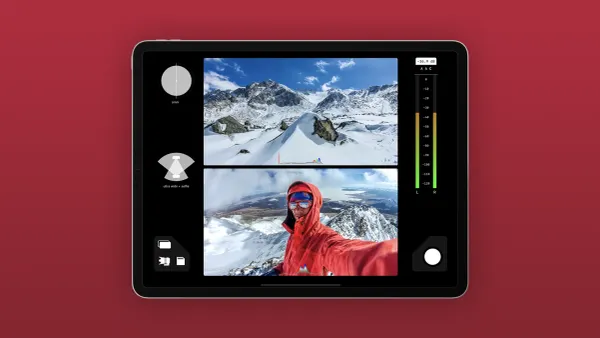
Types of video editing include projects where video editing encompasses a range of projects from fast-paced social media reels to expansive narratives, each with distinct hardware demands. A balanced mix of CPU power and GPU strength is key to avoiding choppy playback or long render times. Understanding factors like cores, threads, and VRAM helps match technology to creative needs. Whether CPU or GPU is more important for video editing depends on the specific project requirements.
Efficient editing transforms complex processes into streamlined creative expression. Smart hardware selection minimizes downtime during tasks such as color grading, intricate effects, and AI-generated subtitles. Aligning technique with project demands enhances both speed and overall performance. Streamlining post-production, Crayo's clip creator tool automates trimming, formatting, and polishing, freeing up time for creativity.
Summary
- Neither CPU nor GPU alone will reliably fix editing slowdowns, pick upgrades that match your software and workload, and note that a high-end CPU can improve video editing performance by up to 50% in CPU-bound workflows.
- GPUs provide the biggest wins for effects-heavy exports and previews, with editors reporting roughly 30% shorter rendering times when their toolchain uses GPU acceleration.
- For dependable 4K work, provision at least 32 GB of RAM, a 1 TB NVMe system and scratch drive, and a GPU with around 6 GB of VRAM as a practical minimum for general 4K timelines.
- Core count is not everything; favor CPUs with strong single-core clocks and aim for six to eight physical cores as a baseline, using hyperthreading mainly to boost heavy parallel exports rather than interactive responsiveness.
- Software-hardware mismatch drives most upgrade disappointment, which is why over 70% of creators prefer lightweight tools and why lightweight or cloud-assisted editors can cut rendering time by up to 50% on slow machines.
- Small workflow changes often save more time than new parts, for example, lower preview resolution to 1/2 or 1/4, use hardware-accelerated encoders when available, and keep active projects on a separate NVMe scratch drive to avoid I/O contention.
- This is where Crayo's clip creator tool fits in; it addresses export and proxy bottlenecks by offloading rendering and automated proxy management to the cloud so teams can iterate faster without costly hardware upgrades.
Is CPU or GPU More Important for Video Editing

Both components matter, and neither alone will reliably solve editing bottlenecks. Which one you should prioritize depends on the footage, the effects you use, and how your editor offloads tasks to the GPU or CPU.In practice, the best gains come from choosing upgrades that match your software’s workload and avoiding one-sided builds. For video projects, using our clip creator tool can streamline the editing process and enhance your workflow.
1. Why do more CPU cores not guarantee faster editing?
Many people think that having more CPU cores means everything will be faster. But it’s important to know that how well each core works, the cache, and instructions per clock (IPC) also significantly affect speed. A CPU with fewer but faster cores can perform better than an older CPU with more slower cores, especially when editing and playing back video.This is why some editors feel disappointed after purchasing a CPU with many cores, since they may not notice a significant speed boost when working with complex video formats. The real issue is treating core count as the only factor, rather than understanding the balance between handling multiple tasks at once and responding quickly to a single task.
2. How does thread management change real-world throughput?
Video editors handle thread work differently. They schedule tasks like timeline scrubbing, background encoding, and plugin processing in specific ways. When thread scheduling is inefficient, adding more cores results in diminishing returns. This pattern happens in both laptop and desktop setups.If the software spends a lot of time on single-threaded decoding or has I/O waits, extra cores stay idle. This can make the timeline stutter. To improve project management efficiency, our clip creator tool offers streamlined options that enhance your workflow.
3. When hyperthreading helps and when it does not?
Hyperthreading, by exposing more logical threads, improves multitasking and some render phases, but it cannot replace raw core performance. Certain tasks, like single-stream decoding or CPU-bound LUT application, see limited benefit from hyperthreading.
The practical rule is to prioritize faster cores for interactive editing and use hyperthreading as a multiplier for heavy parallel exports and background tasks.
4. Why does the “GPU is only for gaming” belief fail?
GPUs speed up many video tasks that can run in parallel, such as effects rendering, denoising, and color changes. Thinking of the GPU only as a way to improve frame rates misses its important computing role.
When software is designed to use GPU processing power, a good GPU can directly cut down the time you wait to see previews and export complicated projects.
5. Where GPUs Offer the Biggest, Measurable Wins?
For export and effects-heavy projects, using the GPU for rendering reduces the time you need to be hands-on and allows the CPU to focus on decoding and I/O. According to "Using a GPU for video editing can reduce rendering times by 30%, editors reported meaningful export speedups when their toolchain used GPU acceleration.
Therefore, picking a GPU that your software supports can really shorten turnaround times. Consider how our clip creator tool can further streamline your GPU rendering process.
6. What CUDA Cores, OpenCL, and Parallelism Actually Change?
CUDA, OpenCL, and similar tools enable software to leverage GPU parallelism for various video tasks. The number of compute units is especially important when effects and codecs are used with these tools; otherwise, the chip isn't being used to its full potential.
In the end, the choice depends on whether the main editor and plugin set are designed to take advantage of GPU APIs, rather than just looking at the GPU's theoretical power.
7. Why does an indiscriminate upgrade often disappoint?
Upgrading without making sure the rest of the system works well or checking software compatibility creates false promises. You can add a high-quality GPU, but you might still experience slow storage, limited memory, or a CPU that struggles with decoding.
This hidden cost makes it feel like upgrades are a waste of money. The time you save during rendering can be lost quickly if projects still freeze during export preparation or experience cache thrashing.
8. How to find the practical balance between CPU and GPU?
To find the right balance between CPU and GPU, you need to match upgrades to the work you do. If your main tasks involve editing multicam ProRes or using many effects and color grading, it helps to have a stronger GPU.On the other hand, if your work involves transcoding many formats, handling complex timelines, or using CPU-dependent plugins, you should invest in better single-core performance and faster memory. A balanced approach is important because it stops you from spending too much on one part that the software might not fully use.
9. How Software-Hardware Mismatch Erodes Perceived Gains?
Some editors favor GPU acceleration, while others prefer to stay CPU-centric. This explains why two people with similar setups can get different results. The best way to deal with this is to test project types on the hardware being considered or look at benchmarks from users who work with the same codecs and effects.When editors skip this step, they trade certainty for hope. This can lead to disappointment when they upgrade.
10. How do brand and architecture choices change outcomes?
Some applications work better with Nvidia’s CUDA system, while others do well on AMD CPUs that have strong multi-threading abilities. Choosing a vendor is about compatibility as much as it is about performance.
Think of architecture as a language the software understands; select the hardware that speaks the same language as your editor and plugins to avoid extra translation work.
11. Real software examples that show the variance?
Different tools use hardware in different ways. Some editors rely mostly on the CPU for decoding and use the GPU primarily for playback and effects. On the other hand, some editors shift many color-grading and image-processing tasks to the GPU.This difference helps explain why the same upgrade can be transformative for one user, yet only marginal for another.
12. A practical note on measured improvements and expectations?
User reports show real improvements from targeted upgrades. According to "A high-end CPU can improve video editing performance by up to 50%." investing in a strong CPU brought significant gains in CPU-bound workflows in 2023, as shown in examples.
This means that a carefully chosen CPU upgrade can still be one of the most effective changes for certain editing patterns.
13. Why People Keep Making the Same Upgrade Mistakes
It’s tiring when a creator buys the newest GPU because they're told it will solve their problems, only to find their exports stay the same. The emotional truth is that urgency and frustration often lead to impulse buys.A better way is to find the exact issue, like decoding, GPU effects, or I/O, and fix that instead of just replacing a general part.
14. When and how do solutions like Crayo change the tradeoffs?
Most editors rely on local exports and manual proxy workflows because they are familiar and require no new platforms.This approach may work in the early stages of a project, but as it gets more complicated, local workflows can spread time across different machines and exports, causing delays and context loss.
Platforms like Crayo offer centralized rendering and automated proxy management, helping teams reduce strain on local hardware, speed up review cycles, and maintain version history.
15. How to act on this without wasting money?
Start by looking at a typical project and noticing where you have delays. Match the upgrade to those slow points.If you find problems with spinning disks or not enough RAM, those are usually cheaper fixes than upgrading to a GPU. However, if exports account for most of the total project time and your editor supports GPU acceleration, then buying a GPU is an obvious solution.
What will change about matching specs to project patterns?
The choice made may feel final, but as project patterns change, the usefulness of matching specs will vary greatly.
Related Reading
- Types of Video Editing
- Long Does It Take to Edit a YouTube Video
- How Long Does It Take to Edit a Music Video
- What Is an Overlay in Video Editing
- Can I Edit a YouTube Video After Posting
- Is Video Editing a Good Career
- Can You Edit Video in Photoshop
- Beginner’s Guide to Video Editing
- Video Editing Basics
Optimal Specifications for Content Creation Video Editing
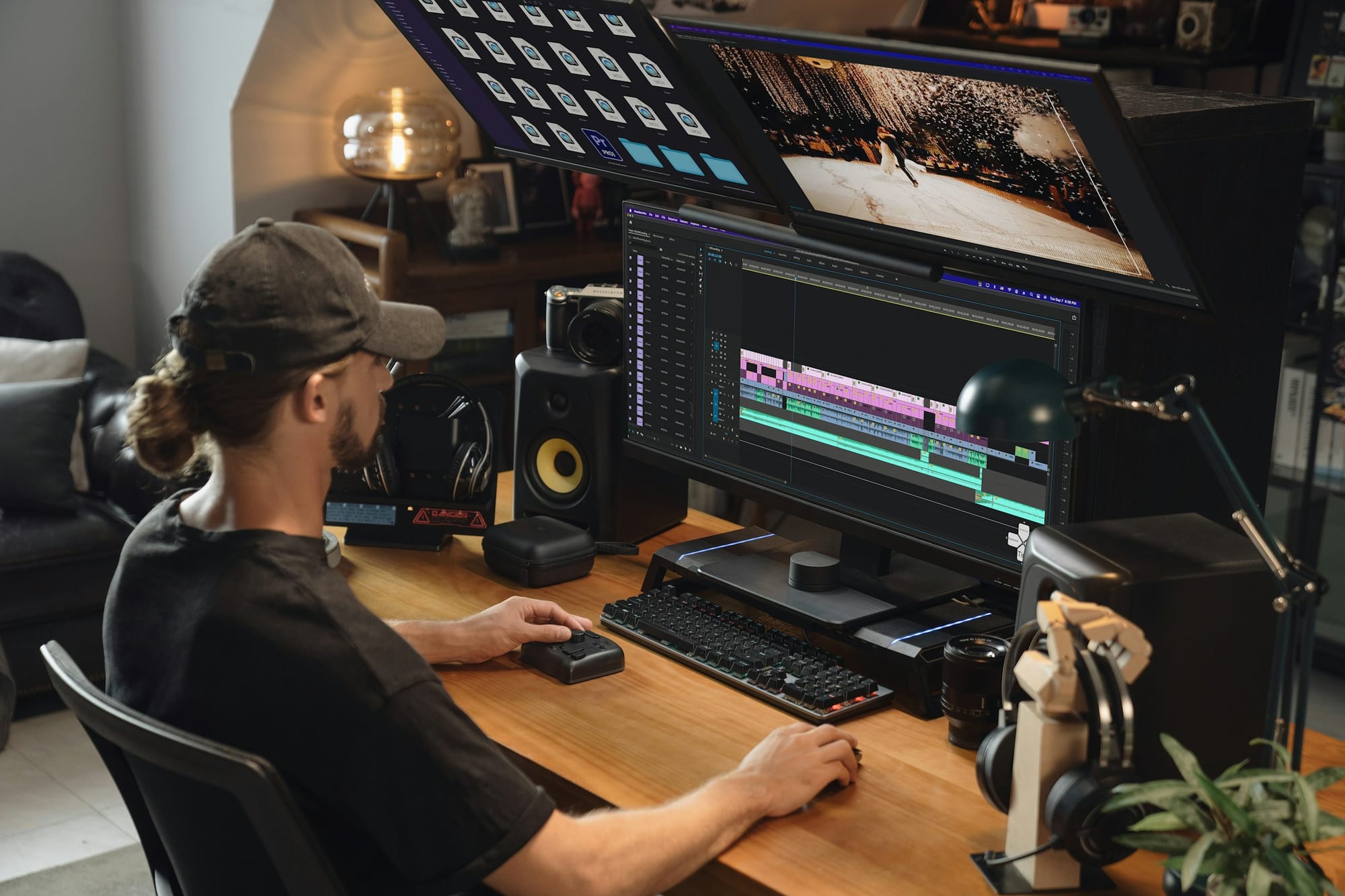
For reliable content creation performance, you want a well-balanced setup. This includes a modern multi-core CPU with strong single-thread performance, a dedicated GPU with enough VRAM, enough memory, and fast NVMe storage. Also, make sure you have good cooling and different ports included.Build your system to handle the highest consistent workload you expect, not just for occasional peak performance. To enhance your editing experience, consider using our clip creator tool to streamline your workflow.
1. What should you pick for the processor?
Choose a recent-generation CPU with at least six physical cores. If you are running many background tasks or working with large timelines, aim for eight or more cores. Prefer chips that have higher base and boost clocks in the 3.6 to 4.5 GHz range and a generous L3 cache.It is essential to use a platform that supports fast memory. This combination provides high responsiveness when working on timelines and helps with efficient exporting. For laptop users, it's important to choose a model with good thermal management, as continuous clock speeds are much more important than short bursts of speed.
2. How much GPU do you need?
Select a dedicated GPU that your editing software actively supports. Aim for a card with at least 6 GB of VRAM for general 4K work. For complex effects or VR projects where users expect fluid playback, consider a more powerful option.
When creators try to combine gaming and editing on a $700 to $1,000 budget, the pattern becomes clear: prioritize a GPU with solid driver support and broad codec acceleration. This strategy allows for dual functionality without painful compromises.
3. How much RAM keeps you moving?
For smooth multitasking and 4K timeline use, it's best to have at least 32 GB of RAM. The Triple A Review clearly states that 32 GB of RAM is recommended for the best video editing performance.If you don’t have this, working with longer timelines or multitasking with effects and web browsers will probably cause slowdowns or delays due to swapping. If you're editing large RAW files or using virtual machines, it's a good idea to upgrade to 64 GB.
4. How to arrange drives and capacity?
A two-tier storage approach is essential. Use a fast NVMe SSD for your OS, applications, caches, and active project scratch. Supplement this with larger SSDs or RAID arrays for project media and archives.
SSD performance is crucial for playback and cache churn, so target at least 1 TB of NVMe for your system and scratch. This aligns with the Triple A Review recommendation of a 1 TB SSD as a baseline for editing projects. Additionally, consider adding external high-capacity SSDs or NAS for longer-term storage. Keeping a separate physical drive for scratch and cache files helps avoid I/O contention during exports.
5. What to demand from a monitor?
When color work matters, buy an IPS or OLED panel with native 4K resolution. Insist on 10-bit color processing and coverage that gets close to professional gamuts, like high sRGB and wide DCI-P3.Use a colorimeter to calibrate the monitor and set the brightness and white point before grading. A well-calibrated monitor reveals mistakes early, which saves review cycles in the long run.
6. What ports save you time?
To optimize efficiency, prioritize Thunderbolt or USB-C ports with at least 40 Gbps on desktops and laptops. Include HDMI 2.1 for compatibility with modern monitors. A fast SD Express or UHS-II card reader is essential for quick camera ingest.
Additionally, a 2.5 GbE or better network adapter facilitates smooth access to NAS storage. These connections effectively reduce transfer bottlenecks, ensuring external drives function like local media instead of slow appendages.
7. How to keep performance steady?
Design for long-lasting thermal performance, not just the highest specifications. Use cases with long exports need good chassis airflow, a quality air cooler or AIO, and a PSU that delivers stable power.
For laptops, it is important to choose models with either vapor chamber technology or strong thermal tuning. This is important because thermal throttling can reduce real-world performance and degrade timeline responsiveness under load.
What is a practical rule for constrained budgets?
If you have to choose, pick the part that reduces your biggest wait time. For editing with multiple cameras or different formats, put your focus on CPU cores and memory. For editing that uses many effects, virtual reality, or high-resolution playback, focus on the GPU and VRAM.This choice often arises when creators want both gaming and editing performance from a single machine while on a tight budget. Having clear priorities will always lead to better results than having unclear shopping lists.
How to think of the system?
Think of the system like a film crew: a fast CPU runs the shoot, the GPU lights the scene, RAM holds the set pieces, and storage captures the footage.If you ignore any one role, the production will slow down.
Related Reading
- Video Editing Workflow Checklist
- PC Specs for Video Editing
- How To Start Editing Videos
- How To Practice Video Editing
- Mac Vs Pc For Video Editing
- How To Make A Video Editing Portfolio
- Video Editing Tips And Tricks
- How To Make Money Video Editing
- Best Free Video Editing Apps For Android
- How To Organize Video Files For Editing
- How To Edit Video In Google Drive
- Creative Video Editing Techniques
How to Make Your Computer Fast for Video Editing
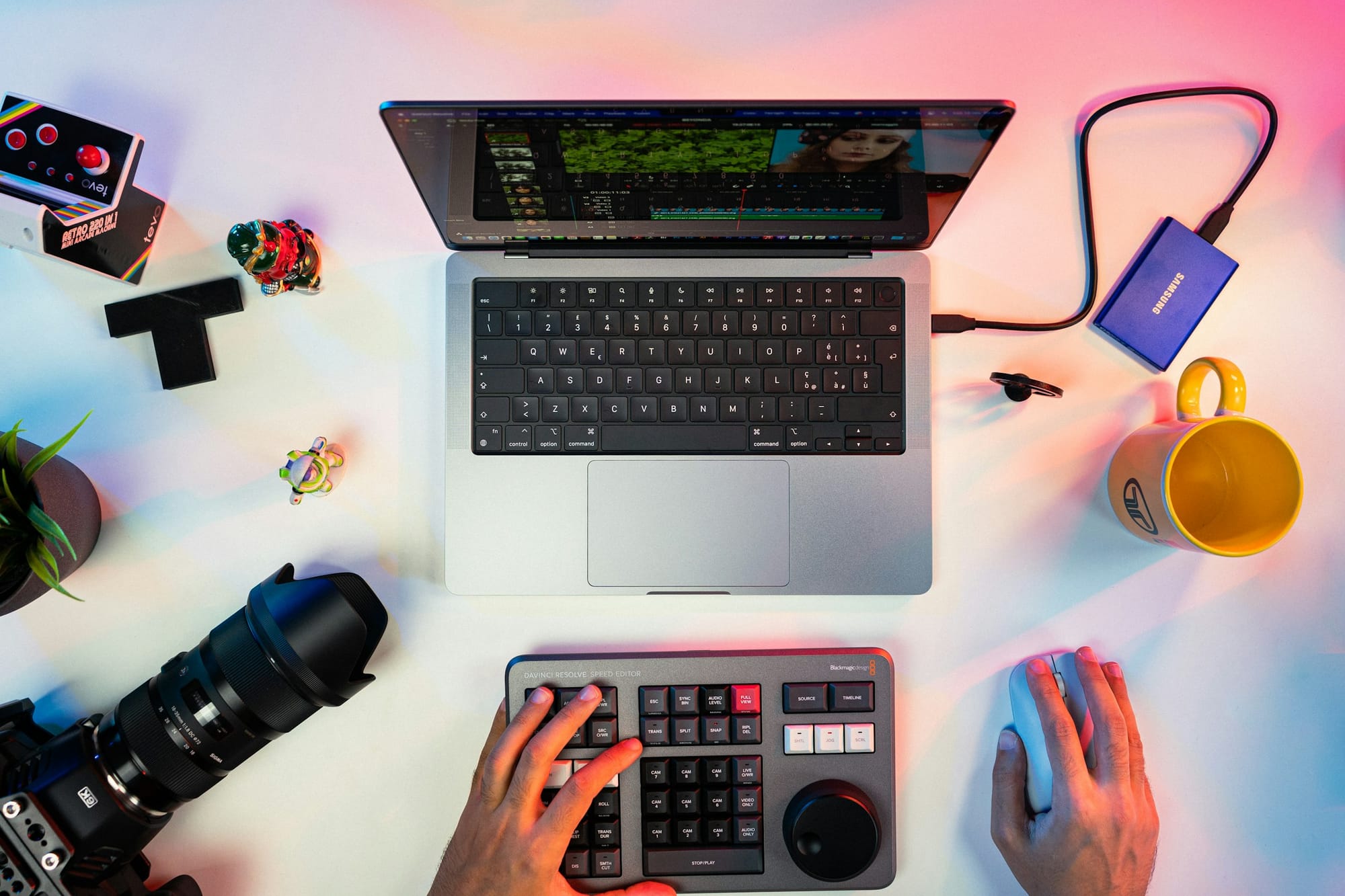
A few careful changes can make your editing machine work faster than just getting the latest GPU. Focus on separating media and scratch space, adding more memory, and keeping background processes and I/O stable. By doing this, you will greatly reduce the time wasted in waiting.Below, seven practical steps are listed, each with a description of why it works and how to use it.
1. Dedicate the machine to editing
Treat the computer like a workshop bench, not a family laptop. The common approach is to use a single machine for everything, since it feels efficient. However, this practice mixes installers, background services, and user profiles into a single failure point.By setting one account and one purpose for editing only, unexpected services, permission conflicts, and Google Drive sync storms that can stall renders are minimized. This pattern is clear among solo creators and small agencies; the fewer roles a machine plays, the lower the chances that an unrelated app will use CPU, corrupt caches, or fill the system drive at the worst moment.
2. Use a separate drive for media and scratch
Keep the operating system and programs on one fast drive, while placing active projects, source media, and cache files on a dedicated video drive.
A separate capture drive enables formatting across projects, rebuilding scratch files, and eliminating I/O contention during exports. For most workflows, aim for a high-performance NVMe or a hardware RAID setup to ensure sustained throughput when working with large uncompressed clips. Additionally, using our clip creator tool can streamline your workflow by making it easier to manage your clips effectively.
This approach prevents one disk from becoming a bottleneck while the rest of the system idles.
3. Increase physical memory
This is one of the cheapest and most effective upgrades you can make. The Omega Film Institute Nepal (2025) recommendation of 32 GB of RAM for optimal video editing performanceshows that modern timelines, proxies, and background apps need extra space to work well without swapping.In practice, systems with not enough RAM spend a lot of time moving data to disk during heavy editing or multicam playback, which can feel like the system is freezing. Giving the machine enough memory keeps the working set in fast memory, ensuring previews are responsive.
4. Keep storage fast and organized
Fast storage is important for both responsiveness and reliability. It’s best to use a scratch SSD for active projects and a separate place for finished media.The guide recommending a 1 TB SSD for fast storage and quick access to video files emphasizes size and speed as key needs, not just nice-to-have extras.
To keep things organized, label your drives clearly and create a consistent folder structure. Archive old projects away from the scratch disk to prevent caches and temporary files from building up. A neat drive performs more reliably under pressure; this I/O reliability is vital for maintaining smooth playback during complex effects passes.
5. When the familiar fix breaks, consider workflow tooling
When the familiar fix breaks, it’s time to think about using workflow tools. Most teams coordinate rendering and proxies on their own computers because it is easy and doesn’t require a new platform; this works at first. However, as the number of projects and reviewers grows, local exports and handoffs begin to fragment the work. As a result, versions increase, and review cycles take longer.Solutions like Crayo offer centralized rendering and automated proxy management, which not only lessen the strain on local hardware but also speed up review time while keeping version history in order. Teams find that this method allows them to spend less time waiting on exports and more time actively making decisions.
6. Disable or remove background processes you do not need
A common issue is that many slowdowns are caused by background activity rather than hardware problems. Automatic updaters, cloud-sync clients, chat apps, and aggressive antivirus tools quietly consume CPU cycles and I/O.If the machine is not connected to the internet for editing, it's best to disable network services and schedule one-time scans during off-hours. The helpful tip is to check startup items and keep only the services your editor needs. Using a lightweight task monitor can help you find unexpected resource hogs during a session.
7. Opt for light-weight editors when hardware is constrained
Choose lightweight editors when your hardware is limited. If a dedicated workstation is not possible, pick tools that trade fancy visual effects for better timeline performance and quicker exports. Lightweight editors reduce the need for a lot of CPU and GPU power, keep installation sizes small, and help you produce content steadily without often crashing.This method isn't about compromising; it is simply practical. When deadlines are more important than every last effect, using an efficient application ensures your content is delivered reliably.
What analogy helps understand these concepts?
To keep this analogy in mind, picture the machine as a kitchen during a dinner service. The drives represent pantries, RAM is like counter space, and background programs are similar to people bumping into the chef. When the counters are clear and the ingredients are organized at the prep station, the meal gets served on time.
Are there hidden snags in video editing?
While that solution set addresses most predictable waits, one hidden snag remains.
Creators often find themselves grinding through exports and rebuilding proxies.
7 Best Light-Weight Video Editing Tools for Slow Computers
These seven tools are the best practical choices for slow computers. Each option trades heavy local processing for either lighter installations, cloud assistance, or efficient coding paths. This helps you edit reliably and get things done faster. Think about your platform, how much manual control you need, and whether you can rely on internet-based rendering or need to stay fully local.For a user-friendly experience, consider our clip creator tool that streamlines the video editing process.
What are the best lightweight video editing tools?
- Crayo, a cloud-first short-form creator, makes many shorts from prompts using templates and automated captions. It is great for high-volume social content.
- Clipchamp is a Windows-integrated editor that comes with a simple timeline, stock assets, and text-to-speech. This makes it easy for quick classroom or social edits.
- VSDC is a Windows-only editor with many features, offering pro-style color and effects tools while keeping a low footprint.
- iMovie is a Mac-native, easy drag-and-drop editor that teaches the basics and lets you apply common effects with little hassle.
- VideoPad, made by NCH, is a user-friendly editor for Windows and Mac that focuses on fast starts and basic exports.
- Shotcut is an open-source editor known for its strong format support and advanced audio and color tools, with a focus on stability rather than flashy features.
- Clipify, created by AMS Software, is a new editor that uses a timeline-based approach and is friendly to older Windows machines, providing straightforward export options.
1. Crayo

Crayo handles most of the heavy work on remote servers. This allows your browser to act as your editor while your local machine mainly works as a display and input device. Templates and AI narration remove repetitive setup. Batch generation lets you queue dozens of shorts without using all your laptop resources.Users can expect quick changes for vertical formats, low installation requirements, and fewer local crashes. However, it's important to be ready for offline gaps if your connection drops. This approach is suggested when volume is more important than detailed manual control.
2. Clipchamp
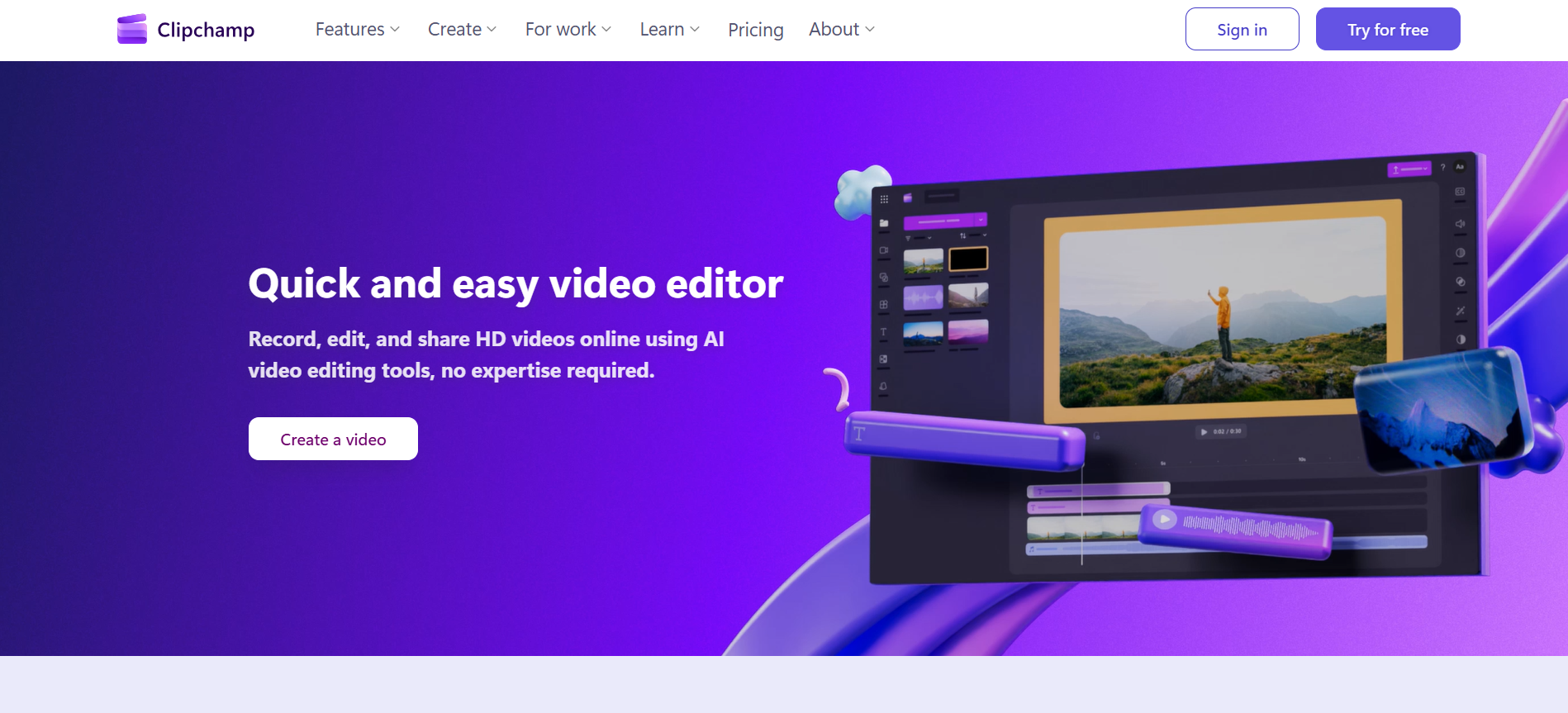
Clipchamp is built into Windows and offers a simple timeline and an asset library, letting users start editing right away. It is easy to use because it is preinstalled on many computers and offers basic features such as trimming, transitions, and automated captions.However, there is a downside to exports: they can be slower on less powerful machines and are limited to 1080p in the free version. It's best to use Clipchamp for short projects where convenience matters more than advanced editing tools.
3. VSDC
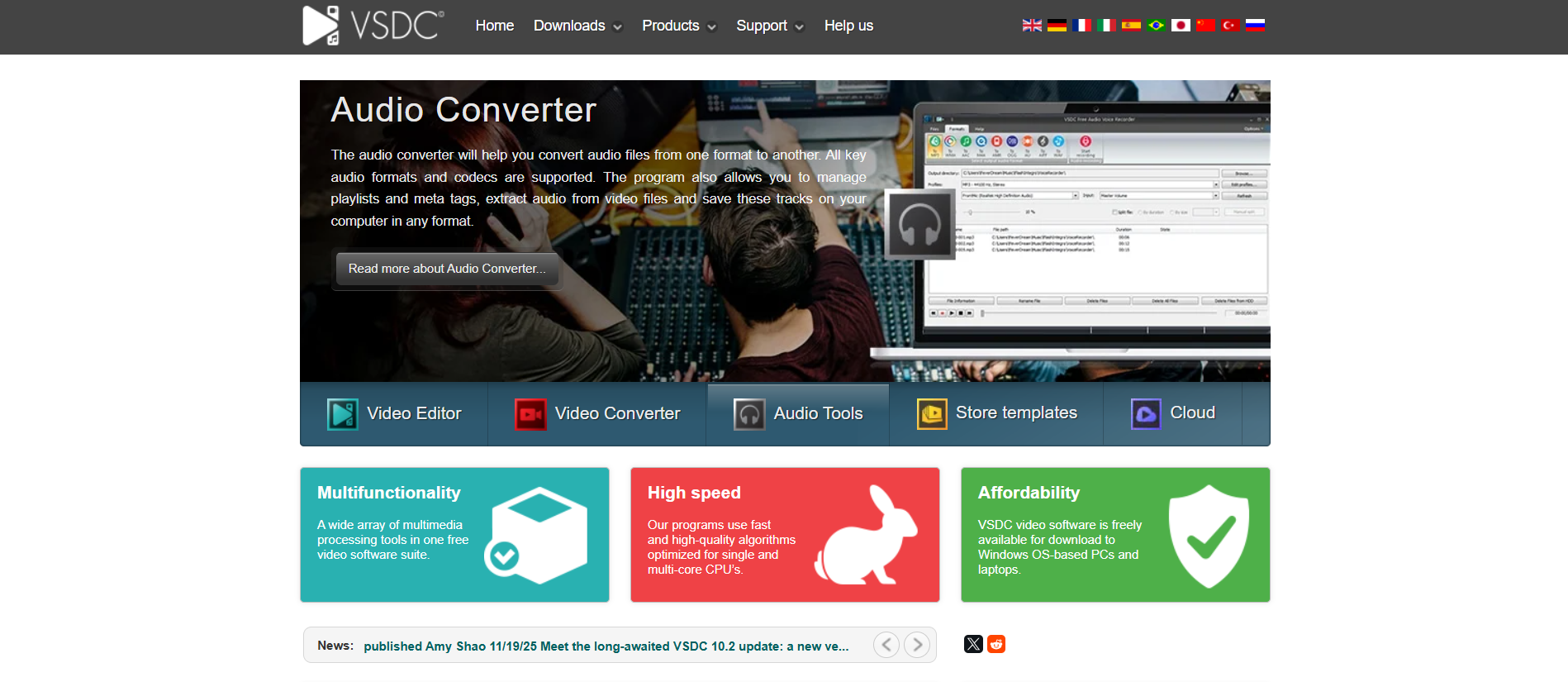
VSDC packs professional-looking tools into a small Windows download. It includes features like chroma key, color wheels, and 360-degree editing. Its non-linear approach allows for precise layering without needing modern GPU acceleration.This lets older machines make complex edits, but it may take longer to render. This software is a good fit for those who need technical features on a budget but can handle a steeper learning curve.
4. iMovie
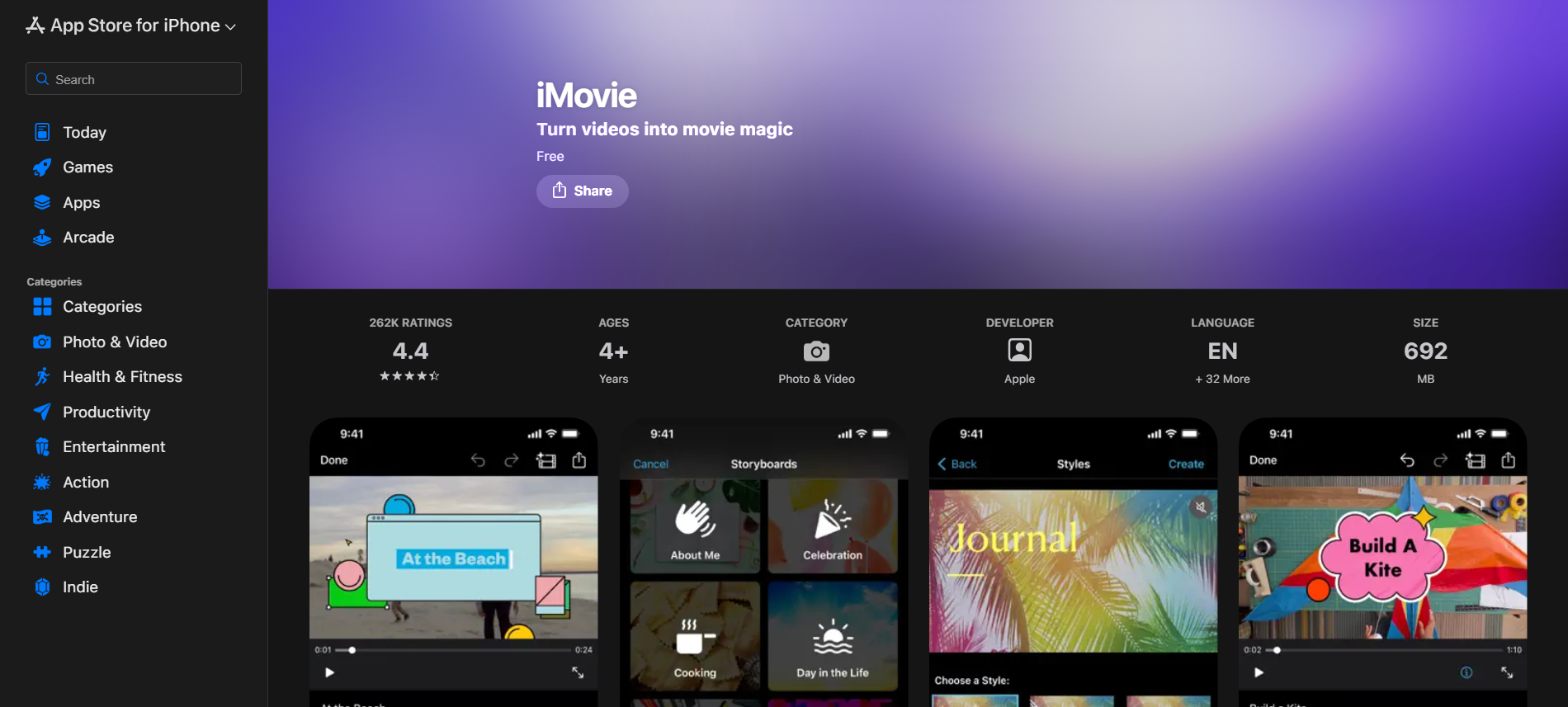
iMovie keeps the interface minimal and the features focused. This helps users learn the craft without struggling with the software. It works well with Apple’s ecosystem, offers basic stabilization and green-screen features, and remains stable thanks to Apple's macOS optimization.
If you already have a Mac, iMovie is the low-effort solution for putting together polished shorts without needing a complex toolchain.
5. VideoPad
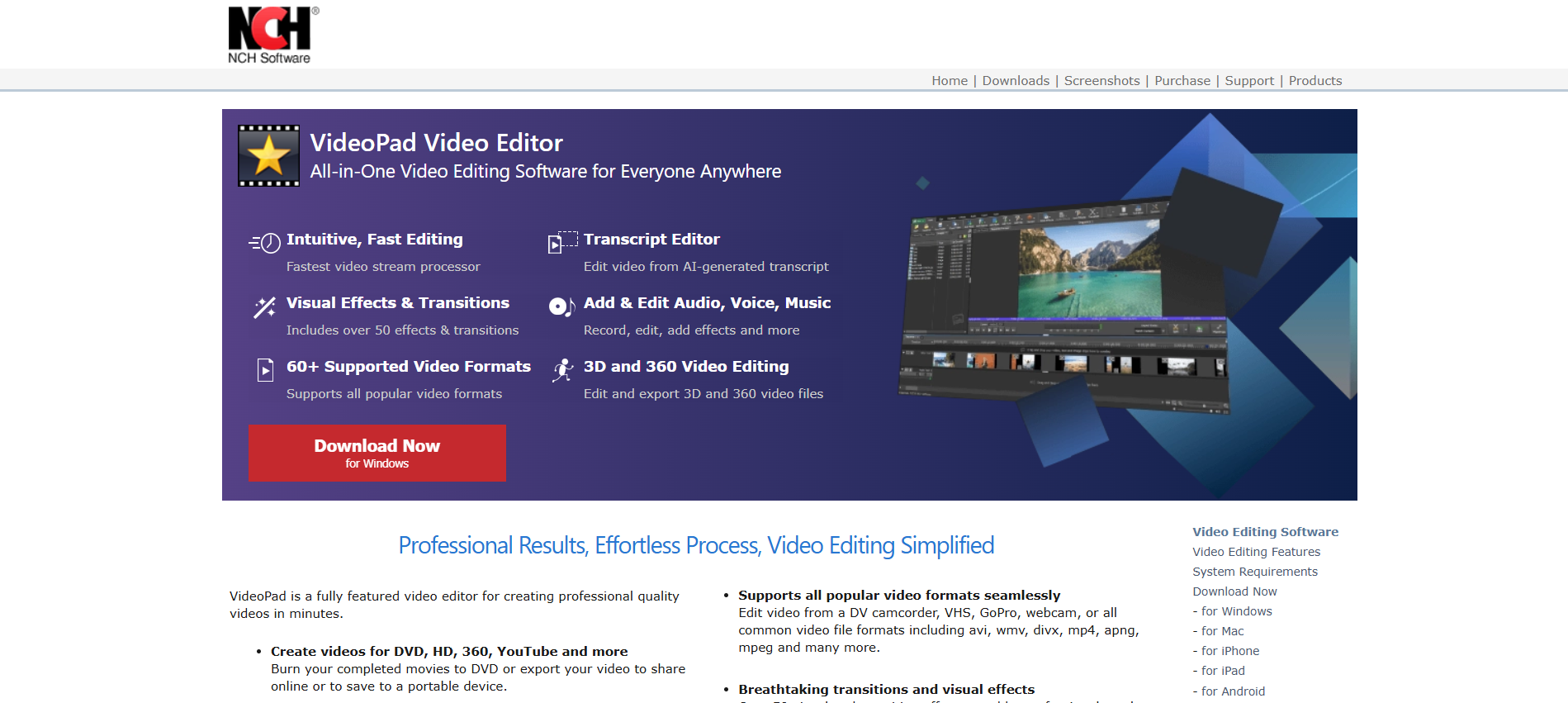
VideoPad helps users get started with editing thanks to its shallow learning curve andmany ready-made titles and transitions. It works well, supports basic audio tools, and lets beginners quickly create finished projects.However, it does have some expected limitations, such as a limited number of tracks and limited animation options. These can be important for people who need layered motion or advanced compositing.
6. Shotcut
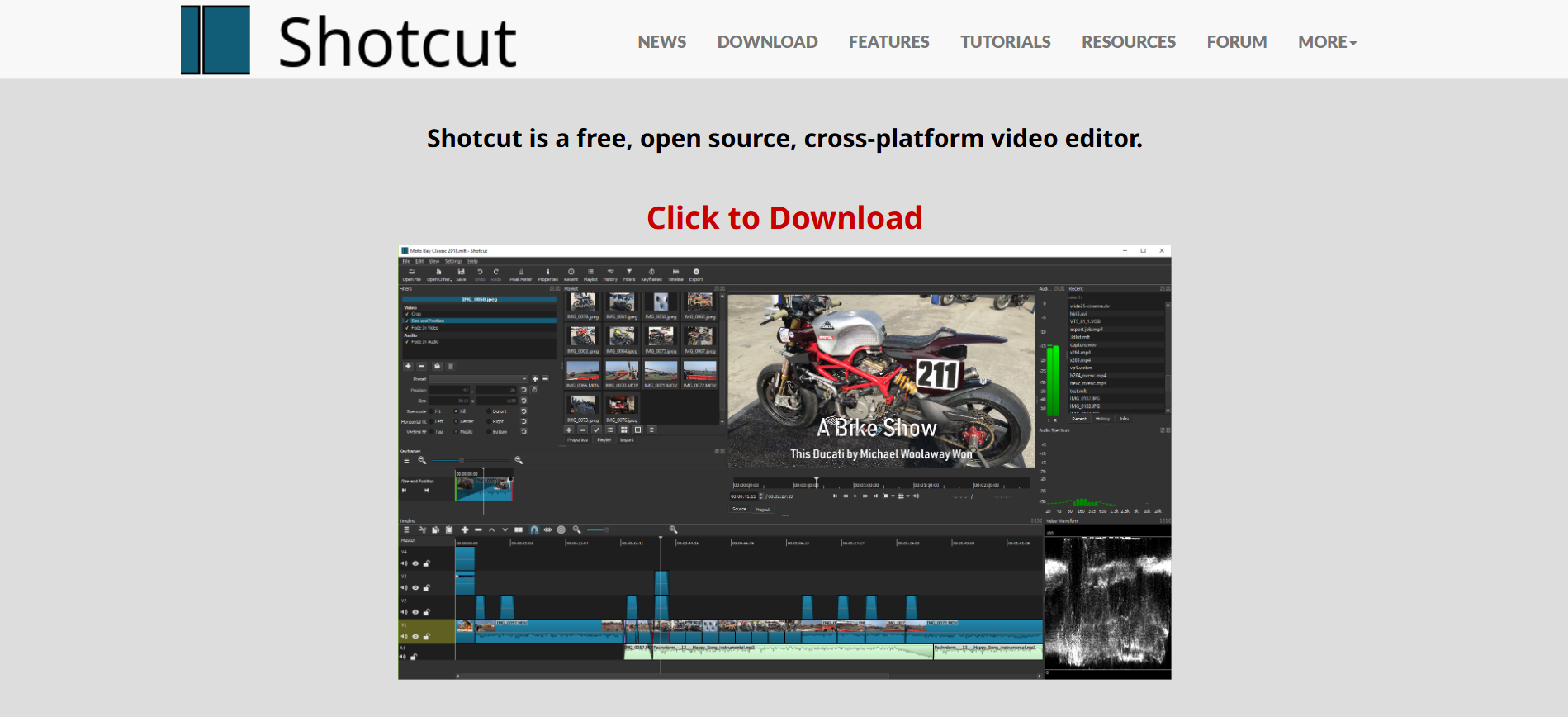
Shotcut offers a unique mix of features: it's free, supports many codecs using FFmpeg, and has advanced color and audio tools usually found in paid software. Although it doesn’t focus on a fancy design, it is made to be reliable; formats that lag in other editors often play smoothly here.
The interface might seem strange at first, but once users get used to it, they find a strong, free tool that works well on basic hardware without crashing.
7. Clipify

Clipify aims for simplicity with timeline editing, quick stabilization, chroma keying, and various export options. It specifically targets older Windows versions and low-RAM machines.It offers automatic assembly features and templates to help speed up production. While some features might only be available in paid tiers, the basic product works well on computers that most modern editors would avoid.
How to choose the right tool?
Choosing the right tool requires careful consideration of its capabilities for specific tasks, not just marketing claims. If you need to create short content repeatedly with little manual changes, a cloud-based generator is the best choice.For projects that need precise color work, a local editor who supports your preferred formats is better. Some important things to think about are the installation size, whether you need offline access in your workflow, and how comfortable you are with giving up some manual control for speed.
What performance tips matter on slow machines?
Performance tips that really matter on slow machines include using the lightest export codec that helps you meet your goals. It's important to keep the number of timeline layers low and to avoid using real-time effects when you can. For browser editors, closing other tabs allows the browser to use most of the available memory for playback.In local applications, regularly clearing cache files and storing active projects on the fastest drive can greatly improve performance. These small choices can often reduce waits more effectively than replacing hardware.
What challenges exist with familiar tools?
A pattern emerges with constrained creators. When teams depend on familiar desktop tools on slow laptops, they often see frequent pauses and reboots as normal.This continues until deadlines stack up, showing the true cost of their approach: missed posting windows, lost momentum, and weak morale. The familiar methods may work at first, but as the volume of work or the number of review cycles increases, fragmentation and local-export issues cause significant delays.
Why do familiar approaches fail?
As projects grow, familiar methods often fail. Manual exports and local cache issues become common problems instead of rare nuisances. Files pile up while background services compete for input/output, causing preview failures at the worst moments.This takes an emotional toll, leading to fatigue rather than a feeling of technical interest. Creators end up spending valuable time managing tools rather than focusing on developing their ideas.
How do teams manage production?
Most teams handle short-form production with local editors and hand-exported proxies. This way is familiar and doesn’t need a new platform. However, as review cycles and the number of batches grow, context fragments and exports can become bottlenecks.Platforms like Crayo take rendering and batch creation off your computer. This reduces export wait times and keeps versioning in one place. Because of this, teams can work faster without upgrading their hardware.
What settings can save time?
Specific, actionable settings can save minutes each day. Lower the preview resolution to 1/2 or 1/4 during rough cuts. Export using hardware-accelerated encoders when available, and use templates for repeated intros or lower-thirds.For browser tools, prefer browsers that handle memory efficiently. Enable hardware acceleration only if it improves playback on your machine. These tactics keep the workflow moving without sacrificing final quality.
How do lighter tools impact behavior?
Evidence that lighter tools change behavior. According to PCMag, over 70% of users prefer lightweight video editing tools for their ease of use and efficiency on slower computers. (PCMag, 2025) This preference shows why simple, focused apps remain popular among creators who prioritize reliability over extra features.
Also, PCMag, Lightweight video editing tools can reduce rendering times by up to 50% compared to traditional software on slow computers. (PCMag, 2025) That kind of reduction changes daily throughput in a way hardware tinkering rarely does.
What analogy helps clarify tool selection?
A practical analogy can help clarify this concept. Think of your slow laptop as a narrow kitchen counter. You can either squeeze a full restaurant operation into it, causing everyone to bump elbows, or you can adjust the menu and techniques so the cook achieves a steady flow out the door.
Choosing the right tool is akin to changing the menu.
What are some quick decision tips?
- Need volume and cloud support: Crayo.
- On Windows and want built-in convenience: Clipchamp.
- Need advanced effects on a budget: VSDC.
- Mac and want minimal friction: iMovie.
- Fast start and simple exports: VideoPad.
- Open-source flexibility with strong codecs: Shotcut.
- Low-spec Windows with template help: Clipify.
What happens when you stop debating tools?
What happens when you stop arguing about hardware and edit shorts without depending on the local CPU or GPU? The focus changes to the creativity and efficiency of the editing process itself.
Skip the CPU vs GPU Debate, Edit Shorts Without Needing Either With Crayo
If your CPU or GPU can't keep up, Crayo can help by moving rendering and encoding to its cloud. This lets you create, caption, and export short-form videos smoothly without needing expensive hardware upgrades. Many creators deal with slow previews and long export times as their projects grow, but Crayo solves these problems by handling proxying, captions, and final exports away from your computer.This helps you to work faster and meet your posting deadlines. Try it now. No account needed.
Related Reading
- Best Drone Video Editing Software
- Best Video Editing Software For Music Videos
- Best Video Editing Software For Sports Highlights
- Best Video Editing Software For Content Creators
- Best Video Editing App For Pc
- Best Paid Video Editing Software
- Best App for Video Editing on iPad
- Best Songs For Video Editing
- Best Video Editing Software For Vlogging
- Autopod Alternative