When you're choosing between a Mac and a PC for video editing, you're making a decision that affects your workflow, rendering speed, and creative output every single day. The debate touches on everything from hardware performance and software compatibility to color accuracy and timeline responsiveness across different types of video editing, whether you're cutting together short-form content or working on feature-length projects. This guide breaks down the practical differences between these platforms so you can pick the system that matches your editing style and helps you create viral reels and TikToks with AI tools that are reshaping content creation.
Speaking of AI-powered content, Crayo's clip creator tool streamlines the entire process of producing scroll-stopping short videos, without requiring you to become a technical editing expert or invest in expensive equipment. The platform handles the heavy lifting of video production, letting you focus on ideas and creativity while it generates polished reels and TikToks ready to post, regardless of whether you're team Mac or team PC.
Summary
- Modern performance benchmarks reveal that high-end PCs with NVIDIA RTX GPUs consistently render faster than comparably priced Macs in Premiere Pro and After Effects, according to Puget Systems' 2024 testing. The advantage stems from CUDA-optimized GPU-accelerated tasks such as color grading, effects rendering, and AI upscaling. Apple's integrated graphics simply can't match the compute power of a dedicated GPU when processing high-resolution footage through complex timelines, particularly for 6K or 8K projects where memory bandwidth becomes the limiting factor.
- Mac upgradability constraints force expensive, premature replacements that undermine long-term value. Most Macs offer zero internal upgrade paths for RAM, storage, or GPUs, meaning your day-one configuration stays frozen permanently. When editing demands outgrow 16GB of unified memory after 18 months, you're replacing the entire machine rather than swapping components. PCs let editors evolve systems incrementally, adding RAM for $80 instead of $1,200 system replacements, which translates into thousands of dollars saved over three to five years.
- Battery efficiency creates the clearest use case for Mac laptops, with M2 MacBook Pros delivering six to eight hours of actual editing time compared to three hours for comparable Windows machines. For editors working in client offices, on location, or while traveling, that endurance advantage matters significantly. However, if your workstation stays plugged into a desk 95% of the time, you're paying premiums for battery technology and thermal engineering that don't improve daily workflow, money that could buy better GPU performance or additional RAM.
- The software ecosystem no longer universally favors Macs, with Premiere Pro, DaVinci Resolve, and Avid running equally well on both platforms in real-world testing. Final Cut Pro remains Mac-exclusive and tightly optimized for Apple hardware, creating genuinely fluid workflows for editors who've built processes around it. Cross-platform applications perform differently based on optimization priorities: Premiere Pro leverages CUDA acceleration on Windows, while DaVinci Resolve uses Mac's unified memory for smoother playback, making the software choice more important than the hardware platform.
- Budget realities hit Mac buyers harder because non-upgradeable configurations require maxing out specs upfront. A Mac Mini at $499 jumps to $1,200 or more when properly configured for serious editing, with those specs locked permanently. A PC at the same final price typically delivers better performance with room to improve later, and the used component market creates entry opportunities that don't exist in Apple's ecosystem, allowing beginners to build capable systems for $500 to $700 by mixing new and used parts strategically.
- Crayo's clip creator tool addresses workflow bottlenecks that exist regardless of platform choice, automating voiceovers, subtitle generation, and background removal so editors spend less time on repetitive technical tasks and more time identifying viral clips and trending content.
Should You Use Mac or PC for Video Editing?
The answer depends less on the logo and more on what you're actually trying to accomplish. If you're optimizing for Final Cut Pro workflows, portability, and quiet operation, Apple Silicon Macs deliver exceptional efficiency. If you need maximum performance per dollar, upgrade flexibility, or access to NVIDIA-powered GPU acceleration in Adobe workflows, a well-configured PC will outperform comparably priced Macs. The myth that Macs are universally superior for video editing collapsed years ago when hardware specs and software optimization became the real performance drivers.
The performance gap isn't what it used to be
Puget Systems' 2024 benchmarks reveal something most editors miss: high-end PCs with Intel i7/i9 or Ryzen 7/9 processors paired with NVIDIA RTX GPUs consistently render faster than comparably priced Macs in Premiere Pro and After Effects. The advantage isn't marginal. GPU-accelerated tasks like color grading, effects rendering, and AI upscaling rely heavily on CUDA, which is supported only by NVIDIA cards. Apple's integrated or limited GPU options simply can't match that raw processing power when you're pushing high-resolution footage through complex timelines.
The shift happened quietly. A decade ago, Macs dominated professional editing suites because software was optimized for their ecosystem. Today, Premiere Pro, DaVinci Resolve, and Avid run equally well on both platforms. Many large studios operate entirely on Windows-based pipelines without performance compromises. The software parity is real, and it fundamentally changed the calculus.
What Macs still do exceptionally well
Apple Silicon changed the conversation around efficiency. M1, M2, and M3 chips deliver smooth 4K playback, often with less heat and fan noise than comparable PCs. Editors working in coffee shops or on flights appreciate the battery life advantage. Final Cut Pro remains Mac-exclusive and tightly optimized for Apple hardware, creating genuinely fluid workflows for those who've built their process around it.
The hardware-software integration reduces the friction that PC users sometimes encounter due to driver conflicts or unexpected crashes. When everything comes from one manufacturer, the system feels more predictable. That consistency matters when you're racing a deadline and can't afford troubleshooting sessions.
The upgrade problem nobody talks about
Here's where the Mac approach breaks down for long-term editors: what you buy on day one is what you're stuck with. Most Macs offer zero internal upgrade paths for RAM, storage, or GPUs. When your editing demands grow, you can't just swap in more memory or a faster graphics card. You're looking at replacing the entire machine, which turns what seemed like a reasonable investment into a disposable purchase.
PCs let you evolve your system incrementally. Start with 16GB of RAM and upgrade to 32GB or 64GB as your projects get more complex. Swap your GPU when newer rendering technology arrives. Add storage without paying Apple's premium prices. For editors who plan to grow their capabilities over three to five years, that flexibility translates into thousands of dollars in savings and a significantly extended hardware lifespan.
The cost escalation catches people off guard. A Mac Mini at $499 looks competitive until you realize serious editing requires maxing out the non-upgradeable RAM and storage upfront. Suddenly, that entry-level price jumps to $1,200 or more, and you're locked into those specs permanently. A PC at the same final price point often delivers better performance with room to improve later.
When the platform choice stops mattering
Most editing decisions today aren't actually about Mac versus PC. They're about workflow speed and removing technical barriers that slow down content creation. The real bottleneck isn't your machine's rendering power. It's the time spent on repetitive tasks: syncing footage, adding captions, adjusting audio levels, and exporting multiple formats.
Crayo's clip creator tool addresses the friction that exists regardless of your hardware choice. Whether you're on a MacBook Pro or a custom-built Windows rig, the platform automates the heavy lifting of producing scroll-stopping short videos without requiring deep technical expertise in editing software. It handles AI voiceovers, engaging subtitles, and background removal while you focus on identifying viral clips and trending content.
The "feels like magic" experience works identically whether you're team Mac or team PC, because the real competitive advantage isn't processing power anymore. It's about having workflows that let you move from idea to published content in minutes, not hours.
The GPU advantage nobody's talking about
CUDA acceleration changes everything for effects-heavy workflows. When you're stacking multiple layers, applying complex color grades, or using AI-powered upscaling tools, the difference between integrated graphics and a dedicated NVIDIA RTX card becomes impossible to ignore. Tasks that take minutes on a Mac with a shared memory architecture complete in seconds on a PC with proper GPU support.
The memory architecture matters more than most buyers realize. Apple's unified memory sounds elegant in marketing materials, but 16GB shared between CPU and GPU tasks creates real constraints when you're editing high-resolution footage while running other applications. A PC with 32GB of dedicated system RAM and 8GB or more of VRAM on a discrete GPU simply has more headroom for complex multitasking.
What the real-world numbers show
When teams evaluate the total cost of ownership over three years, the PC advantage becomes stark. A $1,500 PC typically outperforms a $2,000 Mac in rendering benchmarks, and that gap widens when you factor in the ability to upgrade components midway through the ownership period. By year three, the PC user might have added more RAM and a newer GPU for $400, while the Mac user is either living with degraded performance or facing a complete system replacement.
Battery life and portability create the clearest use case for Macs. If you're editing on planes, in client offices, or anywhere power outlets are scarce, Apple Silicon's efficiency advantage is undeniable. But if you're working primarily from a desk or studio where the machine stays plugged in, that advantage evaporates, and you're paying a premium for a feature you rarely use.
The choice isn't about which platform is objectively better. It's about matching your actual workflow requirements to the strengths each platform offers. If you need maximum performance per dollar with future upgrade flexibility, PC wins clearly. If you value portability, quiet operation, and Final Cut Pro optimization, Mac makes sense. But if you're choosing based on outdated assumptions about Mac superiority in video editing, you're likely overpaying for capabilities that no longer differentiate the platforms.
But the real performance differences only become clear when you compare them side by side across the metrics that actually matter.
Mac vs PC for Video Editing: Detailed Comparison
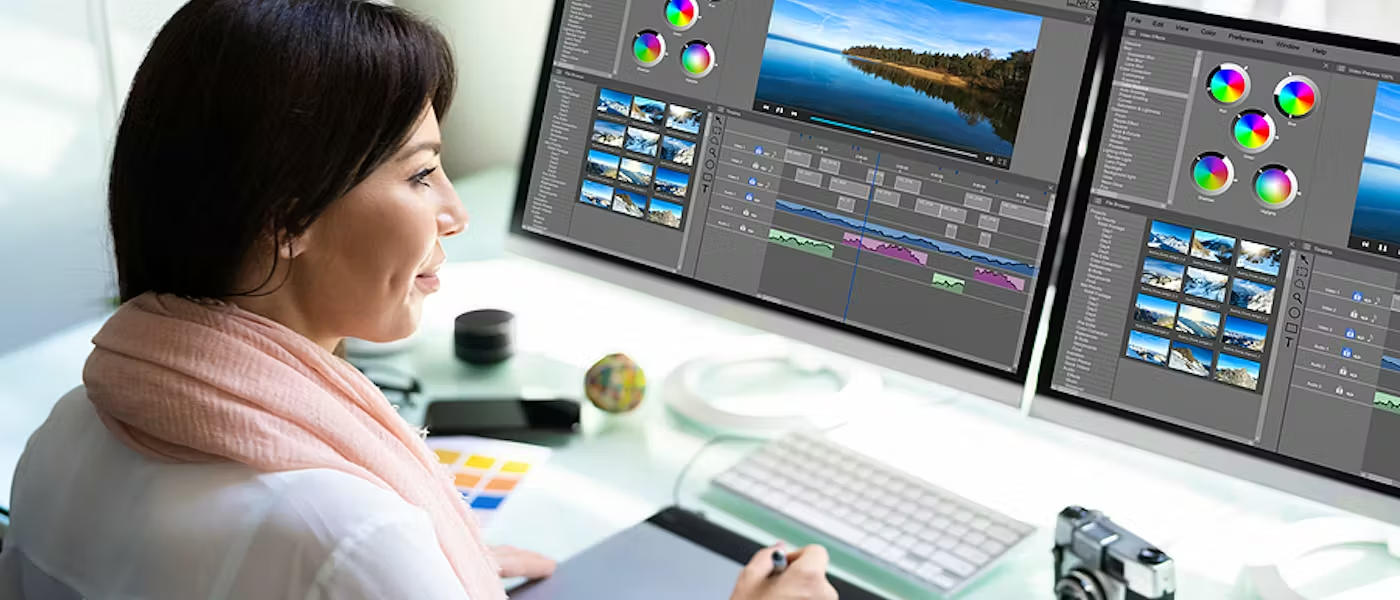
The detailed performance comparison reveals something most editors overlook: neither platform wins universally. Macs with M2 Ultra chips excel in specific workflows, such as ProRes encoding and multi-stream playback, while PCs with high-end GPUs dominate GPU-accelerated effects and AI-powered tools. The real question isn't which is objectively better, but which bottlenecks matter most for your specific content pipeline.
Performance metrics that actually move the needle
According to Puget Systems, the Mac Studio with M2 Ultra delivers up to 25% faster performance than comparable PCs in DaVinci Resolve for certain tasks. But that advantage disappears entirely when you shift to Premiere Pro with CUDA-accelerated plugins. The performance crown changes hands depending on which software you're running and what operations you're executing most frequently.
Export times tell only part of the story. Real-time playback with effects applied, scrubbing through 4K timelines without dropped frames, and responsiveness when stacking multiple adjustment layers matter more for daily workflow efficiency. Apple Silicon handles these tasks with remarkable smoothness because the unified memory architecture eliminates data-transfer bottlenecks between the CPU and GPU. When you're jumping between clips and making quick edits, that responsiveness feels faster than raw benchmark numbers suggest.
But GPU-intensive operations flip the script completely. Color grading with multiple nodes, applying temporal noise reduction, or using AI upscaling tools like Topaz Video AI, leans heavily on discrete GPU compute power. An NVIDIA RTX 4080 with 16GB of dedicated VRAM processes these tasks substantially faster than Apple's integrated graphics solution. The gap widens further when you're working with 6K or 8K footage, where memory bandwidth becomes the limiting factor.
Stability versus flexibility in real workflows
Editors working on deadline appreciate Mac's predictable behavior. The system rarely requires driver updates mid-project, and software crashes happen less frequently because Apple controls the entire hardware stack. When everything ships from a single manufacturer, compatibility issues that plague PC users simply don't arise. That consistency matters when you're racing to deliver content and can't afford troubleshooting sessions that eat into creative time.
The frustration with Windows interruptions runs deeper than most people admit. Forced restarts after updates, driver conflicts with capture cards, and unexpected performance degradation after system patches create genuine anxiety for editors who've experienced missed deadlines because their machine decided to update at the worst possible moment. That unpredictability carries a hidden cost that doesn't show up in benchmark comparisons.
PC flexibility offers distinct advantages once you assume responsibility for system maintenance. When a new codec emerges or a software update demands more VRAM, you can upgrade the GPU without replacing your entire workstation. Storage expansion occurs at commodity prices rather than Apple's premium rates. RAM upgrades cost a fraction of what you'd pay to configure a Mac properly upfront. Over a three-year period, that modularity translates into thousands of dollars saved while maintaining competitive performance.
The locked hardware ecosystem becomes a liability the moment your editing demands outgrow your initial configuration. You can't add more unified memory to an M2 Mac when 16GB starts causing swap file thrashing during complex projects. You're stuck with whatever storage capacity you purchased on day one, paying Apple's inflated prices if you miscalculated your needs. That constraint forces premature system replacements, turning what seemed like a reasonable investment into a disposable purchase with terrible long-term economics.
Software ecosystem realities
Final Cut Pro remains the strongest argument for Mac ownership among professional editors. The magnetic timeline, background rendering, and optimized performance for Apple hardware create genuinely efficient workflows that Premiere Pro users often envy. Editors who've built their entire workflow around Final Cut shortcuts and organizational tools face substantial retraining costs when switching platforms. Software lock-in matters more to many professionals than hardware specs.
Cross-platform applications perform differently depending on optimization priorities. Premiere Pro runs better on Windows machines with discrete NVIDIA GPUs because Adobe engineers optimize for CUDA acceleration. DaVinci Resolve performs exceptionally well on both platforms, leveraging the Mac's unified memory for smoother playback while using the PC's discrete GPUs for faster rendering. Knowing which software you'll use most determines which hardware advantages actually benefit your workflow.
Open-source tools like Shotcut and OpenShot eliminate platform dependency entirely, but they lack the advanced features professional editors require. You won't find sophisticated color grading tools, advanced motion tracking, or robust audio mixing capabilities that match commercial applications. For hobbyists and beginners, these free options work identically across Mac and PC. For professionals, they're non-starters regardless of which platform you choose.
Most editing decisions today aren't actually constrained by processing power or platform choice. The real bottleneck is the repetitive work that occurs before and after creative editing: organizing footage, syncing audio, adding captions, adjusting levels, and exporting to multiple formats. Tools like Crayo's clip creator address this friction by automating the tedious parts that consume hours, regardless of whether you're on a MacBook Pro or a custom Windows rig. When AI handles voiceovers, subtitle generation, and background removal automatically, you spend less time on technical execution and more time identifying viral clips and trending content. The platform works identically across both ecosystems because the real competitive advantage isn't your hardware specs anymore.
Memory architecture tradeoffs
Unified memory sounds elegant until you understand the constraints. Apple Silicon shares RAM between CPU and GPU tasks, which creates efficiency advantages for some workflows but imposes hard limits on others. A Mac with 16GB of unified memory might perform smoothly with 4K footage, but when you're running multiple applications simultaneously while editing, that shared pool gets exhausted quickly. The system starts writing to swap files on your SSD, and performance degrades noticeably.
PC architecture with dedicated system RAM plus separate VRAM on discrete GPUs provides more headroom for complex multitasking scenarios. A workstation with 32GB of system RAM and a GPU with 12GB of VRAM handles simultaneous browser tabs, communication tools, and heavy editing workloads without memory contention. When you're previewing effects while background rendering happens and you've got reference footage open in another window, that separation prevents bottlenecks.
The memory upgrade trap repeatedly catches Mac buyers. Configuring sufficient unified memory upfront costs substantially more than adding RAM to a PC later. An extra 16GB of RAM on a Mac Studio might cost $400 from Apple, while the same capacity upgrade on a PC costs $80 in commodity memory modules. That price differential compounds over time as your needs grow and you're forced to either live with constraints or replace the entire system.
Battery life versus plugged-in performance
Apple Silicon's efficiency advantage becomes undeniable when you're editing away from power outlets. An M2 MacBook Pro delivers six to eight hours of actual editing time on battery, while comparable Windows laptops struggle to reach three hours under similar workloads. For editors who work in client offices, on location, or while traveling, that battery endurance creates genuine workflow advantages that desktop performance comparisons miss entirely.
But if your editing workstation stays plugged into a desk 95% of the time, you're paying a premium for battery efficiency you rarely use. The thermal constraints that keep Macs quiet and cool also limit sustained performance under heavy loads. A desktop PC with proper cooling can maintain maximum performance indefinitely during long export jobs, while laptops throttle to manage heat regardless of whether they're plugged in.
The portability premium makes sense for specific use cases and becomes wasteful for others. Evaluate honestly how often you actually edit away from your primary workspace. If the answer is rarely or never, you're subsidizing battery technology and thermal engineering that doesn't improve your daily workflow. That money could buy better GPU performance, more storage, or additional RAM that directly accelerates your editing tasks.
But none of these hardware decisions matter as much as choosing tools that remove friction from your content creation pipeline, which is where beginners often make their most expensive mistakes.
Related Reading
- Types of Video Editing
- Long Does It Take to Edit a YouTube Video
- How Long Does It Take to Edit a Music Video
- What Is an Overlay in Video Editing
- Is CPU or GPU More Important for Video Editing
- Can I Edit a YouTube Video After Posting
- Is Video Editing a Good Career
- Beginner’s Guide to Video Editing
- Video Editing Basics
Which One is Better for Beginners
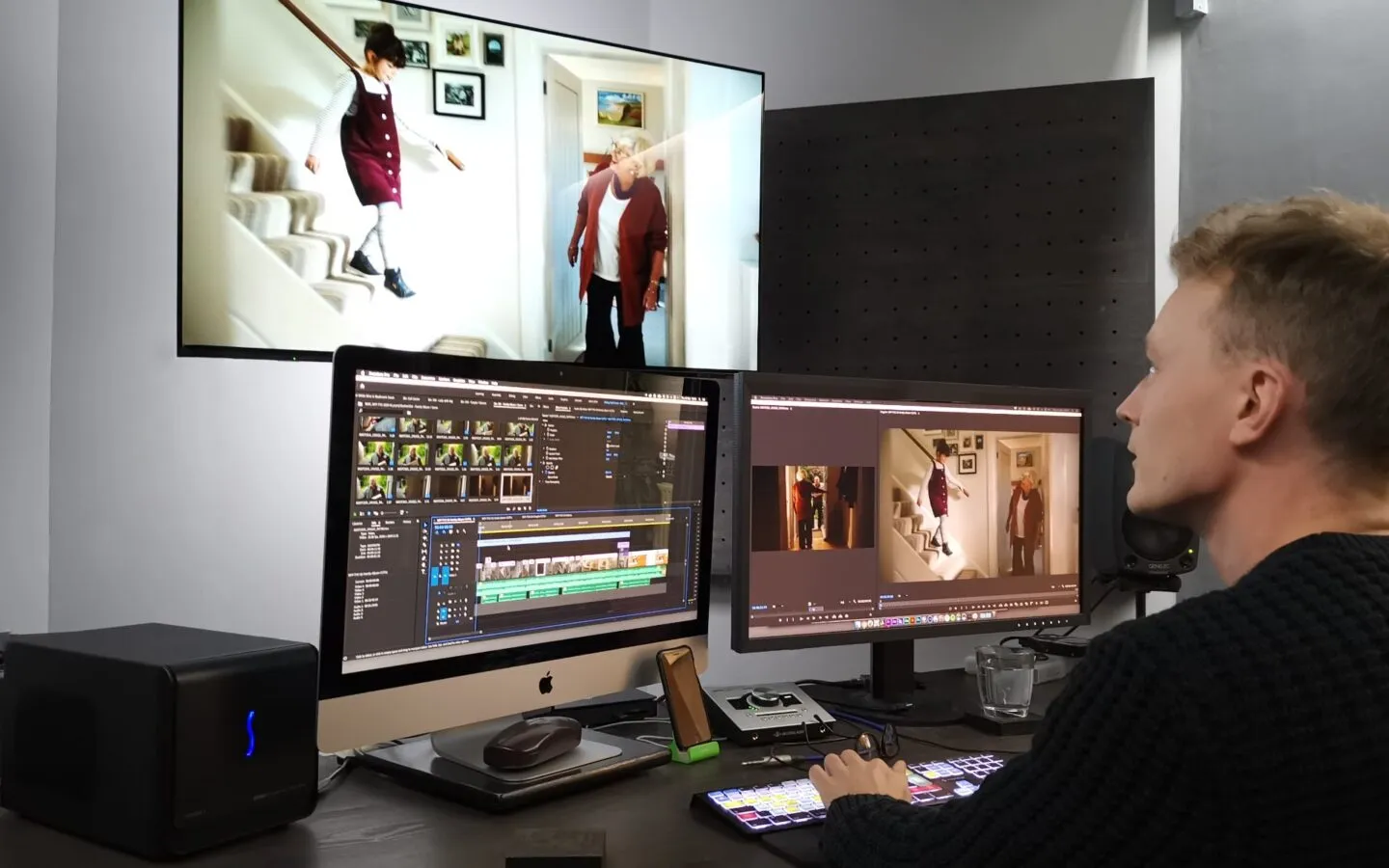
The better choice depends on whether you prioritize simplicity with locked-in costs or flexibility with a learning curve. Macs deliver polished, predictable experiences if you're willing to pay premium prices upfront and accept zero upgrade paths. PCs offer broader software choices, better performance per dollar, and the ability to grow your system as your skills develop, but require more active system management.
When Mac makes sense for your first editing setup
You value simplicity over everything else. The moment you open a MacBook, iMovie sits ready without installation hassles, driver conflicts, or compatibility questions. The interface feels intuitive because Apple designed every interaction with beginners in mind. Drag footage to the timeline, trim clips with keyboard shortcuts, and add transitions with visual previews. Nothing requires consulting forums or watching tutorial series just to start editing your first project.
Final Cut Pro extends that simplicity when you're ready to move beyond iMovie's limitations. The magnetic timeline prevents accidental clip displacement, background rendering keeps playback smooth while you work, and the organizational tools help manage growing libraries without folder chaos. Editors who choose Mac often stay with Mac because relearning keyboard shortcuts and workflow patterns carries real switching costs once muscle memory develops.
Stability matters when you're learning. System crashes during your first serious project can discourage beginners to the point of quitting entirely. Macs crash less frequently because hardware and software are manufactured by a single company. You won't spend evenings troubleshooting why your GPU driver conflicts with your editing software or why Windows forces a restart mid-render. That predictability lets you focus on learning editing techniques rather than on system administration.
Budget constraints become the hard reality check. A Mac Mini starts at $599, but serious editing requires maxing out the non-upgradeable RAM and storage during purchase. Suddenly, you're looking at $1,200 to $1,500 for a properly configured system, and those specs stay frozen permanently. When your editing ambitions outgrow 16GB of unified memory in 18 months, you're facing complete system replacement. That economic model only works if you're certain about your long-term commitment and have budget flexibility.
When PC delivers better long-term value
You want a software choice without platform restrictions. Premiere Pro, DaVinci Resolve, Shotcut, and OpenShot all run on Windows, giving you the freedom to experiment with different editing philosophies without switching hardware. Many beginners start with free tools like Shotcut to learn basic concepts, then graduate to Premiere Pro or Resolve as their skills develop. That progression path works smoothly on PC without relearning an entirely new operating system.
Performance scaling matters more than most beginners realize. Start with a modest system featuring 16GB of RAM and a mid-range GPU, then upgrade components as your projects grow more complex. When 4K footage starts causing playback issues, add more RAM for $80 instead of replacing your entire computer. When rendering times become frustrating, upgrade your GPU without touching anything else. That modularity turns a $800 initial investment into a system that evolves with your capabilities over three to five years.
The used market creates entry opportunities that don't exist in Apple's ecosystem. A two-year-old gaming PC with a previous-generation GPU often delivers better editing performance than a new budget laptop at the same price. Components like RAM, storage, and power supplies age gracefully, while GPUs and CPUs from 2022 still handle 1080p and 4K editing smoothly. Beginners willing to research specifications can build capable editing workstations for $500 to $700 by strategically mixing new and used components.
But here's what catches beginners regardless of platform choice. You spend hours learning software interfaces, watching tutorials about color grading and transitions, and building editing skills that feel productive. Then you realize the real bottleneck isn't your technique. It's the repetitive tasks that consume time before and after the creative work. Syncing multiple audio sources, adding captions manually, adjusting levels across dozens of clips, and exporting multiple aspect ratios for different platforms. That's where tools like Crayo's clip creator shift the equation entirely. The platform automates voiceovers, subtitle generation, and background removal, so you can focus on identifying viral clips and trending content. It works identically whether you're on a MacBook or a custom Windows build because the real competitive advantage isn't your hardware specs anymore. It's about workflows that move you from raw footage to published content in minutes, not hours.
Budget realities nobody mentions upfront
Windows laptops under $700 exist, but most deliver frustrating editing experiences. Integrated graphics struggle with even 1080p timelines, 8GB of RAM causes constant stuttering, and thermal throttling kicks in during exports. The temptation to save money by buying the cheapest available laptop backfires quickly when you're waiting 45 minutes for a five-minute video to render. Budget constraints are real, but going too cheap creates workflows so painful that beginners quit before developing actual skills.
The sweet spot for PC beginners sits around $900 to $1,200. That budget gets you 16GB of RAM, a discrete GPU with dedicated VRAM, and an SSD large enough to store project files without constant juggling of external drives. These systems handle 1080p editing smoothly and manage 4K footage with proxy workflows. More importantly, they include upgrade paths that extend their useful life well beyond what similarly priced Macs offer.
Mac buyers face a different calculation. The entry-level MacBook Air with M2 chip handles basic editing surprisingly well, thanks to unified memory efficiency, but 8GB configurations hit memory pressure quickly when you're running editing software alongside browser tabs and communication tools. The 16GB model costs substantially more but delivers genuinely smooth performance for years. That upfront cost feels steep, but it eliminates the upgrade anxiety that PC users face when deciding whether to spend more on their system.
The software learning curve difference
iMovie teaches editing fundamentals without overwhelming beginners. The limited feature set feels restrictive to experienced editors but creates perfect guardrails for people learning their first timeline-based workflow. You can't get lost in endless menus or accidentally apply destructive edits. The magnetic timeline prevents common beginner mistakes, such as accidentally deleting clips or creating gaps in your sequence. Those training wheels matter during your first dozen projects.
Premiere Pro and DaVinci Resolve offer professional capabilities but present steeper learning curves. The interface complexity that gives professionals precise control overwhelms beginners who just want to trim clips and add music. You'll spend time learning concepts like nesting sequences, adjustment layers, and color spaces before you can execute ideas efficiently. That investment pays off as your skills grow, but it creates initial friction that makes some beginners quit.
Free Windows options like Shotcut split the difference imperfectly. The interface feels less polished than commercial software, and some operations require more clicks than they should. But you get access to professional features like multi-track editing, color correction, and audio mixing without subscription costs. Beginners willing to tolerate occasional workflow friction can develop real skills without financial commitment.
Portability versus performance tradeoffs
Laptop editing creates genuine convenience for students and mobile creators. Edit in coffee shops between classes, work on projects during commutes, bring your system to client locations for quick revisions. That flexibility matters when your living situation doesn't include a dedicated workspace or when you're producing content in multiple locations throughout your week.
Desktop systems deliver better performance per dollar but eliminate portability entirely. A $1,000 desktop tower outperforms a $1,500 laptop in rendering speed and multitasking capability, but you can't move it between rooms without significant hassle. Beginners need to honestly evaluate how often they actually edit outside their primary workspace. If the answer is rarely, laptop premiums waste money that could be spent on better performance or additional storage.
The hybrid approach solves this for some beginners. Keep a budget laptop for portable work and basic editing, then build or buy a desktop system for heavy lifting when you're home. A $400 used laptop handles timeline assembly and rough cuts, while an $800 desktop processes final renders and effects-heavy sequences. That separation costs more upfront but creates workflow flexibility that single-system users can't match.
But choosing the right hardware only matters if you're using tools that actually help you create content worth watching.
Related Reading
- Video Editing Workflow Checklist
- PC Specs for Video Editing
- How To Start Editing Videos
- How To Practice Video Editing
- How To Make A Video Editing Portfolio
- Video Editing Tips And Tricks
- How To Make Money Video Editing
- Best Free Video Editing Apps For Android
- How To Organize Video Files For Editing
- How To Edit Video In Google Drive
- Creative Video Editing Techniques
8 Best Video Editing Tools for Beginners
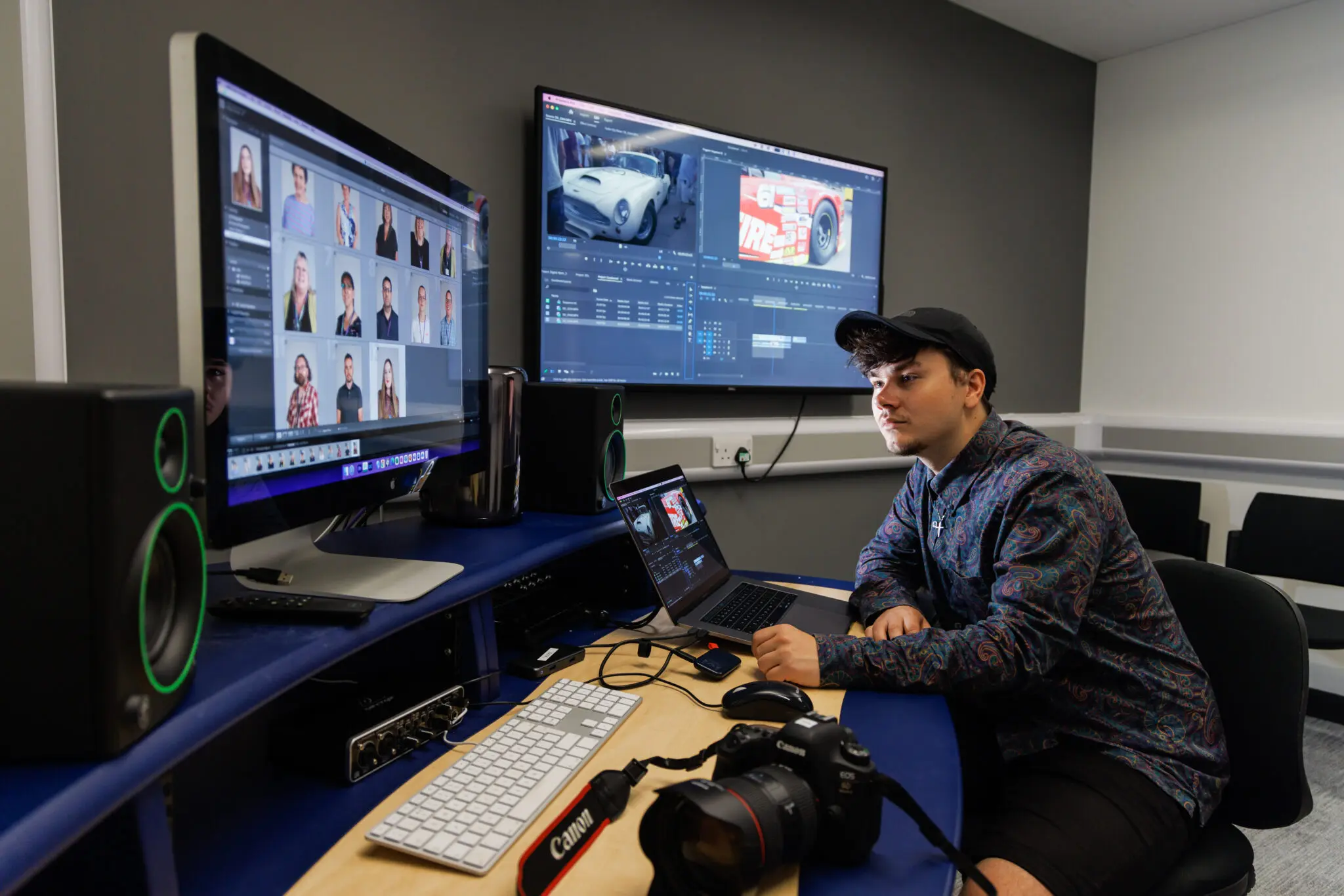
Beginners need tools that remove technical barriers without limiting creative potential. The best options either automate repetitive tasks so you can focus on storytelling or provide intuitive interfaces that teach editing fundamentals without overwhelming you with professional complexity. Your choice depends on whether you prioritize publishing speed or building transferable skills for future growth.
1. Crayo
Crayo eliminates the timeline complexity that stops most beginners from finishing their first project. Instead of learning tracks, keyframes, and manual captioning, you start with an idea or prompt, and the platform generates polished short-form content automatically. The AI handles voiceovers, subtitle generation, background removal, and pacing while you focus on identifying viral clips and trending content. This matters because the bottleneck for new creators isn't technical skill. It's the hours spent on repetitive tasks that delay publishing and kill momentum.
Who It's For
People creating TikTok, Reels, or Shorts will find Crayo built specifically for vertical, fast-attention content. The templates and caption styles match current social media trends without requiring you to study what's working right now. Career starters and freelancers can build portfolios in days instead of months because you're producing publishable content while still learning editing concepts. Marketers and solopreneurs who need consistent output for product clips and promotional shorts benefit from speed and repeatability over cinematic complexity.
Pros & Cons
Pros: No timeline learning curve, AI auto-generates all technical elements, optimized specifically for short-form platforms, builds portfolio quickly, fast turnaround from idea to published video
2. PowerDirector
PowerDirector balances accessible interfaces with professional capabilities that most beginners eventually need. You get keyframed effects, multicam editing, and motion tracking without the intimidating complexity of Premiere Pro. According to That Creative Hub, the software now includes generative AI features like auto-captioning with text-based editing and auto-face-blurring without motion tracking. The interface stays clear even as you access more advanced tools, which prevents the paralysis that happens when every menu contains 50 options you don't understand yet.
Who It's For
Business video producers creating presentation videos and proposals get all the necessary polish tools without learning curves that delay deadlines. Video enthusiasts who want control over music, transitions, text, and color correction find PowerDirector hits the sweet spot between simplicity and capability. YouTubers benefit particularly from AI video and audio generation tools, plus included stock media, which matters when you can't hire actors or rent studio space.
Pros & Cons
Pros: Fast rendering performance, clear interface that scales with your skills, extensive effects library and AI automation tools, multicam and motion tracking support, includes screen recording
Cons: Feature abundance can overwhelm during the first few projects, subscription model for full feature access
3. Apple iMovie
iMovie teaches timeline fundamentals through an interface that prevents common beginner mistakes. The magnetic timeline prevents accidental gaps or clip deletions, while storyboard features provide shot guidance to help you structure compelling narratives from scratch. If you shoot with an iPhone, iMovie maintains proprietary Cinematic mode effects in your footage, which other software strips out during import. The limitation to two video tracks feels restrictive to experienced editors, but creates perfect guardrails while you're learning basic sequencing.
Who It's For
Family video sharers with Apple devices get the smoothest path from footage to finished video for vacations and kids' events. Video hobbyists find sufficient editing tools and effects to stay satisfied while building skills that transfer cleanly to Final Cut Pro later. The progression path matters because relearning keyboard shortcuts and organizational systems carries real costs once muscle memory develops.
Pros & Cons
Pros: Simple interface with guided templates, excellent chroma-keying tool, unique support for iPhone video features, free with Mac purchase
Cons: Limited to two video tracks, lacks multicam and motion tracking capabilities, Mac-only ecosystem
4. Adobe Premiere Pro
Premiere Pro delivers professional capabilities that beginners eventually need, but it presents a steep initial learning curve. The software includes AI audio auto-tagging, auto-captioning, text-based video editing, and a unified Color Manager that compresses workflows once you understand how to access them. Recent updates added the ability to extend video clips using generative AI, solving common problems like needing 3 more seconds of footage you didn't capture. The interface complexity that gives professionals precise control will overwhelm you initially, but that investment pays off as your projects grow more ambitious.
Who It's For
Collaborators working on team projects benefit from review and approval tools, as well as integration with other Adobe Creative Cloud applications. Professional video editors and serious amateurs who want industry-standard skills find Premiere Pro essential, as many workplaces expect fluency in Adobe's ecosystem. The software also handles 360 VR media with cutting, effects, titles, and transitions, though you'll need stitched 360 clips rather than stereoscopic 180-degree ones.
Pros & Cons
Pros: Clear, flexible interface once learned, responsive performance and fast rendering, auto-transcribing and text-based editing, excellent stabilization tool, unlimited multicam angles, extensive organization and collaboration tools
Cons: Subscription-only model increases long-term costs, some techniques require external applications like After Effects or Audition
5. Final Cut Pro
Final Cut Pro's trackless magnetic timeline feels strange at first, but it offers the flexibility you'll appreciate once the approach clicks. The interface avoids traditional track limitations, which means clips snap together intelligently and you spend less time managing empty spaces or accidental overlaps. The iPad version integrates smoothly with the desktop application and supports multicam editing, which matters if you shoot content on multiple devices and want smooth workflows between them. Apple product users get extra support for iPhone input and Vision Pro output that other platforms can't match.
Who It's For
Amateur video enthusiasts familiar with iMovie find Final Cut Pro's interface logical because Apple maintains a consistent design language across both applications. Pro video editors working on Hollywood movies and shows use Final Cut Pro extensively, which means learning it builds genuinely transferable industry skills. The software includes everything professionals need, plus supports plug-ins for specialized workflows.
Pros & Cons
Pros: Superb organization tools, fast performance on Apple Silicon, magnetic timeline prevents common editing mistakes, supports 360-degree footage and wide color spaces, excellent multicam editing, powerful masking and chroma keying
Cons: Import and export experiences could be clearer, some techniques require extra software like Motion and Compressor, Mac-only platform
6. Adobe Premiere Elements
Premiere Elements hides professional capabilities behind Guided Edits and simplified features that let you achieve complex effects without understanding the underlying concepts. If you want to have fun with video without stressing over keyframes and time codes, this approach works. The interface resembles Premiere Pro enough that transitioning later feels natural, but you're not drowning in options during your first projects. The three-year license limit means you'll eventually need to repurchase, but that's still less than the cost of ongoing Premiere Pro subscriptions.
Who It's For
Aspirants to Premiere Pro get a lower-cost stepping stone that teaches Adobe's editing philosophy without overwhelming complexity. Video editing beginners creating compelling videos with intriguing effects appreciate accessibility without lengthy learning investments. Memory keepers who create quality videos of events and trips for family sharing find the feature set sufficient without professional overhead.
Pros & Cons
Pros: Interface resembles Premiere Pro for easier future transitions, ample video effects and control, cross-platform support, 360 VR editing tools, and good rendering speeds
Cons: Three-year limit on product license, no multicam support, fewer advanced features than full Premiere Pro
7. DaVinci Resolve
DaVinci Resolve offers professional-grade capabilities through a generous free version that appeals to both amateurs and pros. The node-based editing workflow provides ultimate control over effects once you understand how nodes work, which takes time but rewards you with precision that other software can't match. Recent additions include AI-powered auto-captioning and text-based editing that compete directly with Premiere Pro's automation. The software includes motion graphics and audio editing tools, so you can handle more tasks in a single application rather than jumping between programs.
Who It's For
Hollywood wannabes and studio professionals choose DaVinci Resolve because many audio editors, colorists, and video editors already use it in production environments. Learning it builds industry-relevant skills that transfer directly to professional workflows. Video editors on a budget appreciate that the free version delivers substantial capabilities without subscription costs, though you'll encounter some features that require the paid version as your projects grow more complex.
Pros & Cons
Pros: Extensive editing tools for precise control, includes motion graphics and audio editing, deep color-grading tools, AI features automate processes, and fast render performance
Cons: Requires significant system resources, steeper learning curve than consumer-focused alternatives, and some advanced features are locked behind the paid version
8. Microsoft Clipchamp
Clipchamp works entirely in your browser, so you can edit without installing software or worrying about system compatibility. The default Windows video editor handles basic clip joining plus sophisticated tasks like effects, captions, and background music. Templates for intros and outros help give your project a cohesive form without requiring design skills. AI-powered speech-to-text auto-captioning tools and AI voice-overs that turn captions into dialog in multiple styles compress workflows that traditionally require separate applications. Much functionality remains free, but subscriptions add cloud storage, more stock content, brand kit features, and 4K output.
Who It's For
Web-based video editors that don't require installation can be used in a browser on any macOS or Windows PC. Anyone with a Windows PC can use Clipchamp for quick editing, thanks to integration with the OS's photo and screen capture tools. Marketers benefit from brand kits, template ranges, and stock media that speed up promotional content creation. Social creators posting to Facebook, Instagram, TikTok, or YouTube find templates and stock content make eye-catching videos easier to produce consistently.
Pros & Cons
Pros: Included with Windows, slick interface, generous template selection, stylish effects and transitions, good text and soundtrack options, web-based accessibility
Cons: Some features require a subscription, templates tend to be short without short type specifications, and there is limited control over effects compared to desktop applications
But choosing the right software only matters if you know how to use it efficiently, regardless of your platform.
Edit Smarter—Not Slower—No Matter If You’re on Mac or PC
Whether you're editing on a MacBook or a Windows PC, hardware limitations and complex software can slow you down, especially when creating short-form content. Crayo removes the heavy lifting by automatically handling captions, effects, music, and formatting, so your system doesn't have to. Drop in your idea or prompt, choose a style that fits your platform, and export polished shorts optimized for TikTok, Reels, and YouTube Shorts. Perfect for beginners and creators on both Mac and PC who want clean, high-quality edits without powerful hardware.
Try Crayo's free clip creator today and start producing professional-looking shorts without needing a high-end setup.
Related Reading
- Best Drone Video Editing Software
- Best Video Editing Software For Music Videos
- Best Video Editing Software For Sports Highlights
- Best Video Editing Software For Content Creators
- Best Video Editing App For Pc
- Best Paid Video Editing Software
- Best App for Video Editing on iPad
- Best Songs For Video Editing
- Best Video Editing Software For Vlogging
- Autopod Alternative