When you're exploring different types of video editing software, Photoshop might not be the first tool that comes to mind. Yet this image editing powerhouse actually includes video editing capabilities that can handle basic cuts, timeline adjustments, and even frame-by-frame tweaks. Understanding whether Photoshop fits your workflow matters, especially when you're trying to create viral reels and TikToks fast with AI-powered efficiency.
While Photoshop offers solid features for minor video adjustments and creative effects, creating scroll-stopping content at scale demands a different approach. That's where Crayo AI's clip creator tool changes the game, letting you generate polished short-form videos in minutes rather than hours, freeing you from tedious manual editing so you can focus on what actually drives engagement and views.
Summary
- Photoshop includes timeline-based video editing that handles trimming, text overlays, color grading, and H.264 exports, the same codec powering over 80% of web video playback according to Cisco's 2024 Visual Networking Index. The misconception persists because Photoshop built its reputation on still images, but designers and social media managers regularly use its video capabilities for short-form content under 60 seconds.
- Hardware that runs Photoshop smoothly for photo retouching often crashes when handling 4K video clips with multiple effects applied. A single minute of 1080p footage at 30 frames per second requires 150 to 200 megabytes of storage, and Photoshop maintains full-quality working files without compression during editing. A three-minute video project with effects can consume 12GB or more of RAM, and the memory footprint grows non-linearly as you add adjustment layers or extend clip duration.
- High-volume creators hit a ceiling effect in which manual editing scales linearly with available time rather than with content demands. According to DIY Video Editor, 90% of video content is consumed on mobile devices, yet creators who post 3 times daily can't afford 20-minute editing sessions per video. Platforms designed for rapid output automate caption placement, background music selection, and transition timing, with each automated choice saving 30 to 90 seconds that compounds into hours reclaimed across dozens of monthly videos.
- Social media platforms compress uploaded videos regardless of export settings, meaning uploading a 4K video when the platform serves 1080p to most viewers wastes upload time without improving viewer experience. Free trials reveal that small friction points like clumsy export dialogs add up to 300 extra clicks per year, while confusing audio mixing costs 5 extra minutes per video, totaling 25 hours per year for weekly creators.
- Browser-based editors bypass hardware limitations by processing video in the cloud rather than locally, shifting the bottleneck from processor capability to internet connectivity quality. The difference between 90-second and five-minute render times determines whether creators can iterate quickly or wait through frustrating delays, and this performance gap matters more than feature checklists because rendering happens repeatedly across hundreds of projects.
- Crayo's clip creator tool addresses this production bottleneck by automating subtitle generation, voice-over synchronization, and background removal, tasks that would otherwise require manual frame-by-frame work in traditional editors.
Can You Edit Video in Photoshop
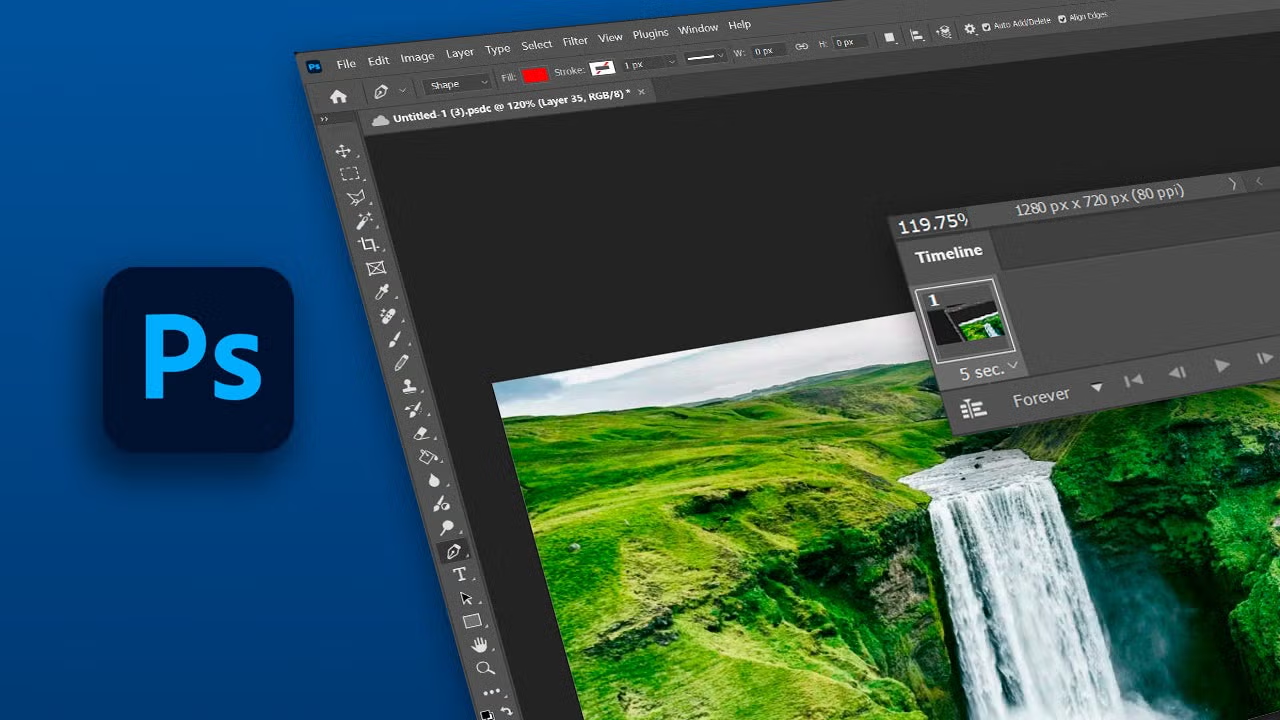
Yes, you can edit videos in Photoshop. The software includes a timeline-based video editor that handles trimming, text overlays, color grading, transitions, and audio adjustments. While it won't replace Premiere Pro for feature-length projects, Photoshop exports MP4 files using H.264 compression, the same codec that powers over 80% of web video playback according to Cisco's 2024 Visual Networking Index. Designers and social media managers regularly use it for short-form content under 60 seconds.
The misconception persists because Photoshop built its reputation on still images. But the video timeline arrived years ago, quietly tucked away in the interface that many users never noticed. I've watched creative teams discover this feature by accident, often while searching for animation tools, then realize they've been paying for Premiere subscriptions they barely needed.
What Photoshop's video editor actually does
The timeline works like a simplified version of traditional editing software. You can layer multiple video clips, trim them frame by frame, and arrange them sequentially. Text layers animate just like they do in static compositions, meaning the typography controls you already know translate directly to motion. Adjustment layers apply color corrections across entire clips or specific segments. Filters stack the same way they do in photo editing, letting you apply blur, sharpen, or stylistic effects without rendering separate versions.
Audio tracks sit below the video timeline. You can fade music in and out, adjust volume levels, and sync sound to visual cuts. The interface feels familiar if you've spent time with Photoshop's layer system, which means the learning curve flattens for anyone already comfortable with masks, blending modes, and non-destructive editing.
Exporting happens through the same menu system as saving images. You select H.264 as your format, choose resolution and frame rate, then render. The output quality matches what you'd expect from dedicated video software for short clips, though rendering speed depends heavily on your machine's processor and available RAM.
When design-first video makes sense
Social media content lives or dies on visual identity. A brand's color palette, font choices, and graphic style should remain consistent across posts, stories, and short videos. Photoshop excels here because you're working in the same environment where those design elements originated. Your logo files, color swatches, and typography presets already exist in the workspace. You're not importing assets between programs or worrying whether hex codes translate correctly.
I've seen marketing teams cut their Reels production time significantly by staying inside Photoshop. They build animated text treatments, add product shots, layer in transitions, and export finished videos without switching applications. The workflow makes sense when your content strategy prioritizes branded visuals over complex narrative editing. TikTok creators focused on text-heavy content or motion graphics find similar efficiency gains.
The software's strengths are most evident in projects where graphic design drives the concept. Animated infographics, promotional announcements, tutorial snippets with callouts, these formats benefit from Photoshop's precision with typography and shape layers. You can adjust kerning mid-animation or tweak gradient angles frame by frame, controls that feel clumsy in traditional video editors but are natural here.
The technical reality of short-form constraints
Photoshop's video capabilities hit practical limits around the two-minute mark. The timeline handles shorter clips smoothly, but longer projects start feeling cumbersome. You're working in software optimized for image manipulation, not extended sequences with complex audio mixing or multi-camera angles. Rendering times increase as clip duration increases, and the interface lacks advanced features such as ripple edits, nested sequences, and professional color-scoping tools.
Memory management becomes the real bottleneck. Video files consume significantly more RAM than static images, and Photoshop's architecture wasn't designed for hour-long timelines. I've watched projects slow to a crawl once they exceed a dozen clips with effects applied. The software remains responsive for 15 to 30-second videos but struggles with anything resembling a full production.
Format support matters too. Photoshop reads most common video codecs, but occasionally chokes on newer or less standard formats. You might need to transcode footage before importing it, adding an extra step that dedicated video software handles automatically. Audio editing remains basic, just enough for simple adjustments, but nowhere near the multi-track mixing capabilities serious video work demands.
Why creators choose design integration over dedicated editors
The decision often comes down to where you spend most of your creative time. If you're already building Instagram carousels, designing thumbnails, and creating branded graphics in Photoshop, adding short video clips to that workflow eliminates context switching. Your brain stays in design mode rather than toggling between different interfaces and keyboard shortcuts.
Speed matters more than feature depth for certain content types. A 15-second product teaser with animated text doesn't require sophisticated editing tools. It needs quick execution, visual consistency, and immediate export. Photoshop delivers that combination efficiently when the creative concept centers on graphics rather than cinematic storytelling.
Yet the viral content landscape has shifted toward volume and velocity. Creators who post multiple times daily can't afford to spend 20 minutes perfecting motion graphics in Photoshop for each video. Platforms like the clip creator tool emerged specifically to address this production bottleneck, automating subtitle generation, voiceover sync, and background removal that would otherwise require manual frame-by-frame work. The difference becomes stark when you're scaling from three posts a week to three posts a day.
The export format that runs the internet
H.264 compression dominates because it balances file size with visual quality better than alternatives. When Photoshop exports MP4 files using this codec, the output works smoothly across YouTube, Instagram, TikTok, Facebook, and virtually every other platform. You're not troubleshooting compatibility issues or re-encoding for different destinations.
The codec's ubiquity stems from its efficiency. According to streaming infrastructure data compiled by Cloudflare in early 2025, H.264 still accounts for 83% of video traffic across content delivery networks, despite newer formats like H.265 offering better compression ratios. Platforms stick with it because playback works reliably across older devices and slower connections. Your Photoshop exports inherit that compatibility automatically.
Resolution and bitrate settings within the export dialog control final quality. Higher bitrates preserve more detail but create larger files, which matters when you're uploading dozens of videos monthly. The presets Photoshop offers match common social media specifications, though experienced users often create custom export settings that balance quality against upload speed and storage costs.
Where motion graphics meet brand consistency
Animating a logo reveal in Photoshop takes minutes if you understand keyframes and layer transforms. The same task in dedicated motion graphics software requires learning a different interface and animation paradigm. For quick social content, that friction matters. You can duplicate a template, replace the text, adjust timing, and export a fresh version faster than most rendering queues finish.
Brand guidelines often specify exact colors, fonts, and spacing that need to carry through every piece of content. Staying inside Photoshop means those specifications live in your document presets and character styles. You're not approximating brand colors by eye or hunting for font files across different applications. The design integrity you maintain in static posts extends naturally into motion.
This consistency compounds across content calendars. When every video uses identical typography treatments and color grading, audiences recognize your content instantly as they scroll. That visual signature becomes part of your brand identity, and maintaining it gets exponentially easier when you're not context-switching between programs that handle color spaces and font rendering differently.
But understanding what Photoshop can do only matters if you know where it breaks down.
Related Reading
- Types of Video Editing
- Long Does It Take to Edit a YouTube Video
- How Long Does It Take to Edit a Music Video
- What Is an Overlay in Video Editing
- Is CPU or GPU More Important for Video Editing
- Can I Edit a YouTube Video After Posting
- Is Video Editing a Good Career
- Beginner’s Guide to Video Editing
- Video Editing Basics
Problems With Editing Videos in Photoshop
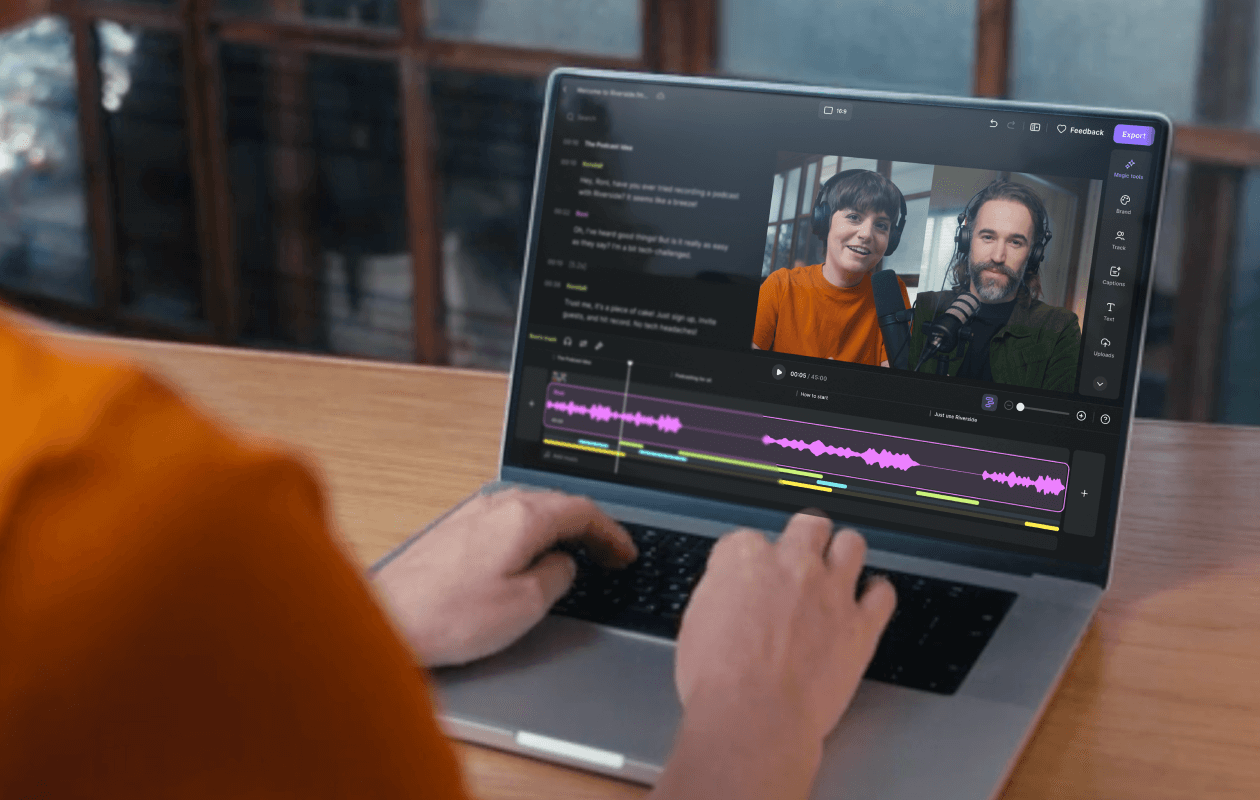
Photoshop's video editing capabilities falter under six specific constraints that surface predictably once you move beyond basic 15-second clips. Your computer's hardware is the first limiting factor, followed by storage capacity, feature depth compared to dedicated editors, performance degradation when multitasking, RAM consumption patterns, and render times that unexpectedly stretch. These aren't abstract limitations. They're concrete friction points that interrupt workflows and force workarounds.
The problems cluster around a fundamental mismatch. You're asking software built for pixel-perfect image manipulation to handle time-based media at scale. That architectural tension shows up in memory allocation, processing priorities, and interface design choices that made perfect sense for photography but create bottlenecks for video.
1. Hardware specifications that seemed fine suddenly aren't
Your machine runs Photoshop smoothly for photo retouching, layer compositing, and even complex smart object workflows. Then you import a 4K video clip and watch a performance crater. The software demands processor speeds, dedicated graphics memory, and disk write speeds that exceed typical creative workstation specs. Photoshop slows to a crawl or crashes entirely when handling video files larger than a few gigabytes with multiple effects applied.
Check your system against Adobe's recommended specifications before committing to video projects. The minimum requirements let the software launch, but don't support actual production work. You need 16GB of RAM as a baseline, preferably 32GB if you're layering clips or applying adjustment layers. Graphics cards matter more for video than static images because real-time preview rendering depends on GPU acceleration. An underpowered system turns every playback attempt into a stuttering slideshow.
2. Storage limitations that arrive faster than expected
Video files consume space at rates that catch designers off guard. A single minute of 1080p footage at 30 frames per second typically requires 150-200 megabytes of storage. Photoshop doesn't compress that data during editing. It maintains full-quality working files, which means a project with five one-minute clips and rendered output versions can easily exceed multiple gigabytes.
The software doesn't include project management tools to track storage usage or archive old projects efficiently. You're managing file organization manually, hunting for space when exports fail because your drive filled up mid-render. Large video files quickly exceed practical limits for Photoshop projects, especially if you're working from a laptop with limited SSD capacity. External drives become necessary, adding another layer of file management complexity.
3. Feature gaps that force manual workarounds
Photoshop offers basic video tools. Trim clips, add text, apply color corrections, and fade audio. That functionality handles simple announcements or animated graphics. But it lacks ripple editing, which means deleting a clip creates a gap you must manually close. No multi-camera synchronization. No advanced audio mixing beyond volume adjustments. No motion tracking that follows objects through frames automatically.
The software positions itself as a photo editor that also handles video, not as a comprehensive editing platform. When you need to stabilize shaky footage, match audio across multiple clips, or create complex transitions beyond simple dissolves, you hit feature walls that require switching to specialized software. That context switching negates the efficiency gains Photoshop promised in the first place.
4. Performance degradation when other applications run
Photoshop demands exclusive access to system resources for smooth video playback. Running Chrome with multiple tabs, Slack, Spotify, and email simultaneously turns video editing into an exercise in patience. The timeline stutters, preview rendering lags behind your playhead position by seconds, and keyboard shortcuts respond with noticeable delays.
Close background applications before starting video work, or accept severely compromised performance. The software doesn't gracefully throttle its resource demands based on system availability. It assumes it's the primary application and allocates memory accordingly. That assumption breaks down in modern multitasking workflows, where creators constantly jump between research, communication, and production.
5. RAM consumption that scales unpredictably
Working with large video files pushes RAM usage into a territory most designers never encounter with static images. A 10-layer photo composition might use 2GB of memory. A three-minute video project with effects applied across multiple clips can consume 12GB or more. The memory footprint grows non-linearly as you add adjustment layers, apply filters, or extend clip duration.
Monitor your RAM usage actively or face sudden crashes that lose unsaved work. Photoshop's auto-save feature helps, but doesn't eliminate the frustration of watching a project freeze mid-export because available memory drops below critical thresholds. The software doesn't warn you when you're approaching memory limits. It just stops responding, forcing hard restarts that risk file corruption.
6. Render times that stretch beyond reasonable expectations
Complex edits take longer to process in Photoshop than in dedicated video software optimized for encoding efficiency. A 30-second clip with color grading, text animations, and transitions might render in 45 seconds in Premiere Pro but require three to four minutes in Photoshop. The difference compounds across multiple exports as you refine timing or adjust effects.
Allow significantly more time than you'd expect for rendering tasks. The software prioritizes quality over speed, which makes sense for final deliverables but creates friction during iterative editing. You can't quickly preview how a timing change affects the overall feel when each test export takes minutes. That lag between idea and feedback slows creative momentum noticeably.
Creators posting multiple videos daily find these constraints unmanageable. Platforms like Crayo emerged specifically because manual video editing, even in streamlined environments like Photoshop, can't match the production velocity that viral content demands. Automated subtitle generation, instant voiceover synchronization, and background removal happen in seconds rather than minutes of frame-by-frame adjustment. The shift matters when your competition publishes while you're still waiting for renders to complete.
Yet most creators don't discover these limitations until they've already invested hours learning Photoshop's video timeline. The real question becomes which tools actually match the speed modern content calendars demand.
8 Best Video Editing Tools for Beginners
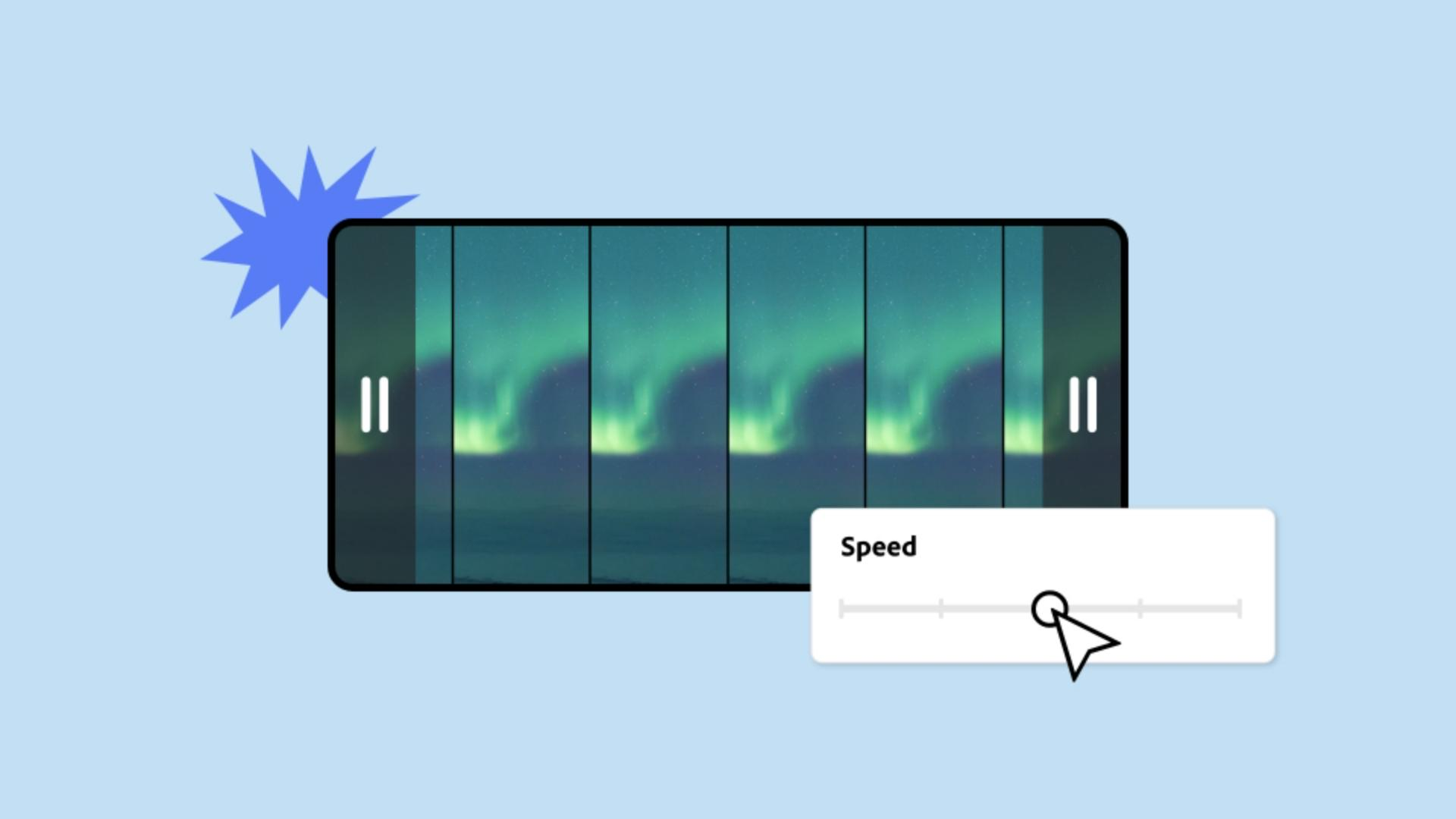
Most beginners choose video editors based on feature lists rather than workflow alignment. The software that works depends entirely on whether you're building a portfolio for client work, churning out daily social content, or learning professional editing as a career skill. Each tool below solves different problems for different creators at different stages.
The platforms split cleanly into two categories. Some prioritize speed and automation for high-volume social content. Others emphasize skill development and feature depth for aspiring professionals. Your content calendar and career trajectory determine which matters more.
1. Crayo
Crayo removes the technical barriers between concept and published video. You start with a simple prompt or idea, and the platform automatically generates a polished short-form video. Captions appear synchronized to speech patterns. Visual effects match current trending styles. Background footage, music selection, and pacing decisions happen without manual timeline manipulation.
The software targets a specific problem. Creators who post multiple times a day can't spend 20 minutes manually perfecting each video. Crayo compresses that production cycle to seconds by automating subtitle generation, voice-over synchronization, and background removal. The difference becomes stark when you're scaling from three weekly posts to three daily posts across TikTok, Instagram Reels, and YouTube Shorts.
The platform works best for people who understand content strategy but lack editing expertise. You focus on identifying trending topics, finding compelling clips, and maintaining posting consistency rather than learning keyframe animation or color grading theory. The AI handles technical execution while you handle creative direction and audience engagement.
Career starters benefit differently. Building a portfolio requires finished videos, but traditional editing software demands months of skill development before you can produce professional-looking content. Crayo lets you generate portfolio pieces immediately, demonstrating storytelling ability and platform understanding without first mastering complex software interfaces.
The limitation arises when you need precise control over timing, custom visual effects, or brand-specific motion graphics that don't fit the current trend. Crayo optimizes for viral formatting and rapid output. Projects requiring frame-by-frame precision or unconventional pacing need different tools.
2. PowerDirector
PowerDirector delivers professional-grade capabilities through an interface that doesn't punish beginners. The timeline feels familiar if you've used any consumer editing software, but the feature depth extends far beyond basic cutting and transitions. Multicam editing, motion tracking, keyframed effects, and VR footage support sit alongside AI-powered tools like auto-captioning and automatic face blurring.
The software positions itself between consumer simplicity and professional complexity. YouTubers find the balance particularly useful. You can start with straightforward cuts and titles, then gradually adopt advanced techniques as your content sophistication grows. The learning curve exists, but slopes gently rather than hitting you with vertical walls.
Business video producers appreciate the polish available without hiring specialists. Presentation videos, product demonstrations, and corporate announcements require clean execution and professional appearance more than creative experimentation. PowerDirector provides templates, stock media, and automated tools that maintain quality standards while keeping production timelines manageable.
The interface clarity matters more than most reviews acknowledge. Professional software often buries essential functions under nested menus and keyboard shortcuts that take weeks to memorize. PowerDirector surfaces common tasks logically, letting you find color correction, audio mixing, and export settings without constant reference to tutorials.
Rendering speed stands out compared to similarly capable alternatives. Projects export noticeably faster than expected, with the difference compounded across revision cycles and multi-video production days. The difference between 90-second and four-minute render times determines whether you can iterate quickly or wait through frustrating delays.
The overwhelming number of effects and transitions creates its own friction. New users face decision paralysis scrolling through hundreds of options without clear guidance on which choices suit different content types. That abundance becomes powerful once you develop taste and judgment, but initially it slows rather than accelerates production.
3. Apple iMovie
iMovie assumes you want to tell stories rather than master software. The interface hides complexity behind simple drag-and-drop mechanics and automated features that make sensible default decisions. Storyboard mode provides shot-by-shot guidance for common video types, essentially teaching narrative structure while you edit.
The integration with iPhone footage matters more than feature specifications suggest. Cinematic mode effects, portrait video orientation, and iOS-specific formats transfer smoothly without transcoding or compatibility troubleshooting. Family members shooting on iPhones can hand you footage that imports instantly and edits immediately.
Hobbyists find the two-track limitation frustrating until they realize most family videos and personal projects don't require complex layering. A main video track and one overlay track handle titles, picture-in-picture inserts, and basic compositing adequately for vacation montages and event documentation. The constraint actually simplifies decision-making rather than restricting creativity for typical use cases.
The transition to Final Cut Pro follows naturally when your ambitions outgrow iMovie's capabilities. Keyboard shortcuts, interface logic, and editing concepts transfer directly. You're learning professional workflows in simplified form rather than developing habits you'll need to unlearn later.
Template quality deserves specific mention. The pre-built movie styles and trailer formats demonstrate professional pacing, music synchronization, and visual rhythm. Beginners absorb these patterns unconsciously, developing better instincts for timing and structure than they'd gain by cutting random clips together experimentally.
The software's Mac-only availability creates obvious platform limitations. Cross-platform teams or creators who may eventually switch operating systems face migration challenges. Projects don't translate cleanly to other editors, and your accumulated iMovie expertise doesn't transfer to Windows-based workflows.
4. Adobe Premiere Pro
Premiere Pro represents the professional standard, but that status creates both advantages and challenges for beginners. Learning this software means developing skills that translate directly to studio environments and client expectations. The interface, terminology, and workflow patterns match those used by professional editors daily.
The collaboration capabilities matter immediately, even for solo creators planning eventual growth. Project sharing, team review tools, and integration with Adobe Creative Cloud applications create workflows that scale naturally from individual projects to multi-person productions. You're not learning beginner software you'll outgrow. You're learning industry infrastructure.
Auto-transcription and text-based editing remove significant technical friction. You can edit a video by cutting transcript text rather than scrubbing through timelines hunting for specific moments. The feature feels like AI assistance, but actually represents thoughtful interface design that respects how people naturally think about spoken content.
The subscription cost accumulates relentlessly. Monthly payments seem manageable initially, but compound into substantial annual expenses that exceed the cost of one-time software purchases. Budget-conscious creators face ongoing financial pressure that other options eliminate.
New users encounter steeper learning curves than marketing materials acknowledge. The interface flexibility that professionals value can confuse beginners who don't yet understand why certain panels or workflows exist. You can accomplish basic tasks quickly, but understanding why certain approaches work better requires significant time investment.
Performance demands exceed typical creative workstation specifications. The software runs on minimum-spec machines but doesn't run *well*. Smooth playback, responsive timeline scrubbing, and reasonable render times require dedicated GPUs, abundant RAM, and fast storage that budget builds often lack.
5. Final Cut Pro
Final Cut Pro's trackless timeline confuses editors trained on traditional software but liberates beginners without preconceptions. Clips attach magnetically, avoiding the gap-management problems that plague conventional timelines. The magnetic behavior feels intuitive once you stop expecting traditional track-based logic.
The Apple ecosystem integration extends beyond simple file compatibility. iPad versions sync with desktop projects, letting you rough-cut footage on location, then refine edits at your workstation. The handoff between devices happens smoothly, matching how many creators actually work rather than forcing desktop-only workflows.
Professional productions use Final Cut Pro extensively, despite Premiere Pro's larger market share. Major films and streaming content demonstrate the software's capability at the highest levels. Learning provides legitimate professional credentials, not just hobbyist skills.
The organization tools prevent the chaos that buries beginners in file management confusion. Keyword tagging, smart collections, and metadata filtering help you locate specific clips instantly across massive libraries. These systems matter more as project complexity grows, but establishing good organizational habits early prevents painful reorganization later.
Multicam editing handles unlimited camera angles smoothly. Live event coverage, interview projects with multiple perspectives, and complex scene coverage benefit from synchronized switching between angles. The implementation feels more elegant than Premiere Pro's approach, though both accomplish similar results.
Import and export workflows lack the clarity beginners need. The software assumes familiarity with codecs, color spaces, and delivery specifications that new editors haven't encountered yet. You can export finished videos successfully, but understanding why certain settings matter requires external learning that the interface doesn't provide intuitively.
6. Adobe Premiere Elements
Premiere Elements strips Premiere Pro down to essential capabilities wrapped in guided workflows. The interface resembles its professional sibling enough that skills transfer partially upward, but simplified enough that beginners don't face overwhelming option paralysis. Guided Edits walk you through specific effects step by step, teaching techniques as you accomplish tasks.
The three-year license limit significantly changed the value proposition. Previously, a single purchase granted permanent access. Now you're essentially paying subscription costs in three-year chunks rather than monthly increments. The pricing still beats the cost of ongoing Premiere Pro subscriptions for casual users, but the value gap has narrowed.
Memory keepers, Adobe's term for family documentarians and personal project creators, accurately represent the target audience. If you're preserving life events and sharing polished videos with relatives rather than building client portfolios or pursuing professional work, Elements provides sufficient capability without professional complexity.
The software handles 360 VR footage, an unusual capability at this price point. Immersive content creation remains niche, but Elements makes it accessible to experimenters and enthusiasts without requiring expensive professional tools. The implementation works well for basic VR projects, though serious VR production still demands more specialized software.
Cross-platform support matters for households with a mix of Mac and Windows machines. Projects transfer cleanly between operating systems, and the interface remains consistent across platforms. Family collaborations or creators who switch computers benefit from this flexibility.
Multicam editing remains absent, a significant limitation for certain project types. Interview coverage, event documentation, and any scenario involving synchronized camera angles require workarounds or alternative software. The omission makes sense for casual users but frustrates creators whose needs exceed basic single-camera editing.
7. DaVinci Resolve
DaVinci Resolve offers Hollywood-grade capabilities for free, a value proposition that seems impossible until you encounter the learning curve. The node-based workflow provides ultimate control over effects and color grading, but requires rethinking how editing software functions. Beginners face genuine cognitive challenges adapting to this paradigm.
The free version's generosity deserves emphasis. You're not getting crippled trial software or feature-limited demos. Professional colorists, audio engineers, and editors use the free tier for actual client work. The paid Studio version adds specific advanced features, but core functionality remains fully accessible without payment.
AI-powered features now include auto-captioning and text-based editing that compete directly with Premiere Pro's implementations. The additions acknowledge that modern editing increasingly involves automation and AI assistance, not just manual timeline manipulation. DaVinci's versions work comparably well, removing competitive disadvantages the software previously faced.
Studio professionals use DaVinci Resolve extensively for color grading, specifically. Learning its color tools provides transferable skills that apply across the industry, regardless of which editing platform a given production uses. That specialized expertise opens career opportunities beyond general editing work.
System resource demands exceed the capabilities of most consumer hardware. The software technically runs on minimum specifications. But smooth performance, real-time playback, and responsive interfaces require workstation-class machines with dedicated GPUs and abundant RAM. Budget builds struggle noticeably.
The learning investment required before productive work begins is substantially greater than that for other options. You're not just learning software mechanics. You're learning different conceptual frameworks for how editing, color, and effects should work. That depth provides power eventually, but creates frustration initially when simple tasks require tutorial consultation.
8. Microsoft Clipchamp
Clipchamp runs entirely in web browsers, eliminating installation friction and enabling quick edits on any device with internet access. The approach suits creators who work across multiple machines or prefer not installing large applications. You're editing through Chrome or Edge rather than dedicated software.
Windows integration makes it the default choice for millions of users who never consciously selected video editing software. It's simply there, pre-installed and ready, when you need to quickly combine clips. That accessibility matters more than feature comparisons suggest, particularly for occasional editors who don't want to research alternatives.
Brand kits and template libraries are specifically designed for marketers and small businesses. Consistent visual identity across social content requires maintaining specific fonts, colors, and graphic treatments. Clipchamp centralizes these elements, letting teams produce branded videos without design expertise or constant creative director review.
According to DIY Video Editor, 90% of video content is consumed on mobile devices, which explains Clipchamp's emphasis on vertical formats, short-form templates, and mobile-optimized exports. The platform acknowledges where audiences actually watch rather than optimizing for traditional desktop viewing.
AI voice-over generation converts text captions into spoken narration across multiple voice styles and languages. The feature addresses a common production bottleneck. Recording quality voice-overs requires decent microphones, quiet spaces, and vocal performance skills that many creators lack. Synthetic voices bypass those requirements entirely, though the artificial quality remains detectable.
The subscription requirement for 4K export and extended features creates frustration. Basic functionality remains free, but professional output quality and advanced capabilities require ongoing payments. The pricing structure makes sense for Microsoft's business model, but feels restrictive compared to one-time purchase alternatives.
Most creators find these tools through trial and error, testing multiple options before settling on workflows that match their specific content types and production volumes. But choosing efficiently requires understanding which tool characteristics actually matter for your situation rather than which marketing promises sound most appealing.
How to Choose the Best Video Editing Tools
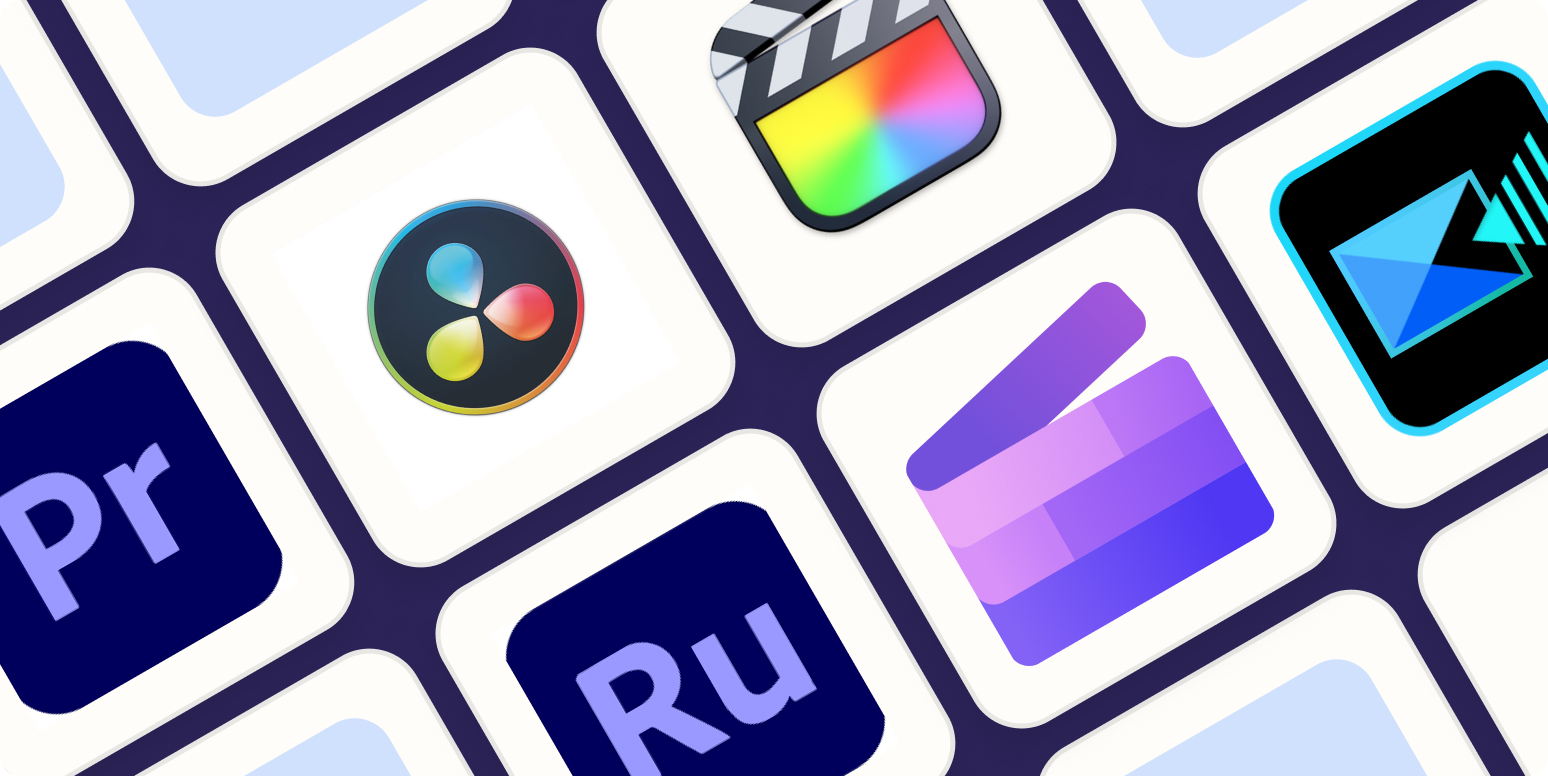
The software you choose matters less than the question you ask first: what's stopping you from publishing consistently right now? If it's a technical skill, you need automation that removes the learning curve. If it's time, you need speed over feature depth. If it's creative confidence, you need templates that guide decisions rather than blank timelines that demand them. Most creators choose backward, selecting based on capabilities they'll never use while ignoring the friction that actually slows them down.
The tools that work long-term align with three specific constraints: how often you publish, what formats your audience expects, and whether you're building technical expertise or building an audience. Those priorities shift as your content strategy evolves, so the right answer today might be the wrong one six months from now.
Matching software to publishing frequency
Creators publishing once weekly can afford 45-minute editing sessions per video. Those posting three times daily cannot. The math becomes brutally simple when you calculate total editing hours against available production time. If each video requires 30 minutes of timeline work and you're targeting 15 posts weekly, you're spending 7.5 hours editing before accounting for ideation, filming, or engagement.
The traditional advice is to master faster workflows or batch-produce content. Both strategies help, but neither addresses the fundamental bottleneck. Manual editing scales linearly. Your output increases only as fast as your editing speed improves or your available hours expand. High-volume creators hit ceiling effects where additional efficiency gains become marginal.
Platforms designed for rapid output compress production cycles differently. They automate decisions that manual editing forces you to make repeatedly: caption placement, background music selection, transition timing, and visual effect application. Each automated choice saves 30 to 90 seconds. Across dozens of videos monthly, those seconds compound into hours reclaimed for strategy, engagement, or additional content creation.
The frequency question determines whether you optimize for control or velocity. Professional editors working on client projects need granular control over every frame. Viral content creators need finished videos published before trends expire. Different problems require entirely different tool categories.
Platform-specific formatting requirements
TikTok, Instagram Reels, and YouTube Shorts share similar vertical formats but differ subtly in how they surface content algorithmically. TikTok favors rapid cuts and text-heavy visuals. Instagram prioritizes aesthetic consistency and brand cohesion. YouTube Shorts rewards longer watch times and educational hooks. These platform behaviors influence which editing features actually matter for your distribution strategy.
Creators who cross-post identical videos across platforms quickly discover engagement disparities. The same clip performs differently because platform audiences expect different pacing, visual density, and content structures. Manually adapting content for each destination multiplies the editing workload. You're not creating three videos; you're creating three versions of one video, each optimized for different algorithmic preferences.
The editing tool you choose should either simplify multi-platform adaptation or focus exclusively on your primary distribution channel. General-purpose editors make cross-posting possible but labor-intensive. Platform-specific tools optimize for particular formats but lock you into single-channel strategies. The decision depends on whether audience diversification or channel dominance matters more for your growth goals.
Mobile-first platforms increasingly favor content that looks native to the platform rather than professionally produced. Overly polished editing can signal "advertisement" rather than "creator content," triggering lower organic reach. The software that helps you maintain authentic visual language while ensuring technical quality (stable footage, clear audio, readable text) often outperforms tools that prioritize cinematic effects.
Skill development versus audience building
Learning professional editing software builds transferable skills that open career opportunities in production, marketing, and media. Premiere Pro expertise appears on job descriptions. DaVinci Resolve color grading knowledge commands freelance rates. Final Cut Pro proficiency signals serious production capability. These skills accumulate value over the years, justifying the steep learning curves and time investment required for mastery.
Audience building follows a different logic. Your first 1,000 followers care about content quality and posting consistency, not whether you used professional software. They're evaluating your perspective, personality, and ability to deliver value repeatedly. Technical polish matters, but only past a baseline threshold of watchability. Investing 60 hours learning advanced editing techniques delays the 60 videos that would teach you what your audience actually responds to.
The creators who scale fastest often use simpler tools initially, then migrate to more advanced software once audience feedback clarifies which content formats drive growth. They're optimizing for iteration speed during the discovery phase, prioritizing volume over perfection. The approach feels backward to traditionally trained editors but matches how algorithmic platforms actually reward consistent publishing.
Your career timeline determines which path makes sense. Planning to work in production studios or offer editing services as a freelancer? Professional software mastery becomes non-negotiable. Building a personal brand or monetizing through sponsorships and digital products? Content volume and audience connection matter exponentially more than editing sophistication.
Most creators manage viral content workflows by choosing tools that eliminate frame-by-frame timeline work entirely. Solutions like the clip creator tool automate subtitle synchronization, voiceover generation, and background removal, compressing 20-minute editing sessions into 60-second automated renders. The shift matters when publishing velocity determines whether you capture trending topics or watch them pass while you're still editing.
Hardware limitations that force software choices
Your computer's specifications eliminate certain software options before you evaluate features. Running Premiere Pro smoothly requires at least 16GB of RAM; realistically, 32GB for 4K projects. DaVinci Resolve demands dedicated GPU power that budget laptops lack. Final Cut Pro requires Mac hardware exclusively. These aren't soft recommendations. They're hard constraints that cause crashes, corrupted files, and hours lost to troubleshooting.
Check your system specs against software requirements honestly, not optimistically. Minimum specifications let the program launch. Recommended specifications enable actual productive work. The gap between those two categories spans the difference between frustrating unusability and smooth workflows. Installing software your machine can't handle doesn't save money. It wastes time and creates technical debt when you eventually migrate to appropriate tools.
Browser-based editors bypass hardware limitations by processing video in the cloud rather than locally. Your machine handles user interface interactions, while remote servers handle rendering and effect processing. The approach works brilliantly for creators using older computers or switching devices frequently. Performance depends on internet speed rather than processor capability, shifting the bottleneck from hardware investment to connectivity quality.
The trade-off appears in subscription costs and file-size limitations. Cloud processing requires ongoing payments rather than one-time software purchases. Large video files upload slowly, even on fast connections, and some platforms cap project sizes or monthly export volumes. Calculate whether you're trading computer upgrade costs for perpetual subscription fees, then decide which financial model better suits your budget structure.
Learning curves that determine productivity timelines
Software complexity correlates poorly with output quality for beginners. The most sophisticated tools produce the best results only after you've invested months understanding their architecture. Initially, complexity just slows you down. A creator who produces polished videos in iMovie within two weeks outperforms someone who is still watching Premiere Pro tutorials after a month.
The learning investment makes sense when you're building long-term expertise. Professional editors spend years mastering software because that knowledge compounds across decades of projects. But content creators focused on audience growth face different math. Every week spent learning software mechanics is a week not spent publishing, engaging, or refining content strategy based on real audience feedback.
Guided workflows and templates dramatically accelerate competence. Software that walks you through common tasks step by step shortens the gap between installation and the first finished video. You're learning by doing rather than studying abstractions. The approach works particularly well for creators who understand storytelling and platform strategy but lack a technical editing background.
The mistake appears when creators assume simple tools limit creative potential. Constraints often enhance creativity by narrowing decision spaces. Having 500 transition options doesn't make videos better. It makes decisions harder and editing slower. Tools that automate or eliminate low-value choices let you focus creative energy on high-impact decisions: pacing, messaging, emotional arc.
Export quality requirements across use cases
Social media platforms compress uploaded videos regardless of your export settings. Instagram, TikTok, and Facebook all re-encode files to optimize streaming and storage. Uploading 4K video when the platform serves 1080p to most viewers wastes upload time without improving viewer experience. Understanding platform-specific compression helps you choose export settings that balance quality, file size, and upload duration.
Client work and portfolio pieces demand higher export quality than social content. Brands expect broadcast-ready deliverables. Film festivals require specific technical specifications. Corporate presentations are displayed on large screens, where compression artifacts become visible. These contexts justify premium software with advanced export options and color space management that social content rarely needs.
The software you choose should support the quality ceiling your use case requires without forcing unnecessary complexity for everyday projects. Premiere Pro exports broadcast-quality video but demands decisions about codecs, bitrates, and color spaces that confuse beginners. Simplified editors make sensible default choices automatically, which works perfectly until you need granular control.
Future-proofing matters less than current needs suggest. Shooting everything in 4K because you might need that resolution eventually creates massive storage requirements and slower editing performance today. Choose quality levels that match your actual distribution channels, then upgrade workflows when concrete opportunities demand higher specifications.
Testing workflows before committing long-term
Free trials reveal software friction points that marketing materials obscure. Spend trial periods replicating your actual workflow rather than exploring features you might use eventually. Import typical footage. Build a complete project from raw clips to exported video. Notice where you get stuck, what requires tutorial consultation, and which tasks feel tedious versus natural.
The frustrations that appear in trial periods compound exponentially across hundreds of projects. A clumsy export dialog results in 300 extra clicks per year. Confusing audio mixing costs 5 extra minutes per video, totaling 25 hours annually for weekly creators. Small friction points matter more than feature checklists because you'll encounter them repeatedly.
Compare rendering speeds directly using identical source footage and export settings. The difference between 90-second and five-minute render times determines whether you can iterate quickly or wait through frustrating delays between creative adjustments. Rendering performance depends on both software optimization and hardware capabilities, so real-world testing on your actual computer matters more than benchmark claims.
Portfolio requirements shift as your skills and ambitions evolve, but the software that helps you publish consistently today beats the software you'll master eventually.
Related Reading
- Video Editing Workflow Checklist
- PC Specs for Video Editing
- How To Start Editing Videos
- How To Practice Video Editing
- Mac Vs Pc For Video Editing
- How To Make A Video Editing Portfolio
- Video Editing Tips And Tricks
- How To Make Money Video Editing
- Best Free Video Editing Apps For Android
- How To Organize Video Files For Editing
- How To Edit Video In Google Drive
- Creative Video Editing Techniques
Stop Forcing Photoshop to Edit Videos — Create Shorts Instantly with Crayo
If you're still using Photoshop's timeline to trim clips, position captions, and animate text for TikToks or Reels, you're working against the grain of both the software and the content format. Photoshop was built for pixel-level image control, not for rapid-fire short-video production. Every manual keyframe you set, every text layer you position frame by frame, every export you wait through adds friction that compounds across the dozens of videos viral content strategies demand. The mismatch between tool and task doesn't make you inefficient. It makes consistent publishing nearly impossible.
The creators posting three times daily aren't spending 20 minutes per video in Photoshop. They can't. The math doesn't work when you calculate editing hours against available production time. A workflow that requires manual caption placement, music selection, timing adjustments, and effect application for each 30-second clip consumes hours that should be devoted to trend identification, audience engagement, and strategic iteration. Traditional editing scales linearly with the time you have available. Viral content demands exponential output.
Crayo fixes that structural problem by turning prompts into finished Shorts in seconds. You describe the concept or paste a script, and the platform generates synchronized captions, selects trending background footage, adds voice narration, and applies effects without timeline manipulation. The automation addresses the specific bottleneck Photoshop creates. You're not learning faster keyframing techniques.
You're eliminating keyframing entirely. The difference becomes stark when your competition publishes while you're still adjusting text tracking in a Photoshop timeline. Platforms built for short-form velocity compress what used to take 15 minutes into processes that complete before you finish reading this paragraph.
Skip the workaround. Create scroll-stopping Shorts the way the format actually demands. Try Crayo's free clip creator and go from idea to published video without timelines, manual captioning, or rendering delays. No account required to start.
Related Reading
- Best Drone Video Editing Software
- Best Video Editing Software For Music Videos
- Best Video Editing Software For Sports Highlights
- Best Video Editing Software For Content Creators
- Best Video Editing App For Pc
- Best Paid Video Editing Software
- Best App for Video Editing on iPad
- Best Songs For Video Editing
- Best Video Editing Software For Vlogging
- Autopod Alternative