Disorganized footage and unclear file names can slow down production and stifle creative flow across video editing, including social media content, vlogs, and promotional videos. Unsorted clips tucked away in randomly named folders make it difficult to quickly locate the perfect take. The question, how do I organize video files for editing, highlights the need for clear naming conventions and practical folder structures.
An efficient system transforms overwhelming archives into streamlined assets, allowing editors to focus on storytelling. Well-organized files accelerate the editing process and make it easier to track the best moments when inspiration strikes. For those seeking to bypass tedious organization and concentrate on crafting engaging narratives, Crayo's clip creator tool offers features that streamline the workflow.
Summary
- Organizing video files isn't cosmetic housekeeping. It's the infrastructure that determines whether you spend your day creating or searching. According to Iconik's research, 30% of post-production time is spent searching for files, nearly a third of the workday lost to clicking through directories and squinting at thumbnails. The difference between creators who scale and creators who burn out often comes down to whether they treat file organization as foundational work or as something they'll "fix later."
- Clear naming conventions and folder hierarchies improve retrieval speeds by 30-50% because pattern recognition is faster than reading comprehension. A file named "Client_ProductLaunch_BRoll_Take03" tells you everything before you open it, while "VID_20240318_142637" tells you nothing. That specificity compounds across hundreds of clips, letting your eyes scan, your hand click, and you're already trimming the clip before your conscious mind fully catches up.
- High-resolution footage chokes older systems and slows scrubbing, but proxies (low-resolution stand-ins for original files) let you edit smoothly even on modest hardware. This approach can cut project time by 40% because you're not waiting for playback to catch up with your decisions. You make all your cuts and adjustments on lightweight versions, then relink to full-quality files for export.
- The Journal of Supercomputing analyzed 1 million files from the top 500 universities and found that inconsistent naming conventions were the primary barrier to efficient file retrieval across collaborative environments. That pattern holds in content creation. When file names lack logic, retrieval speeds collapse, turning every edit into an archaeological dig through folders, wondering which "final_FINAL_v3" actually contains the take you need.
- Automated backups remove human error from the equation because manual backups fail when humans forget under pressure. Setting up a system that syncs your project folder to cloud storage or a secondary local drive every night means hardware failure becomes an inconvenience rather than a catastrophe. Untested backups create a false sense of security; you think you're protected until you discover the sync stopped working three months ago.
- Crayo's clip creator tool handles organization and content generation simultaneously, automatically structuring files as you work from initial concept through final export, without requiring manual folder creation or renaming rituals.
Importance of Organizing Video Files for Editing
Organizing video files isn't just something to do when there's extra time; it's the system that decides whether time is spent creating or searching. When footage is organized logically and clearly named, the editing process goes much faster.Without this organization, every edit feels like an archaeological dig through folders, making one wonder which final_FINAL_v3 actually has the right take. Our clip creator tool helps streamline this process, ensuring your files are efficiently organized for quick access.
According to Iconik's research, 30% of post-production time is spent searching for files. That's not a small number. That's almost a third of your workday wasted on clicking through folders and looking carefully at thumbnails. The difference between creators who grow and those who get exhausted usually comes down to this one choice: whether they see file organization as important work or as something they'll "fix later."
What are the benefits of a proper folder hierarchy?
A proper folder hierarchy does more than keep things organized; it creates a mental map that helps you work instinctively instead of relying on your memory. When raw footage is in one place, audio files in another, graphics in a third, and exports in a fourth, your brain stops wasting time on, "Where did I put that?" This shift allows you to focus more on creative choices, reducing mental strain and speeding up your work.
Clear filenames have the same benefit. A file named "Client_ProductLaunch_BRoll_Take03" tells you everything you need to know before you open it. But a file named "VID_20240318_142637" gives you no clues. This clarity builds up across hundreds of clips. Retrieval speeds improve by 30 to 50% when naming conventions follow a consistent pattern because recognizing patterns is quicker than understanding written words. Your eyes scan, your hand clicks, and you start trimming the clip before your conscious mind fully realizes it.
Why is file organization crucial during projects?
Many creators think they can start editing without organizing their files first. This becomes clear during the third project, when deadlines get tighter, and the folder structure looks like a messy junk drawer. Poor organization doesn’t just waste time; it slows down editing, raises the chance of using the wrong version, and creates worry about losing important footage.
Editors often scroll through dozens of unnamed clips, wasting valuable time looking for the key reaction shot that connects the story. What should take fifteen seconds can end up taking fifteen minutes.
How to handle backups effectively?
Drive failures can happen without warning. A corrupted card, a knocked-over external drive, or a ransomware attack can result in the loss of entire projects. Backups are not just optional insurance for those who are careful; they are the minimum standard for anyone who takes content creation seriously. Keeping copies on a second drive or syncing to cloud storage makes sure that a hardware failure is an inconvenience rather than a disaster.
The workflow is as important as the backup itself. Automated syncing helps avoid decision fatigue, while manual backups need discipline that can fade under deadline pressure. Set up the system once, check that it works, and let it handle the rest. The goal isn't perfection; it’s about maintaining redundancy that doesn’t depend on your memory.
What role do proxies play in video editing?
High-resolution footage looks amazing, but it can slow down older systems and make scrubbing difficult. Proxies, which are low-resolution substitutes for original files, let you edit smoothly even on simpler hardware.
You can make all your cuts and adjustments on the lighter versions, then link back to the full-quality files for export. This method can cut project time by 40% because you're not waiting for playback to keep up with your decisions.
How do metadata and tagging improve organization?
Metadata and tagging serve similar functions. When you label clips with keywords like "interview," "cutaway," or "product demo" during import, you turn your media library into a searchable database. Instead of searching through each file, you can filter by tag to see only what you need. Although the initial work may seem tedious, it pays off after working on a few projects, as you'll be able to find any clip in seconds.
Can automation help with organization?
Platforms like the clip creator tool automatically handle much of the organizing work for you. Instead of sorting footage by hand, renaming files, and creating proxy workflows, you just upload your content, and the system arranges it for you.This shift from doing everything manually to automating it means you can spend less time managing files and more time finding the clips that really boost engagement. The backend systems run quietly in the background, allowing you to focus on storytelling and pacing rather than getting lost in folder structures.
How does organization impact creative quality?
A well-organized system doesn't just save time; it also improves the quality of what you create. When you can quickly find B-roll, compare takes, and easily exchange clips, you make better creative choices.You're not just accepting “good enough” because you can't find a better version. Instead, you're picking the best option because it is right there, clearly labeled, and ready to place into the timeline.
What psychological effects does disorganization create?
The psychological effects of disorganization are significant. Disorganization leads to low-grade stress that builds up over the course of a project. Individuals often worry that they might be missing something important, like the perfect shot hidden somewhere they forgot to check.Effective file management helps reduce this background anxiety; when everything is organized, confidence in one’s system increases. This confidence leads to faster decisions and a greater willingness to try new things, as trying a new approach no longer means losing twenty minutes looking for assets.
Why do creators struggle with organization?
Most creators don't fail because they aren't organized. They often struggle because they don't realize how quickly chaos compounds. By the time they see the problems, it is already slowing them down.
File Management Mistakes to Avoid
Chaos doesn't announce itself; it builds up quietly, one unnamed file at a time. Before you know it, you're three projects in and can't remember which folder has the approved version. The mistakes that mess up video workflows aren't huge disasters; they're little decisions made over and over until they cause bigger problems.Skipping a naming system today might cost you fifteen minutes next week. Ignoring backups feels fine until a drive crashes and takes sixty hours of work with it. To manage your projects more effectively, consider using our clip creator tool to streamline your workflow.
Without a clear structure, every project feels like a negotiation with your past self. You're guessing where the footage is, and you're wondering whether 'Final' means final or whether 'Final_v2' is the real export.The Journal of Supercomputing analyzed 1 million files from the top 500 universities and found that inconsistent naming conventions were the main barrier to quickly finding filesin team settings. This trend is true in content creation, too. When file names don't make sense, finding them gets much slower.
What is needed for a clear file structure?
A system doesn't need to be complex; it needs to be consistent. Set up folder structures that separate raw footage from audio and graphics from exports. Use naming rules that include project name, content type, and version number. Follow these rules for every file, every time.This level of discipline may seem boring during the first project, but by the third, it becomes invisible. You won't have to think about where things go because the structure will make that choice for you.
Why is physical media a risk?
Some creators still burn project files to discs or store footage on external drives sitting in drawers. While physical media feels tangible, like you're holding the work itself, this tangibility can make it fragile. Discs can scratch, and drives may fail.A spilled coffee or a knocked shelf can erase weeks of footage. Using digital storage with cloud backups significantly reduces the risk of loss. Instead of relying on a single device, you're spreading risk across systems that sync automatically.
How does cloud storage improve efficiency?
The efficiency gap keeps getting bigger. Looking for stuff on physical media means you have to plug in drives, wait for them to connect, and look through folders by hand. But with cloud storage and good tagging, you can do keyword searches, letting you find the exact clip you want in just seconds.These time savings add up across many projects. Physical media made sense when bandwidth was expensive, and cloud storage was unreliable, but those constraints no longer apply.
Why do backups often get forgotten?
Most creators think they will remember to back up their files, but this often does not happen. Deadlines get tight, and projects can overlap, making it easy to forget the backup step altogether. When a drive breaks, a laptop is stolen, or ransomware locks everything up, the footage is gone, and the project is lost. It becomes impossible to recover anything because there is nothing left to get back.
What are the benefits of automated backups?
Automated backups eliminate the need for willpower by creating a dependable system. Set up a system that syncs to cloud storage or another drive without needing manual help.Always test the recovery process before you actually need it; knowing your backups work gives you peace of mind. This confidence lets you focus on editing instead of worrying about losing data. The cost of redundancy is small compared to the possible loss of a project that took days to shoot and hours to organize.
How does poor file security affect creators?
Poor file security doesn't just risk data loss; it risks legal exposure. When dealing with client footage, interview recordings, or private content, unauthorized access can lead to lawsuits, regulatory fines, and damage to your reputation.
Using password-protected files and encrypted storage isn't being overly cautious; they are crucial requirements for anyone handling content that isn't fully public. Additionally, utilizing our clip creator tool can help ensure that your files are managed safely and securely.
What are the advantages of cloud platforms?
Cloud platforms with strong security practices automate many security measures well. Features like two-factor authentication, encrypted transfers, and access logs provide important layers of protection that manual file management can't match.The goal isn't to make a system that can't be broken. Instead, the aim is to make it hard enough for unauthorized access to occur, reducing the likelihood of casual breaches, while also ensuring that serious attacks leave audit trails.
How can clip creator tools help?
Platforms like the clip creator tool handle security and organization simultaneously. Instead of manually encrypting files or setting folder permissions, users can simply upload content to a system that organizes it securely by default.This shift from manual processes to automated systems means users no longer have to choose between speed and safety. They get both: the backend systems work quietly while allowing users to focus on finding clips that enhance engagement.
Why should creators establish a retention policy?
Keeping every take, every alternate version, and every test export may seem safe. You might need that footage someday. However, "someday" rarely comes, and the clutter costs you money. Storage fills up fast, making it harder to find relevant files.The cognitive load of reviewing hundreds of unused clips slows down decision-making.
It is important to set a retention policy before the issue gets worse. Decide how long raw footage should stay available, when alternate takes should be saved, and which exports are worth keeping. Review projects every 3 months and delete anything no longer needed.At first, this discipline may feel strict. Over time, you will see that you are not losing anything valuable; instead, you are getting rid of the noise that hides the signal.
What measures the effectiveness of a file management system?
The real test of a file management system is not just whether it prevents mistakes; it's also whether it can scale as output triples and deadlines get tighter.
Related Reading
- Types of Video Editing
- Long Does It Take to Edit a YouTube Video
- How Long Does It Take to Edit a Music Video
- What Is an Overlay in Video Editing
- Is CPU or GPU More Important for Video Editing
- Can I Edit a YouTube Video After Posting
- Is Video Editing a Good Career
- Beginner’s Guide to Video Editing
- Video Editing Basics
How to Organize Video Files for Editing (10 Tips)
File organization isn't just about looks; it's about speed. The difference between creators who make videos every day and those who have a hard time finishing even one video a week often comes down to whether they can find the right clip in five seconds or five minutes. When your system works, editing is smooth; when it doesn't, every project feels like trying to solve a puzzle that has half the pieces missing.
1. Build a Naming Convention That Scales
Start every file name with the most important information: the project name, shoot date, content type, and version number. For example, a file named "ProductLaunch_2024-03-15_Interview_Take02.mp4" tells you everything before you even click on it. In contrast, a file named "IMG_4738.mp4" gives no useful information. That specificity is very important when you are managing hundreds of clips across many projects.
The naming system has to work well even when things get chaotic. When you are racing toward a deadline at 11 PM, feeling tired and unsure about every choice, a clear naming pattern helps ease your mind. Your eyes look at the filename, your brain understands its content, and your hand clicks without thinking. Pattern recognition is always better than trying to remember.
Add camera angle or shot type when it makes sense. For example, "BehindTheScenes_Cafe_WideShot" can be easily told apart from "BehindTheScenes_Cafe_CloseUp."These differences save you seconds per clip, which add up to hours over a project. The system doesn’t need to be complicated; it just needs to be consistent and applied strictly to every file, every time.
2. Structure Folders by Function, Not Chronology
Organize your project folder into clear categories: Raw Footage, Audio, Graphics, Exports, and Project Files. Inside Raw Footage, make subfolders for each shoot day or location. In Audio, separate dialogue, music, and sound effects. This setup reflects how you actually work, grouping materials by use instead of the order they were captured.
A clear project structure prevents the endless scroll through mixed content. When B-roll is needed, go to Raw Footage, select the specific shoot day, and open the B-roll subfolder. This process takes just three clicks, so there’s no guesswork. On the other hand, a flat directory with 400 unsorted files makes any search feel like a visual scavenger hunt.
Subfolders also help stop slowdowns as projects grow. A folder with 20 files feels easy to manage, but a folder with 200 files can quickly become too much. Breaking content into logical chunks keeps each directory easy to scan. The brain processes smaller sets faster, which reduces frustration and helps maintain editing momentum.
3. Tag and Label During Import, Not Later
Adding metadata when you import files helps prevent a backlog from building up. When you transfer footage, tag clips right away with keywords like "interview," "product demo," "transition," and "unusable." These tags turn your media library into a searchable database, letting you filter by tag and see only what you need, without having to go through every single file.
Color coding works the same way. Use green for approved clips, yellow for maybe clips, and red for rejected footage. This color system lets you look at a timeline and quickly know the status without reading labels or checking notes. Colors help your eyes understand things faster than text alone.
Most editing software lets you create custom metadata fields, and you should use them well. Add notes about lighting problems, audio issues, or special moments to remember. Your future self will be thankful for the notes you left, making it easier to find what you need instead of guessing. For instance, our clip creator tool enhances your workflow by allowing you to tag and color-code clips effectively.
4. Create Proxies for High-Resolution Footage
Editing 4K or 6K footage on anything less than a high-end workstation makes scrubbing feel like a slideshow. Proxies help fix this problem. By creating low-resolution versions of your original files during import, you can edit using those lighter versions and then link back to the full-quality files before export. This process significantly reduces project time because playback remains smooth and responsive.
The performance boost is major. Scrubbing through a 4K timeline on a mid-range laptop can slow playback to single-digit frame rates, making precise cuts nearly impossible.When switching to proxies, that same timeline plays at full speed. You can make quicker decisions because the software responds instantly to every command.
Automated proxy generation removes the manual step. Setting your editing software to create proxies on import lets the system manage them without you noticing. You never have to think about it again; every project gets this speed boost.
5. Separate Active Projects from Archives
Keep current projects on fast local storage. Move completed projects to external drives or cloud archives. This separation prevents your main workspace from filling up with old files, which can slow searches and clutter directories. Active projects stay lean and quick, while finished work is still easy to access but out of the way.
The psychological benefit also matters. A workspace filled with dozens of old projects can create low-level anxiety. You might often be unsure about what's current, what's archived, or what's safe to delete.Clear separation removes that uncertainty. Your active directory contains only work in progress, while everything else is stored elsewhere, labeled and dated for retrieval if needed.
Set a calendar reminder to archive completed projects monthly. This habit prevents accumulation. Projects that finished last month should be moved, tagged with completion dates, and stored. While this task may feel tedious, it helps ensure your active workspace never turns into chaos.
6. Version Control Prevents Catastrophic Mistakes
Every major revision should increase the version number. For example, "ClientVideo_v01" becomes "ClientVideo_v02" after adding feedback. Similarly, "ClientVideo_v02_FINAL" changes to "ClientVideo_v03_FINAL_revised" after the usual post-final changes. This naming system effectively tracks changes and stops the nightmare of replacing a good version with a bad one.
Including revision notes in a separate text file or metadata field is very important. Write down what changed, why it changed, and who asked for it. This information becomes crucial when a client wants to go back to a decision made three weeks ago.Without notes, you're unsure which version has the layout they liked. With notes, you know exactly where to find it.
Version control protects against scope creep. When every revision is numbered and documented, it becomes clear that a project has undergone 12 rounds of changes rather than the agreed-upon 3. This visibility fosters accountability.
7. Automate Backups to Remove Human Error
Manual backups often fail because people can forget under pressure. In contrast, automated backups work no matter how busy you are or how tight deadlines feel.Setting up a system to sync your project folder to cloud storage or a second local drive every night ensures redundancy. This means that if hardware fails, it becomes an inconvenience rather than a disaster.
Always test your backup system before you really need it. Download a file from your backup, verify it opens correctly, and confirm the sync captures everything.Untested backups are worse than having no backups at all; they create false confidence. You might think you're protected until you find out that the sync stopped working three months ago.
Platforms like the clip creator tool handle backups and organization simultaneously, so you don’t have to make that choice anymore. When you upload your footage, the system securely organizes it while maintaining redundant copies. This shift from manual work to an automated system ensures you don’t have to choose between speed and safety, as both happen automatically while you focus on finding clips that grab attention.
8. Use Bins and Sequences to Group Related Assets
Bins work as virtual folders in your editing software, helping you to organize clips without altering files on the disk. You can create bins for each scene, each content type, or each workflow step. This internal setup mirrors your folder structure but operates at the project level, keeping timelines tidy and assets grouped logically.
Sequences work similarly when organizing video projects. Instead of cramming everything into a single, long timeline, create separate sequences for each section of the video. Edit the intro in one sequence, the main content in another, and the outro in a third. Then, nest those sequences into a master timeline.This modular approach prevents the chaos of a single timeline, where finding a specific cut may require scrolling through twenty minutes of footage.
The organizational layer within editing software improves the benefits of good file management. External folders help keep assets sorted, while internal bins maintain a workspace that is easy to navigate. With both systems working together, retrieving files becomes quick, allowing creative decisions to flow without interruption.
9. Establish Retention Policies Before Clutter Compounds
Decide upfront how long raw footage stays accessible, when alternate takes should be archived, and which exports are worth keeping. Review projects every three months and delete anything that no longer has a purpose.This practice stops the slow buildup of files that take up space, slow down search results, and don't add any value. Most creators keep everything because deleting can seem risky. They think, What if I need that footage later? However, the risk of hoarding is significant.Storage fills up, backup times increase, and search results become cluttered with irrelevant files. The mental load of looking through hundreds of unused clips slows down every decision.
Archiving is different from deleting. Move old projects to cold storage, where they stay accessible without cluttering your active workspace. Delete only what is truly worthless: duplicate files, failed exports, and test renders.The goal isn't to purge aggressively; it's about getting rid of the noise that hides the signal.
10. Audit Your System Regularly to Catch Drift
File organization gets worse over time; a naming system can change during rushed projects. Also, a folder structure can grow with one-time categories that are never used again.To prevent this drift from becoming a serious problem, check your system every 3 months.
Look at folder hierarchies, make sure naming is consistent, verify that backups are running, and remove old files. This audit isn't about being perfect; it's about stopping the slow decline that turns a clean system into chaos. Small mistakes can add up over time.
While one mislabeled file might seem unimportant, fifty mislabeled files spread across three projects can cause real confusion. Catching these trends early keeps the system working well. Think of the audit as maintenance, not punishment. Systems wear down with use, and that's normal. The key is not to avoid mistakes but to fix them before they pile up.
Related Reading
- Video Editing Workflow Checklist
- PC Specs for Video Editing
- How To Start Editing Videos
- How To Practice Video Editing
- Mac Vs Pc For Video Editing
- How To Make A Video Editing Portfolio
- Video Editing Tips And Tricks
- How To Make Money Video Editing
- Best Free Video Editing Apps For Android
- How To Edit Video In Google Drive
- Creative Video Editing Techniques
9 Best Tools to Organize Video Files for Editing
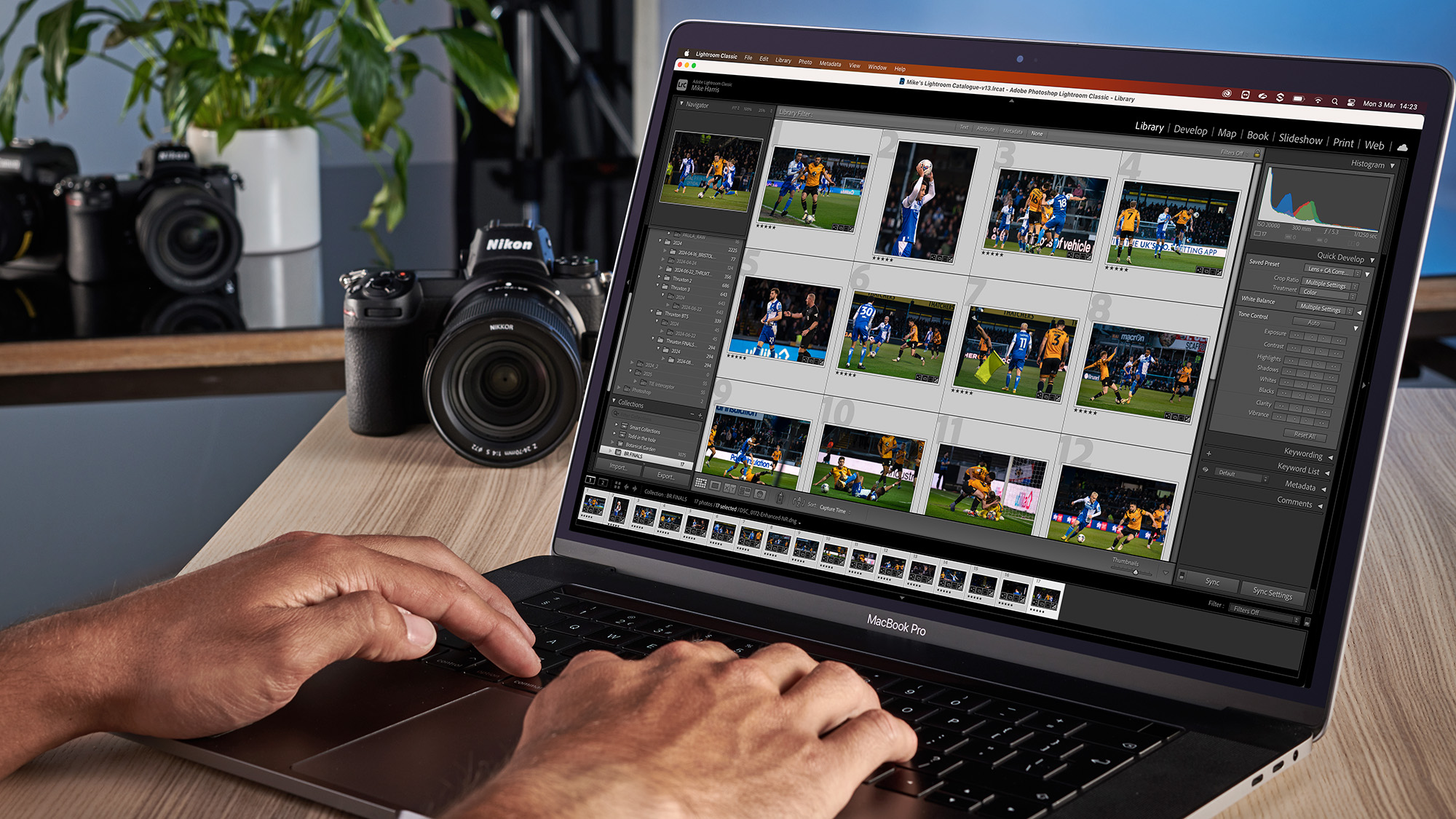
The tools you choose for organizing video files decide whether file management is smooth and easy or a chaotic mess every day. Some platforms make organization automatic while you create content, and others just focus on sorting what you already have.
The best choice depends on whether you're working on new videos or handling collections of finished ones. It's important to align the tool's design with how you actually work, not just focus on its features.
1. Crayo: The Ultimate Video File Management and Creation System
When the tool for making videos also organizes them automatically, managing video files becomes a separate job. Crayo doesn’t require you to sort clips after editing. Instead, it arranges everything as you work, from the first idea to the final export.
Users create an outline, pick background videos and voiceovers from ready-made templates, customize styles, and finish their projects. The files automatically sort themselves into clear groups without needing to create folders or rename anything manually.
This way of working removes the usual problems found between coming up with ideas and getting to work. Regular editing means you have to import clips, set up folder structures, rename files, keep track of versions, and only then can you start the creative process.
This method wastes time and makes you tired of making decisions before you even begin. Crayo makes these steps easier; just upload your content, and the platform automatically generates captions, effects, backgrounds, and music while keeping file structures neat in the background.
For creators using platform-specific ways to earn money, such as the TikTok Creator Fund or creating content for multiple channels, the speed advantage is very important. You don't have to deal with messy folders or search for lost clips.
Creators can go from an idea to a completed video in just seconds, with all assets neatly structured and ready to share right away. The backend systems work quietly in the background, letting you concentrate on finding clips that get people interested instead of organizing folders.
2. Peakto: AI-Powered Search for Mixed Media Libraries
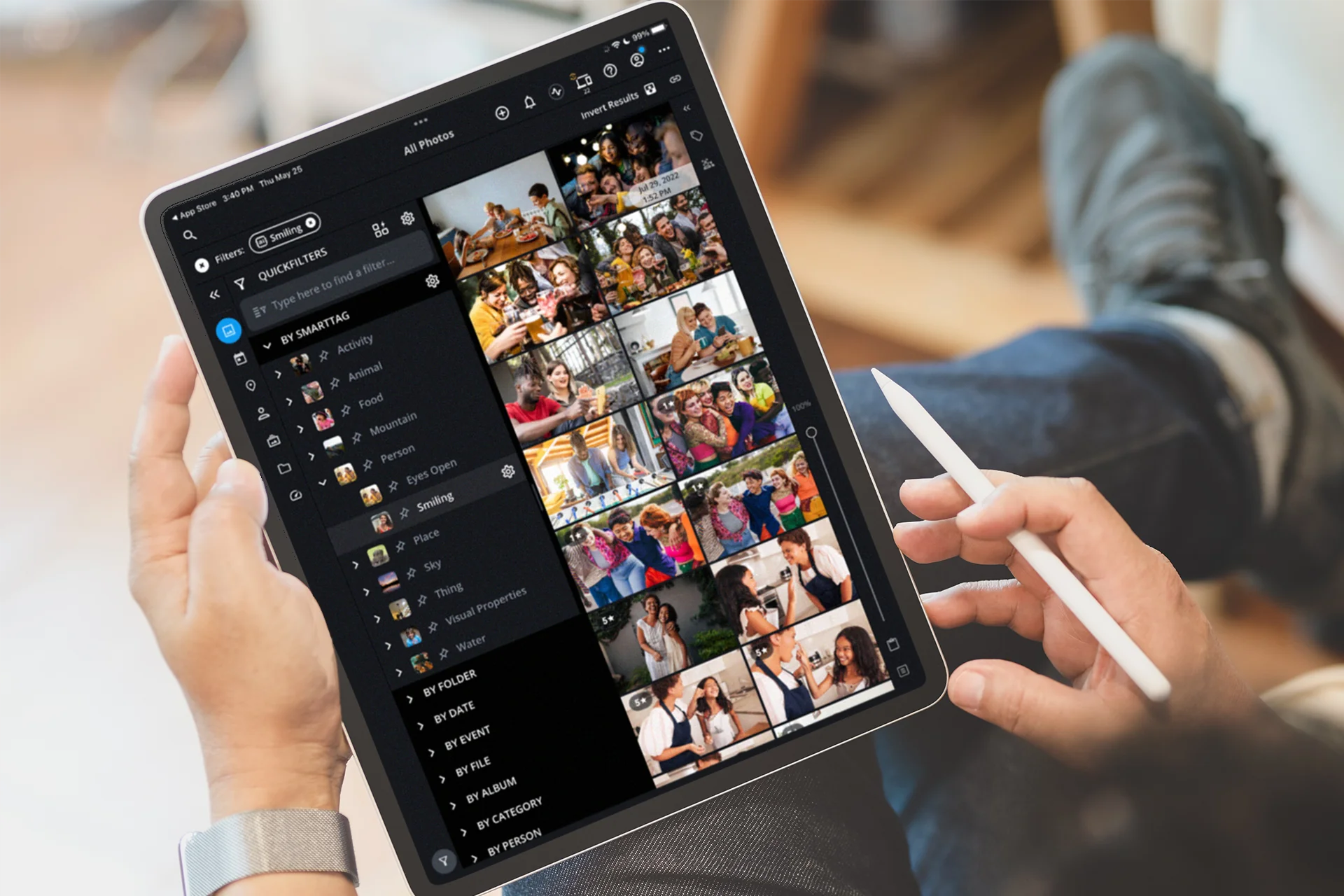
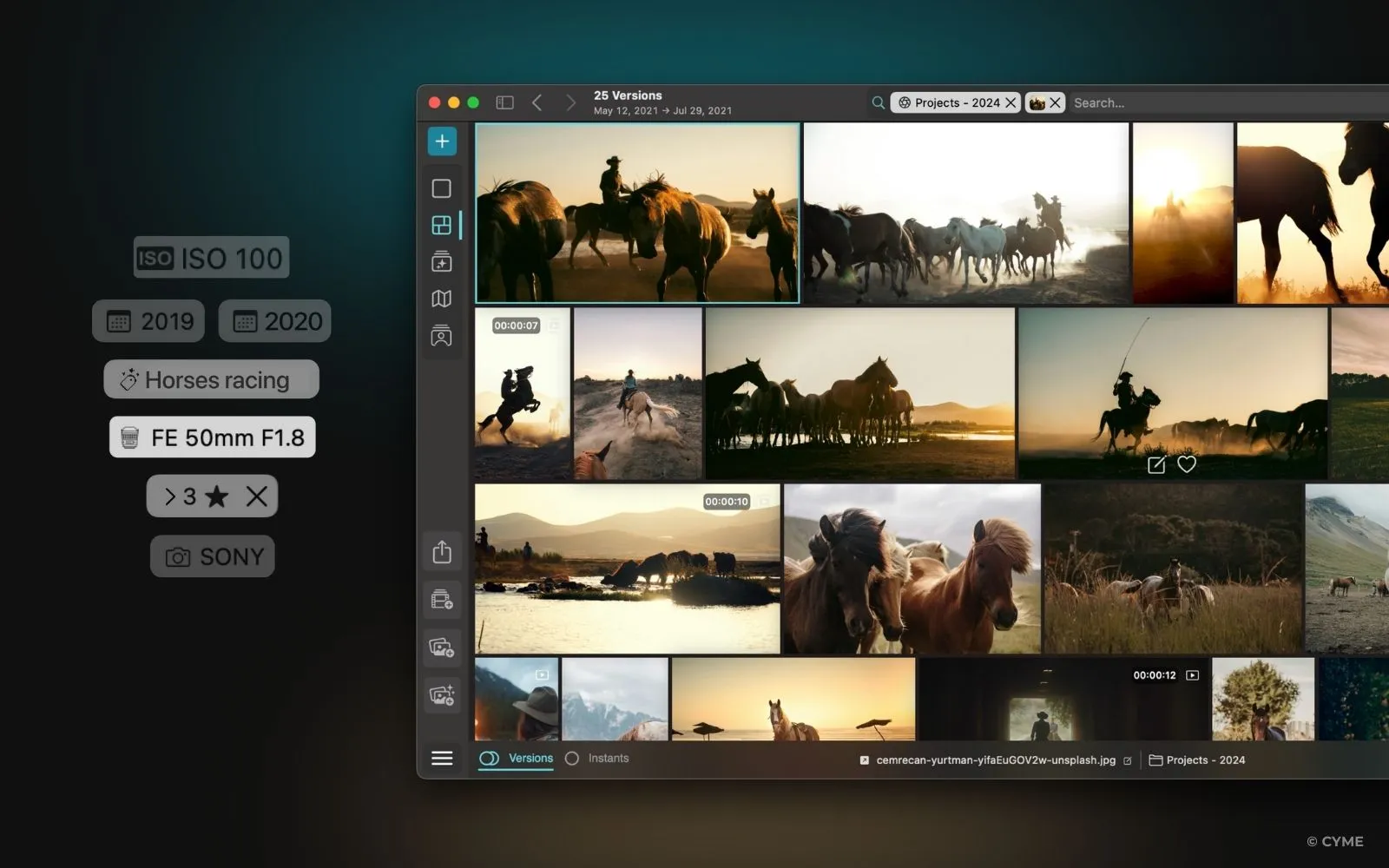
Peakto tackles the retrieval problem using natural language search. Users can just describe what they want to find, and the AI brings up matching clips, even if there are no manual tags.This ability is particularly important when handling thousands of files across multiple drives. There's no need to recall which external drive holds the footage from last month's shoot, as the system organizes everything and makes it searchable, no matter where it is located.
Face recognition automatically groups people into albums. This is especially helpful for creating content with many interviews or for handling videos featuring familiar faces. The aesthetic scoring and color analysis tools let experts filter by visual quality. This brings the best-lit or brightest clips to the front.At $15 monthly, it's made for creators who want a strong organization without paying high prices. The macOS limitation means Windows users can't access it. However, for those who use Apple products, it works smoothly with current workflows.
3. Google Photos: Cloud-Based Simplicity for Casual Use
Google Photos works best for mobile-first creators managing personal collections instead of professional projects. The automatic face grouping and smart albums help with basic organization without requiring much setup. You just upload footage, and the system sorts it into categories based on content recognition.However, this simplicity comes with some trade-offs: the free tier limits you to 15GB, which fills up quickly with video files. After that limit, users must pay for storage tiers, which can be costly as libraries expand.
The platform lacks advanced video-specific features, such as proxy workflows or metadata tagging. While it is great for viewing and sharing, it is not built to handle complex editing projects.If your workflow requires putting clips into professional editing software, Google Photos works more as a viewing tool than a real management system. Although it stores and displays content well, it does not improve editing workflows.
4. Lightroom: Photo-Centric Organization with Limited Video Support
Lightroom Classic has built its reputation on photo editing and organizing photos. Tools such as face recognition, keywording, and batch processing work well for photographers handling large image libraries.While there is some support for video, it seems less important. Users can import video files, add basic metadata, and arrange them with photos, but they cannot edit videos directly or create proxies in Lightroom.
The $9.99 monthly subscription is a good deal if users already work with Adobe's photo tools and need a single catalog. However, for creators who primarily focus on video, Lightroom Classic's strengths don't meet their main needs. Users are paying for powerful photo editing features they might not use, while video organization remains simple.In the end, Lightroom Classic is a good tool, but it solves a different problem than most video editors do.
5. Apple Photos: Ecosystem Integration Over Professional Features
Apple Photos ships free with macOS and iOS, making it the default choice for users committed to Apple devices. The Memories and People albums automatically organize content, while iCloud sync ensures everything is accessible across devices.This seamless integration provides convenience for personal use. However, it lacks the structure required for professional workflows.
The absence of advanced metadata, proxy support, and collaborative features limits its usefulness for serious content creation. While users can easily store and view video files, they cannot tag them with production-specific information, create low-resolution editing copies, or share project access with team members. Overall, it's a consumer tool that meets basic needs. But professional demands quickly exceed its capabilities.
6. Wistia: Professional Video Hosting with Marketing Focus
Wistia specializes in video hosting designed specifically for marketing teams. This makes it different from other platforms designed for organizing files for editors. The platform is great at lead generation, viewer analytics, and customizable players.It lets users track engagement with heatmaps, keep some content hidden until viewers give their email, and see which parts of videos viewers watch again. These features are very important for distribution and performance measurement, but they don’t help in finding the right clip when you are putting together a timeline.
Wistia offers pricing starting at $25 per month and is designed for businesses that use video as a marketing tool. If you're hosting finished content and need detailed analytics, this cost makes sense. However, if you’re working with raw footage and sorting assets for editing, you might end up paying for features you won’t use, while also missing the tools you need to simplify your workflow.
7. ACDSee Photo Studio: Desktop Management Without Subscriptions
ACDSee offers face recognition and desktop photo management for $34.95 as a one-time purchase. This pricing model appeals to users who are tired of subscription fatigue. The interface seems a bit old compared to newer cloud-based tools, but it still works well. Users can organize their photos easily without paying ongoing fees, but the video features are limited, making ACDSee mainly a photo tool that recognizes video files.
The lack of cloud sync means users manage their files on their own computers, creating backup responsibilities and making it hard to access files across devices. For hobbyists with modest collections who prefer owning software instead of paying subscriptions, ACDSee offers functional organization. However, for professional video editors managing large projects across several machines, relying solely on local storage can be problematic.
8. Tonfotos: Affordable Local Face Recognition
Tonfotos targets hobbyists seeking local face recognition at $59. The tool manages basic organizing tasks without subscription fees or cloud dependencies.Since your files stay on your machine, this setup addresses privacy concerns but also limits accessibility. Users cannot access their library from different devices or share project access with others.
The feature set is simpler than that of professional tools. Users can benefit from face grouping and basic cataloging, but they lack advanced metadata, proxy workflows, or collaborative features.While this functionality is good for small personal collections where cost is a priority, it isn't enough for anyone creating content professionally or managing complex projects.
9. Tagbox: Collaborative Asset Management for Teams
Tagbox focuses on web-based collaboration with AI tagging and video search, which is a big help for teams that manage shared libraries. The platform’s centralized access and collaborative features are useful for agencies that need to coordinate many stakeholders and projects. This is especially important where version control and access management are necessary. Custom pricing suggests it is designed for larger businesses rather than individual creators.
The web-based setup depends on internet connectivity, which means you have to trust a third party with your assets. For teams that are spread out, this trade-off can be worth it. However, for solo creators or small teams with strong local setups, the extra complexity and cost might outweigh the collaborative benefits. In the end, Tagbox helps address coordination challenges that might not arise when working alone.
Why is choosing the right tool important?
Choosing the right tool is important, but it only matters if someone is ready to change how they work. This change often reveals friction points that might have been ignored before, and knowing that our clip creator tool can streamline this process might be the catalyst for that transformation.
Say Goodbye to Messy Video Files with Crayo AI
The friction you've built systems to avoid doesn't vanish when switching tools; it merely shifts. You can organize files perfectly and still lose hours to the mechanical work of editing, exporting, and formatting for each platform. This is where most organizational discipline tends to break down. Even with everything sorted beautifully, you're still manually syncing captions, adjusting aspect ratios, and rendering multiple versions of the same video.
Crayo removes that entire layer of hassle. Just upload your concept, pick your style and background, and the platform creates finished shorts with captions, effects, and music already set up. There's no need to manage files, as the system handles organization and content creation. The backend stays clean, requiring no thought about folder hierarchies or naming conventions. You go from idea to published video in seconds, ensuring every asset stays accessible and logically organized without manual sorting.This change from organized chaos to automated clarity allows you to focus on finding clips that drive engagement, instead of keeping systems that should run invisibly. clip creator tool
Related Reading
- Best Drone Video Editing Software
- Best Video Editing Software For Music Videos
- Best Video Editing Software For Sports Highlights
- Best Video Editing Software For Content Creators
- Best Video Editing App For Pc
- Best Paid Video Editing Software
- Best App for Video Editing on iPad
- Best Songs For Video Editing
- Best Video Editing Software For Vlogging
- Autopod Alternative