Picture this: you've got a folder full of still images, a tight deadline, and the need to produce engaging video content that stands out. Video automation has transformed this once tedious process into something remarkably simple, allowing creators to turn static visuals into dynamic videos without wrestling with complicated editing software or facing restrictive paywalls. This article walks you through 7 AI image-to-video generator tools that operate without limitations, each capable of producing professional-quality videos in under 30 minutes.
When you're exploring AI-powered solutions, Crayo's clip creator tool deserves your attention as a practical way to quickly transform your images into compelling video content. The platform removes technical barriers while giving you the creative freedom to experiment with different styles, transitions, and effects, making it straightforward to generate short-form videos that capture attention across social media platforms and beyond.
Table of Contents
- Why Creators Struggle to Turn Images Into Videos With AI
- The Hidden Cost of Creating Image-to-Video Content Without AI Workflows
- 7 AI Image-to-Video Tools to Create Videos in Under 30 Minutes
- The 30-Minute Workflow Creators Use to Turn Images Into Videos Faster
- Create Image-to-Video Content Faster With Crayo
Summary
- Manual image-to-video workflows create invisible financial leakage that compounds across every project. When creators spend 15 minutes finding images, another 15 minutes writing prompts, 15 more minutes generating animations, and 15 minutes fixing transitions, that single video consumes over an hour of billable time. According to Sozee's analysis, failed generation fees alone can range from $45 to $75 per project when creators cycle through trial-and-error animation attempts without structured systems in place.
- Cognitive load theory explains why manual production feels exhausting even when individual tasks seem simple. Your working memory resets every time you switch between planning, prompting, generating, editing, and reviewing. What feels like multitasking is actually rapid context switching, and each transition creates friction that slows decision-making and increases error rates.
- The fastest way to create video content from images isn't about finding better tools. It's about separating the workflow into distinct stages that don't interfere with each other. CloudPano Blog reports that creators who follow structured workflows can produce 30 videos a month by refusing to let creative decisions and technical execution occur simultaneously.
- Visual coherence matters more than individual image quality because viewers notice style breaks faster than resolution differences. If Scene 1 uses a neon-lit cyberpunk aesthetic, Scene 2 shouldn't suddenly shift to watercolor pastels unless that jarring transition serves the narrative. Maintaining consistency across animated scenes prevents jarring visual breaks caused by mismatched animation styles and keeps videos feeling connected from beginning to end.
- Most creators make narration too dense by trying to explain everything in every scene. Better practice is letting visuals carry some of the communication weight. If the animation clearly shows a product interface, the narration doesn't need to describe what viewers already see. It should interpret, not duplicate, which prevents rushed voice-over pacing and awkward silences during assembly.
- Adobe's Creators' Toolkit Report found that 34 percent of creators cite unreliable output quality as a barrier to adopting AI tools. That inconsistency forces creators into repeated cycles of generation, rewriting prompts and adjusting animations until something finally works. What starts as a simple image animation becomes multiple production cycles, and the delay comes from poor prompt structure, not AI capability.
Crayo's clip creator tool addresses this by generating your script, narration, and content structure in minutes, eliminating the first two workflow stages where most creators lose momentum before they begin editing.
Why Creators Struggle to Turn Images Into Videos With AI
Most creators struggle to turn images into videos with AI because they treat image-to-video generation as a design task instead of a storytelling workflow. The problem isn't animating images. It's manually rebuilding scenes, motion, narration, transitions, and visual continuity every time a new video is created.
When creators collect images, write prompts, generate motion graphics, add narration, build transitions, and edit footage for every project, production friction quickly increases. According to Adobe's Creators' Toolkit Report, 34% of creators cite unreliable output quality as a barrier to adopting AI tools. That inconsistency forces creators into repeated cycles of generation, rewriting prompts and adjusting animations until something finally works. What starts as a simple image animation becomes multiple production cycles, and the delay comes from poor prompt structure, not AI capability.
Movement Doesn't Equal Story
Many creators believe that if they animate an image, they already have a video. AI tools can quickly generate camera movement, zoom effects, character animation, and cinematic motion. But movement alone doesn't create storytelling, viewer engagement, emotional connection, or content flow. Animated images aren't automatically good videos. Every image should support the story, message, narration, pacing, and final goal. Most creators simply animate one image after another. Scenes feel disconnected, transitions feel random, and videos lose momentum. The workflow becomes fragmented because there's no throughline connecting each animated moment to the next.
Workflow Overlap Kills Efficiency
While creating image-to-video content, creators repeatedly move between finding images, writing prompts, generating animation, creating narration, editing scenes, and adjusting transitions. That creates workflow overlap. Workflow overlap reduces efficiency because creators constantly switch between creative and technical decisions. The result is slower production, correction fatigue, repeated revisions, and inconsistent quality.
Streamlining AI Video Workflows
The bottleneck becomes workflow management, not AI generation. Creators who manually build every image-to-video project struggle to maintain consistent production. That creates delayed publishing, creator burnout, inconsistent output quality, and slower content production, especially for those producing YouTube videos, TikTok content, faceless videos, educational videos, or AI-generated storytelling content.
Crayo's clip creator tool compresses this fragmented workflow by automating scene generation, narration, transitions, and editing into a single unified process, reducing what used to take hours to minutes while maintaining visual consistency across every frame.
The Real Problem in One Sentence
The problem isn't turning images into videos with AI. The problem is that we manually rebuild prompts, animation, narration, transitions, and editing workflows for every project. When image-to-video creation stays manual, execution expands. When creators use structured workflows that separate planning, generation, editing, and publishing, execution becomes more efficient. But speed alone won't save you if the underlying workflow still leaks time and creative energy.
Related Reading
- AI Video Prompts
- Google Veo 3 Prompt Examples
- AI-generated Video Examples
- Veo 3 Maximum Video Length
- Grok AI Video Generation Capabilities 2026
- Kling AI Video Prompt Examples
- How Are People Making AI Videos
- AI Composite Video
- Sora 2 Vs Veo 3
- How To Use AI to Make YouTube Videos
- How To Create Educational Videos Using AI
- Grok AI Video Generation Prompt Examples
The Hidden Cost of Creating Image-to-Video Content Without AI Workflows
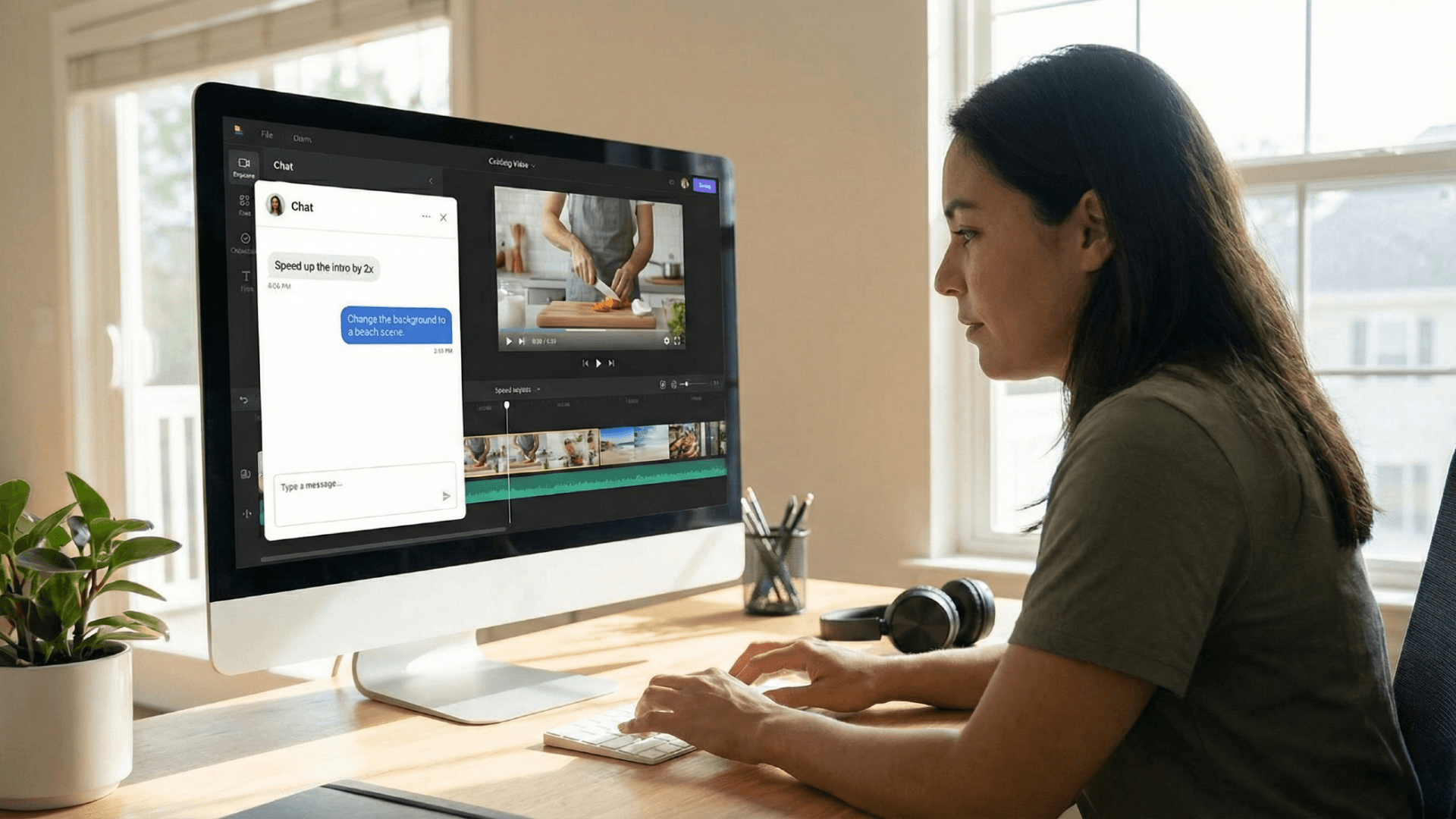
Speed isn't the only thing manual image-to-video workflows steal from you. Every time you rebuild prompts, regenerate animations, and restart editing sequences from scratch, you're also burning through creative energy and production budgets that could scale your content library instead. The real cost isn't visible in a single project. It compounds across every video you publish.
The Budget Multiplier Nobody Tracks
Manual workflows don't just slow production. They create invisible financial leakage that most creators never calculate until they've already lost months of momentum. When you spend 15 minutes finding images, another 15 minutes writing prompts, 15 more minutes generating animations, and 15 minutes fixing transitions, that single "quick" video consumes over an hour of billable time. Multiply that across ten videos per week, and you've spent 40 hours on workflow management instead of creative strategy.
The Hidden Cost of Unsystematic Workflows
According to Sozee's analysis of hidden AI generator costs, failed-generation fees alone can range from $45 to $ 75 per project when creators cycle through trial-and-error animation attempts without structured systems. The pattern repeats because creators treat each project as a standalone task rather than a repeatable system. You're not just paying for software subscriptions. You're paying in time that could be spent building audience relationships, testing content formats, or expanding into new platforms. The workflow becomes the product instead of the video itself.
Why Task Switching Drains More Than Time
Cognitive load theory explains why manual image-to-video production feels exhausting even when individual tasks seem simple. Your working memory resets every time you switch between planning, prompting, generating, editing, and reviewing. What feels like multitasking is actually rapid context switching, and each transition creates friction that slows decision-making and increases error rates. After generating three animations that don't match your vision, rewriting prompts starts to feel like guesswork instead of creative control.
The Trap of Cognitive Overload
We've watched creators produce consistently across platforms, and the difference isn't talent or better prompts. It's workflow architecture. They've separated planning from execution, so they're not making creative decisions while also troubleshooting technical outputs. When you're simultaneously choosing images, writing narration, adjusting motion parameters, and fixing transitions, you're asking your brain to operate in four different modes at once. That's not efficiency. That's cognitive overload disguised as productivity.
When Production Becomes the Bottleneck
Manual workflows create a ceiling on content volume that most creators don't recognize until they've already hit it. You can produce one or two image-to-video pieces per week when you're treating each as a custom project. But when you want to publish daily, test multiple content formats, or scale across platforms, the workflow collapses under its own complexity. Publishing consistency disappears first. Then creative experimentation stops because you're too busy maintaining baseline output. Eventually, creator burnout replaces momentum because you're spending more energy managing production logistics than actually creating.
Scaling Through Workflow Automation
Crayo compresses this cycle by automating the repetitive workflow steps that drain time without adding creative value. Instead of manually syncing narration, transitions, and platform formatting for each video, creators input their concept and let structured systems handle execution. That's how teams move from one video per day to ten, without hiring editors or sacrificing quality. The difference isn't working harder. It's eliminating the workflow friction that makes scaling feel impossible. But knowing the cost isn't the same as knowing which tools actually solve it without creating new restrictions.
Related Reading
• How To Create Educational Videos Using AI
• Veo 3 Maximum Video Length
• Grok AI Video Generation Capabilities 2026
• Google Veo 3 Prompt Examples
• AI-generated Video Examples
• Sora 2 Vs Veo 3
• Kling AI Video Prompt Examples
• How To Use AI to Make YouTube Videos
• AI Composite Video
• AI Video Prompts
• Grok AI Video Generation Prompt Examples
• How Are People Making AI Videos
7 AI Image-to-Video Tools to Create Videos in Under 30 Minutes
The fastest creators do not manually animate every image when creating videos. They use AI image-to-video tools that transform static images into moving scenes while reducing the need for editing, animation, and production work. The goal is not simply to make images move; the goal is to create complete videos without rebuilding the entire workflow. That is what allows creators to turn images into publish-ready content in a fraction of the time.
1. Kling AI for Cinematic Image Animation
Use this when you need cinematic camera movement, realistic motion, and visual continuity that feels intentional. Instead of manually animating images, Kling AI generates natural movement that matches the original image's composition and emotional tone. A creator building a product reveal video can upload a static product shot and let Kling add slow zoom and rotation that mimics professional cinematography, cutting animation work from hours to minutes. The outcome is more dynamic videos with less manual animation work.
2. Veo 3 for Image-to-Video Generation
Use this when you need AI-generated scenes, realistic motion, and extended storytelling that maintains a consistent visual style. Veo 3 transforms still images into video sequences while preserving cinematic quality across multiple frames. A travel creator can turn landscape photos into flowing sequences that feel connected, eliminating the need to manually rebuild each transition. The outcome is faster video creation without having to rebuild scenes.
3. Runway for Image-Based Video Creation
Use this when you need image animation, scene expansion, and transition footage that bridges narrative gaps. Runway helps creators generate moving scenes from static visuals, which is especially useful when you need footage that doesn't exist yet. A storytelling creator can animate historical photos or concept art into moving sequences, filling gaps that would otherwise require expensive stock footage or reshoots. The outcome is smoother production workflows and fewer editing cycles.
4. Pika for Short-Form Image Videos
Use this when you need TikTok videos, Instagram Reels, YouTube Shorts, or animated social content that grabs attention in the first two seconds. Short-form content often needs simple but engaging movement, and Pika quickly turns images into scroll-stopping clips. A creator building a product showcase can animate a single product image with motion effects that feel native to vertical video formats, matching the pacing audiences expect on social platforms. The outcome is faster short-form video production.
5. Luma AI for Visual Consistency

Use this when you need realistic environments, scene matching, and cinematic visuals that feel connected from beginning to end. Maintaining a consistent visual style manually can be difficult when you're working with multiple images from different sources. Luma AI helps preserve that consistency across multiple scenes, ensuring that lighting, color grading, and motion feel cohesive. A brand creator building a multi-scene ad can animate product images and lifestyle shots to match the tone, eliminating jarring visual breaks caused by mismatched animation styles. The outcome is videos that feel connected from beginning to end.
6. Haiper AI for Fast Image Animation

Use this when you need quick video generation, simple animations, and rapid content production without sacrificing quality. Haiper AI focuses on speed, helping creators produce content quickly when turnaround time matters more than complex motion design. A news commentary creator can animate breaking news images into video segments within minutes, keeping content timely and relevant. The outcome is more published videos with less production time.
7. CapCut for Final Video Assembly
Use this when you need captions, transitions, pacing adjustments, and timeline organization after your images have been animated. Most image-to-video projects still require scene organization, pacing control, and final editing before they're ready to publish. CapCut helps assemble generated assets into a finished video, adding text overlays, audio sync, and platform-specific formatting. A creator building a tutorial video can organize animated screenshots into a structured timeline, add voiceover and captions, and export in the correct format for YouTube or TikTok. The outcome is a polished video ready for publishing.
The Power of a Unified System
Most creators treat these tools as isolated animation engines, cycling through image upload, generation, download, and manual assembly for every video. Crayo collapses that fragmented workflow into a unified system where image-to-video generation, narration, captions, and formatting happen in one place. Instead of exporting animated clips and rebuilding timelines manually, creators input their concept and let structured systems handle execution, moving from one video per day to ten without hiring editors or sacrificing quality.
What Actually Changes When You Use AI Image-to-Video Tools?
Before: You were manually animating images, rebuilding transitions, repeatedly editing scenes, and spending hours creating videos.
After: You have automated image animation, better visual consistency, faster production workflows, and complete videos in less time. The difference isn't between static and moving images; it's between manual production and structured, AI-assisted production. You now have seven AI image-to-video tools that can help turn static images into videos without having to rebuild the entire production process. But knowing the tools isn't the same as knowing how to use them together without wasting time.
The 30-Minute Workflow Creators Use to Turn Images Into Videos Faster
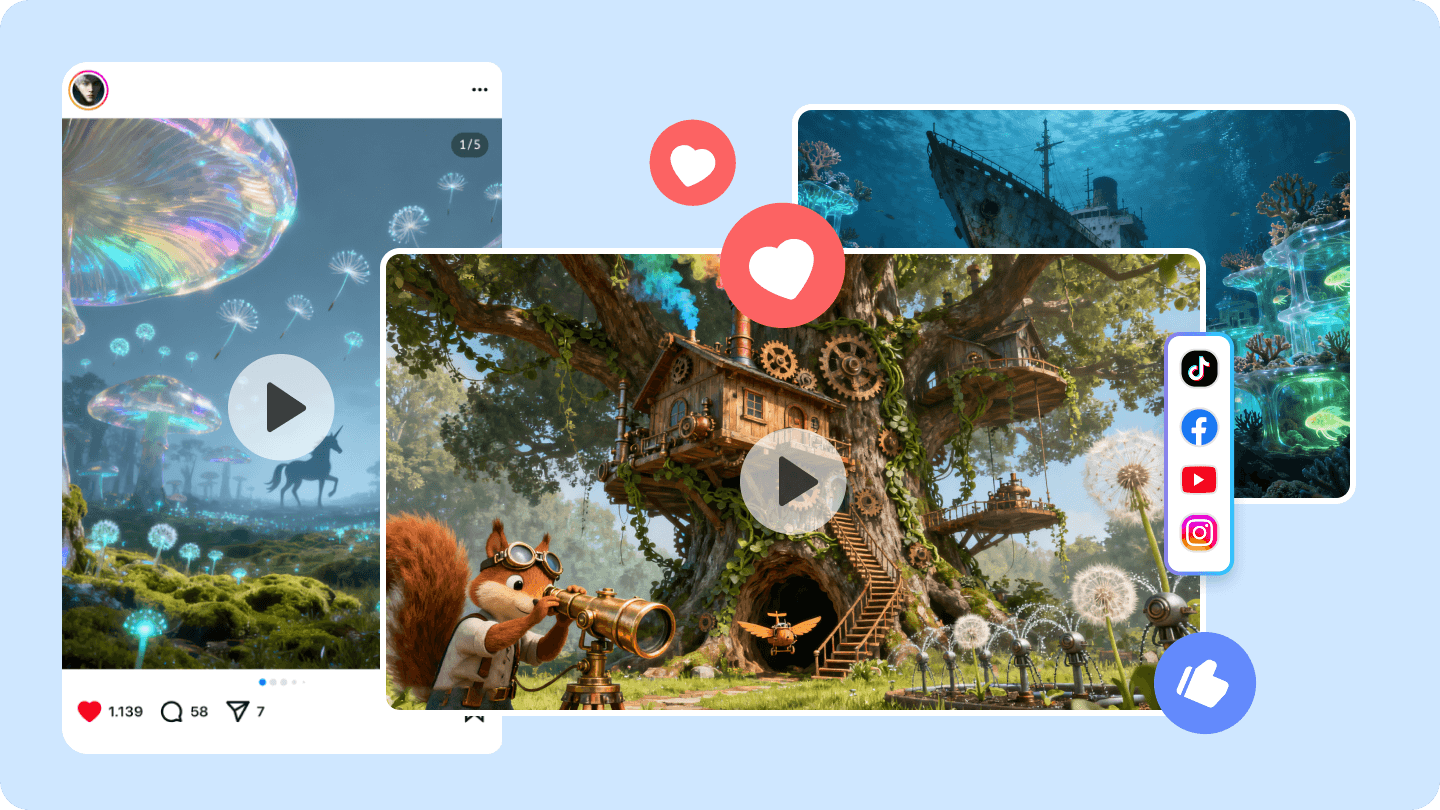
The fastest way to create video content from images isn't about finding better tools. It's about separating the workflow into distinct stages that don't interfere with each other. When you stop trying to think, generate, narrate, and edit simultaneously, production speed increases without requiring faster software. Most creators assume speed comes from automation. It doesn't. Speed comes from eliminating the restart loops that happen when you mix creative decisions with technical execution. Plan the narrative first, generate the visuals second, sync the audio third. That separation is what enables CloudPano Blog report creators to produce 30+ videos a month, not superhuman productivity.
Minute 0-5: Define the Story Before Touching Any Tool
Start by writing down the video's purpose in one sentence. Not the topic. The purpose. For example, "Convince freelance designers that AI image-to-video tools reduce client revision cycles" is a purpose. "AI tools for designers" is just a topic. The difference determines which images you'll need and how you'll sequence them.
Structuring the Narrative Skeleton
Then break the video into four to six scenes. Each scene should advance the narrative, not just show something visually interesting.
- Scene 1 might establish the problem.
- Scene 2 shows the current workaround.
- Scene 3 introduces the solution.
- Scene 4 demonstrates the outcome.
Write this structure in a simple list. No scripts yet. No image searches. Just the skeleton of what needs to happen and in what order. This five-minute step prevents the common mistake of generating beautiful animations that don't connect to anything.
Minutes 5-10: Collect Images That Match Your Scene Structure
Now gather the images that will become your video scenes. These could be:
- AI-generated visuals
- Product screenshots
- Illustrations
- Stock photography
The critical rule here is consistency. If Scene 1 uses a neon-lit cyberpunk aesthetic, Scene 2 shouldn't suddenly shift to watercolor pastels unless that jarring transition serves the narrative. Visual coherence matters more than individual image quality because viewers notice style breaks faster than they notice resolution differences.
Organizing and Prepping Your Assets
Organize the images in the same order as your scene list. Label them clearly. "Scene_01_Problem.png" works better than "AI_output_final_v3.png" when you're assembling the video later. Don't spend time perfecting images at this stage. If an image is 80% right, move forward. You're building raw material, not finished art. Perfectionism here kills momentum and adds no value to the final video.
Minutes 10-18: Generate Video Scenes One at a Time
- Upload your first image to your chosen AI video tool.
- Generate the animation.
- Wait for it to finish.
- Then move to the next image.
Do not batch-process all images at once unless you've tested the tool's consistency with your specific image style. Different tools handle lighting, motion blur, and camera movement differently. Generating one scene, reviewing it, and adjusting your approach for the next scene prevents wasting credits on six unusable animations.
Prioritizing Smooth Visual Consistency
Focus on three elements during generation.
- First, camera movement. Does the motion feel intentional or random?
- Second, animation style. Does the movement match the energy of your narrative?
- Third, scene consistency. Does this clip feel like it belongs in the same video as the previous one?
Skip the temptation to add complex effects. Simple camera pans, slow zooms, and subtle parallax movement work better than aggressive motion that distracts from your message. The goal is a smooth visual flow, not to showcase every feature the tool offers.
Minutes 18-24: Create Narration That Matches Scene Duration
Once you have animated scenes, write or generate the narration. Each narration block should correspond to one scene. Time the narration to match the scene length. If your animated clip runs 10 seconds, your narration for that scene should take approximately 10 seconds to read aloud. This prevents awkward silences or rushed voice-over pacing during assembly.
Balancing Visuals and Lean Narration
Most creators make narration too dense. They try to explain everything in every scene. A better approach is to let visuals carry some of the communication weight. If the animation clearly shows a product interface, the narration doesn't need to describe what viewers already see. It should interpret, not duplicate. Record or generate the audio now. Don't wait until you're assembling the video. Separating audio creation from video assembly reduces the cognitive load of balancing timing, tone, and visual sync all at once.
Minutes 24-28: Assemble the Timeline Without Rebuilding Anything
Import your animated scenes, narration files, and any caption text into your editing platform. Arrange them in sequence according to your original scene structure. When timing doesn't perfectly align, adjust the timeline instead of regenerating content. If a scene runs 10.2 seconds but your narration is 10 seconds, trim 0.2 seconds from the clip. If the narration runs long, slightly slow the playback speed or trim a redundant phrase. These micro-adjustments take seconds and preserve all your generated content.
Refining Transitions and Captions
Add transitions between scenes, but keep them minimal. A simple crossfade or cut works for most content. Elaborate wipes or animated transitions rarely improve the video and often make it feel amateurish. Sync captions to the narration. Most platforms auto-generate timestamps. Review them quickly for accuracy, but don't obsess over frame-perfect alignment unless the content is highly technical.
Minutes 28-30: Final Review and Export
Watch the full video once. Check for three things.
- First, does each scene connect logically to the next?
- Second, does the narration timing feel natural?
- Third, are there any visual glitches or audio pops that break immersion?
Make only critical fixes. If a transition feels slightly abrupt but doesn't confuse the narrative, leave it. If a caption is off by half a second but still readable, move on. The goal is "good enough to publish," not "perfect enough to win awards."
Efficient Exporting and Structured Workflows
Export the video in the format your platform requires. Most short-form content works fine at 1080p resolution and standard frame rates. Higher quality settings increase export time without meaningful viewer benefit. According to Social Realtr, creators following structured workflows can complete videos in under an hour. The difference isn't talent or expensive software. It's refusing to let creative decisions and technical execution happen simultaneously.
Why Separation Prevents Workflow Collapse
The problem with most image-to-video creation isn't the quality of AI generation. It's trying to think, prompt, animate, narrate, and edit in overlapping cycles.
- When you plan while generating, you end up second-guessing the narrative structure mid-production.
- When you write narration before visuals are ready, you end up rewriting to match unexpected animation results.
- When you edit while scenes are still generating, you restart the timeline every time a new clip finishes rendering.
The Value of Sequential Execution
This workflow removes that overlap. Each stage completes before the next begins.
- Plan
- Then gather
- Then generate
- Then narrate
- Then assemble
- Then export
Six distinct stages with clear boundaries. That structure doesn't make you work faster. It makes you stop working on the same decision multiple times. The time saved isn't from speed. It's from eliminating redundant effort. Most creators treat AI tools like design software, where iteration improves the output. Video production works differently. Iteration creates branching complexity. The more you revise mid-process, the more decisions multiply. Better to make fewer, clearer decisions and execute them sequentially.
Discipline Over Tool Mastery
The creators producing multiple videos per week aren't more creative or technically skilled. They've just stopped confusing motion with progress. They finish one stage completely before starting the next. That discipline, not tool mastery, is what makes a 30-minute production realistic. But knowing the workflow isn't the same as having the infrastructure to execute it without switching between five different platforms.
Create Image-to-Video Content Faster With Crayo
If turning images into videos still takes hours, the workflow itself is the problem. You're likely generating images without a plan, writing narration after editing, and manually fixing timing issues. That approach forces you to rebuild the entire production system every time you create content. The solution is to follow the 30-minute workflow above, but with infrastructure that handles the planning and narration stages before you begin editing.
Automating the Initial Creation Process
Open Crayo, paste your video idea, and choose the type of video you want to create. The platform generates your script, narration, and content structure in minutes, eliminating the first two stages of the workflow where most creators lose momentum. You'll have a structured video script, ready-to-use narration, and a clear scene structure before you touch animation or final editing. This allows you to focus on assembling the final video rather than rebuilding the production steps from scratch.
Building Your First Automated Workflow
The creators publishing image-to-video content fastest aren't manually cycling through scripting, scene planning, and narration for every project. They're using structured systems to remove repetitive work before editing begins. Crayo helps you build that system without complicated setup, so you can use this workflow on your current project and start producing content faster today.