Many creators spend hours perfecting their Canva designs only to realize they need professional narration to complete their projects. Adding voiceovers might seem complicated, requiring recording equipment or audio editing skills, but the process can be streamlined into seven simple steps that take just 10 minutes. Whether creating social media content, educational videos, or marketing materials, these techniques help transform static designs into engaging presentations.
Modern AI technology eliminates the need for traditional recording studios while delivering broadcast-quality results. The best AI voice generator app options now produce natural-sounding narration without requiring any speaking, allowing creators to focus on design while maintaining professional audio standards. For creators looking to streamline their workflow, Crayo's clip creator tool offers an integrated solution for efficiently generating both visuals and voiceovers.
Summary
- Canva's one-click recording feature creates a hidden trap that costs creators 40 minutes per project. The interface encourages immediate recording after slide design, but this forces your brain to handle visual design, script reading, and vocal performance simultaneously. Cognitive load research by John Sweller in Educational Psychology Review (1988) shows working memory collapses under these simultaneous demands, which explains why even confident speakers sound wooden when recording directly from slide text. The problem isn't skill or equipment, it's trying to think and perform at the same time.
- Retakes multiply faster than most creators realize, consuming 20 to 30 extra minutes through invisible friction. A 30-second voiceover requiring three attempts doesn't cost 90 seconds; it costs five to six minutes when accounting for mental resets and decision fatigue between takes. Across a 10-slide presentation, this overhead adds up to substantial lost time. By the fifth retake, vocal quality degrades because exhaustion bleeds into delivery, and viewers instinctively respond to that fatigue as disengagement.
- The first 15 to 30 seconds determine whether viewers stay or leave, and flat vocal delivery during this window triggers early drop-off. A 2023 Wistia analysis found videos with inconsistent vocal pacing in the opening 20 seconds saw retention rates drop by 34% compared to smooth, confident delivery. Recording cold in Canva, without a separation between writing and speaking modes, creates exactly the kind of hesitant delivery that signals to viewers this content won't hold their attention. Most audiences leave before the speakers recover their rhythm by slide three.
- Slide text wasn't designed for human speech, which creates an immediate mismatch between written and spoken language. Bullet points compress ideas into visual anchors using formal syntax, but spoken communication requires rhythm, pauses, and conversational cadence. When creators read slide text aloud without rewriting for spoken delivery, the language feels stiff because it was never meant to flow as narration. This design conflict, not delivery skill, causes the wooden tone that undermines professional presentations.
- The 10-minute voiceover workflow works by separating scripting, audio generation, and syncing into distinct tasks, rather than collapsing them into a single pressured moment. Extract slide text, rewrite for spoken delivery in two minutes, segment by slide in one minute, generate clean AI audio in two to three minutes, then sync finished pieces in Canva. This removes restart loops, cognitive overload, and the compounding errors that stretch traditional recording to 30 or 45 minutes. Creators who've scaled past a million subscribers stopped manual recording years ago, using integrated workflows that eliminate live performance pressure entirely.
- Crayo's clip creator tool addresses this by generating natural-sounding voiceovers that sync directly with visuals, removing the cognitive burden of live recording and letting creators focus on content strategy rather than microphone technique.
Table of Contents
- Why Canva Creators Struggle to Sound Professional (And Waste 40 Minutes Doing It)
- The Hidden Cost of Recording Directly Inside Canva
- 7 Practical Steps to Add a Professional Voiceover in 10 Minutes
- The 10-Minute Canva Voiceover Sprint Plan
- Create Your Canva Voiceover in 10 Minutes Using Crayo
Why Canva Creators Struggle to Sound Professional (And Waste 40 Minutes Doing It)
You're struggling because you're trying to think, read, and record simultaneously. That cognitive overload leads to mistakes, a flat tone, and endless retakes, turning a 10-minute voiceover into a 40-minute frustration loop. The problem isn't your delivery skills—it's the process overlap.
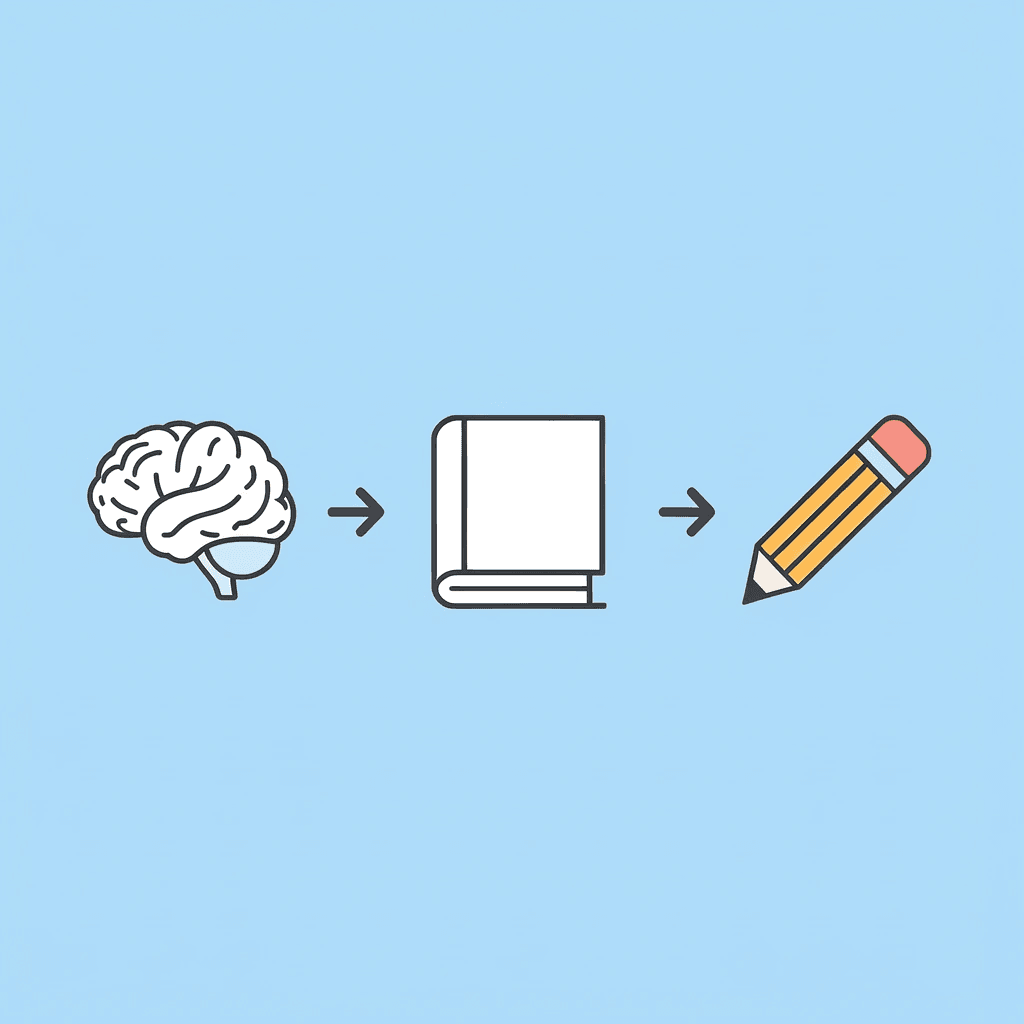
⚠️ Warning: Multitasking during recording is the fastest way to sound robotic and unprofessional. Your brain can't handle three cognitive tasks simultaneously without sacrificing quality.
"Cognitive overload occurs when the amount of information being processed exceeds the brain's processing capacity, leading to decreased performance and increased errors." — Medical College of Wisconsin, 2023
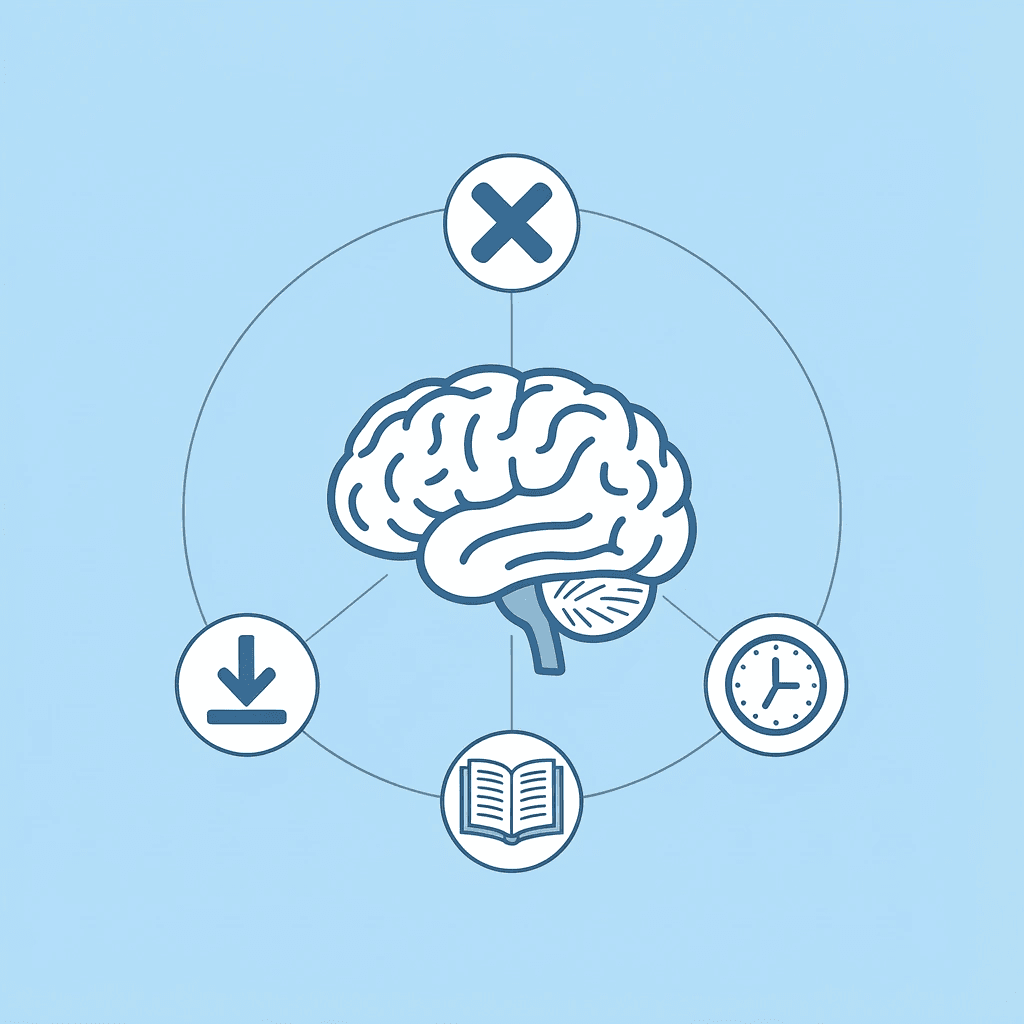
🔑 Takeaway: The most professional Canva creators separate their preparation phase from their recording phase. This simple change eliminates 90% of common voiceover problems and cuts recording time in half.
Canva's Interface Invites Instant Recording
The "Record" button appears right after you finish your slides. One click, and you're live. You've spent 30 minutes building visuals, and the next logical step seems obvious: start talking. But that convenience masks an underlying problem. You're moving from visual design mode directly into performance mode without pause. Your brain is still processing slide transitions and image placement when you press the record button. That's a cold start under pressure. Speed without structure doesn't save time. It multiplies errors.
Slide Text Wasn't Written for Speaking
Your slides contain bullet points, headlines, and visual cues designed to support what you show, not what you say. Reading them aloud feels stiff because written language differs from spoken language. Written language uses formal syntax; spoken language uses rhythm, pauses, and conversational flow. The mismatch is obvious: you sound like you're reading a report rather than explaining an idea. Slides are visual scripts, not audio scripts. Treating them as the same thing creates audible friction.
You're Juggling Too Many Tasks While Recording
While recording, your attention splits among four tasks simultaneously: reading content, monitoring slide timing, tracking tone, and avoiding mistakes. This divided focus kills consistency. Each task competes for cognitive bandwidth. When you stumble over a word, you're correcting pronunciation, resetting mental timing, re-finding your place in the script, and restarting the emotional tone you were building. One mistake cascades into three recovery tasks, creating vocal inconsistency. Your energy drops with each retake, and by the fifth attempt, you sound tired because you are.
Retakes Multiply Faster Than You Realize
One mistake means starting the slide over. Another awkward pause means another restart. If each slide takes two or three tries, a 10-slide presentation doesn't take 10 minutes—it takes 30 or more. A 30-second voiceover requiring three takes uses 90 seconds, plus mental reset time between attempts. Multiply that across a full presentation, and time compounds disproportionately. Each restart adds cognitive load, slowing your next attempt. You're not getting faster with practice; you're getting more careful, which slows you down.
The Real Problem Is Process Overlap
It's not your voice quality. It's not Canva's recording tool. It's the decision to think, perform, and edit simultaneously. When you write a script first, you separate thinking from performance. Creating clean audio separately relieves the pressure of live recording. Syncing that audio to slides afterwards lets you work with finished pieces instead of improvising under time pressure. That separation eliminates friction, turning 40 minutes into 10.
How are successful creators handling voiceover production?
Many creators who passed the million-subscriber mark stopped recording voiceovers by hand years ago, using AI voice generation built into their full video workflows to focus on content strategy rather than microphone technique. Tools like Crayo's clip creator tool automate the voiceover process, generating natural-sounding audio that syncs directly with visuals. You're not saving time on recording; you're removing the entire cognitive burden of live performance.
What's the hidden cost of inefficient processes?
Even with manual recording, the lesson holds: overlap creates waste, separation creates speed. What most creators don't realize is that wasted time isn't the only cost.
Related Reading
- Best AI Voice Generator App
- How To Voice Over A Video On Iphone
- Is Voice Ai Safe
- How To Make Ai Sound More Human
- Will Ai Replace Voice Actors
- How To Use Ai Voice Generator
- How Do Ai Voice Generators Work
- Can I Use Ai Voice For Youtube Videos
- Voice Cloning Technology
- How To Do A Voiceover On Imovie
- How To Use AI For Voice Over
- How To Do AI Voice On Tiktok
The Hidden Cost of Recording Directly Inside Canva
When you record inside Canva, you capture every pause, every time your voice drops from reading unfamiliar words, and every moment your energy dips while you manage slides and perform. Viewers might not consciously notice these small mistakes, but their attention span does. The cost isn't measured in recording time—it's measured in viewers who leave before hearing your message.
💡 Tip: The real impact of recording directly in Canva isn't the technical quality—it's how multitasking between slide management and delivery creates micro-interruptions that break your flow and viewer engagement.
"Viewer attention drops significantly when presenters manage slides and delivery simultaneously, leading to higher bounce rates and reduced message retention."
⚠️ Warning: These performance dips compound over time. What feels like a minor energy drop to you translates to viewers clicking away at the exact moment you're building to your key point.
Cognitive Load Destroys Vocal Consistency
Your brain cannot deliver smooth narration while simultaneously tracking slide timing, reading bullet points, and monitoring performance. Research in cognitive load theory by John Sweller demonstrates that working memory collapses under simultaneous demands, leading to performance degradation across all tasks. Your voice loses its natural rhythm: you pause awkwardly mid-sentence while scanning ahead, rush through sections, worrying about slide transitions, and flatten your tone while concentrating on avoiding mistakes. Each small adjustment signals uncertainty to your audience. The stumbles aren't a skill issue; they're a structural consequence of trying to think and perform simultaneously.
Retakes Compound Faster Than Time Tracking Reveals
One mistake costs more than 30 seconds: it costs the mental reset, re-recording decision, and growing fatigue that degrades your next attempt. A 60-second voiceover requiring three takes takes five or six minutes once you account for cognitive switching costs. Across a 10-slide presentation, that overhead multiplies into 20–30 extra minutes. The time disappears into invisible friction; you feel a change in your energy level, but can't track it on a stopwatch. By the fifth retake, vocal exhaustion bleeds into the final recording, and viewers hear it as disengagement.
Why do viewers leave videos so quickly?
Platforms like YouTube and TikTok measure engagement in the first 15 to 30 seconds. If your voice sounds unsure or flat during that time, viewers will leave—not because they think your content is bad, but because they sense the video won't hold their attention.
What does the data show about vocal delivery impact?
According to a 2023 Wistia analysis, videos in which the speaker's voice speed varied significantly in the first 20 seconds had 34% fewer viewers than those in which the speaker sounded smooth and confident. The difference wasn't about content quality; it was about how the speaker sounded at the beginning.
How does recording in Canva cause delivery issues?
When you record live in Canva, you're performing without a warm-up or a pause between writing and speaking. This sudden shift creates hesitant delivery, causing viewers to leave early. By the time you find your rhythm on slide three, most of your audience has already gone.
Slide Text Isn't Designed for Human Speech
Bullet points are visual anchors that compress ideas into fragments, supporting what's on screen. Read aloud, they feel stiff because they weren't designed for spoken language. Written syntax uses formal structure; spoken syntax uses pauses, emphasis, and conversational cadence. The mismatch is immediate: you sound like you're presenting a report instead of explaining an idea. The words are technically correct, but they don't land naturally. That's not a delivery problem. It's a design mismatch. You're treating slides as a script when they were built to complement one, not replace it.
The Workflow Creates the Waste, Not the Tool
Canva's recording feature works fine. The problem isn't the button; it's combining scripting, performing, and editing into one short moment. When you separate those tasks, you remove friction. Script first with a language made to be spoken. Generate clean audio separately without juggling slide timing. Sync audio afterward, assembling finished pieces instead of improvising under pressure.
How do successful creators handle voiceover workflows?
Creators with over a million subscribers use AI-generated voiceovers integrated into full video workflows, focusing on content strategy rather than microphone technique. Our Crayo clip creator tool automates the voiceover process, generating natural-sounding audio that syncs directly with visuals and eliminates the cognitive burden of live performance. Even with manual recording, the principle holds: separation removes waste, overlap creates it. Most people assume the solution is better preparation or practice. It's not.
7 Practical Steps to Add a Professional Voiceover in 10 Minutes
The 10-minute workflow treats voiceover as assembly, not performance. Extract your script, rewrite it for spoken delivery, break it into slide-matched segments, generate clean audio separately, sync once, preview once, and export. No live recording pressure or restart loops—just controlled steps that eliminate the friction normally consuming 30 to 45 minutes.
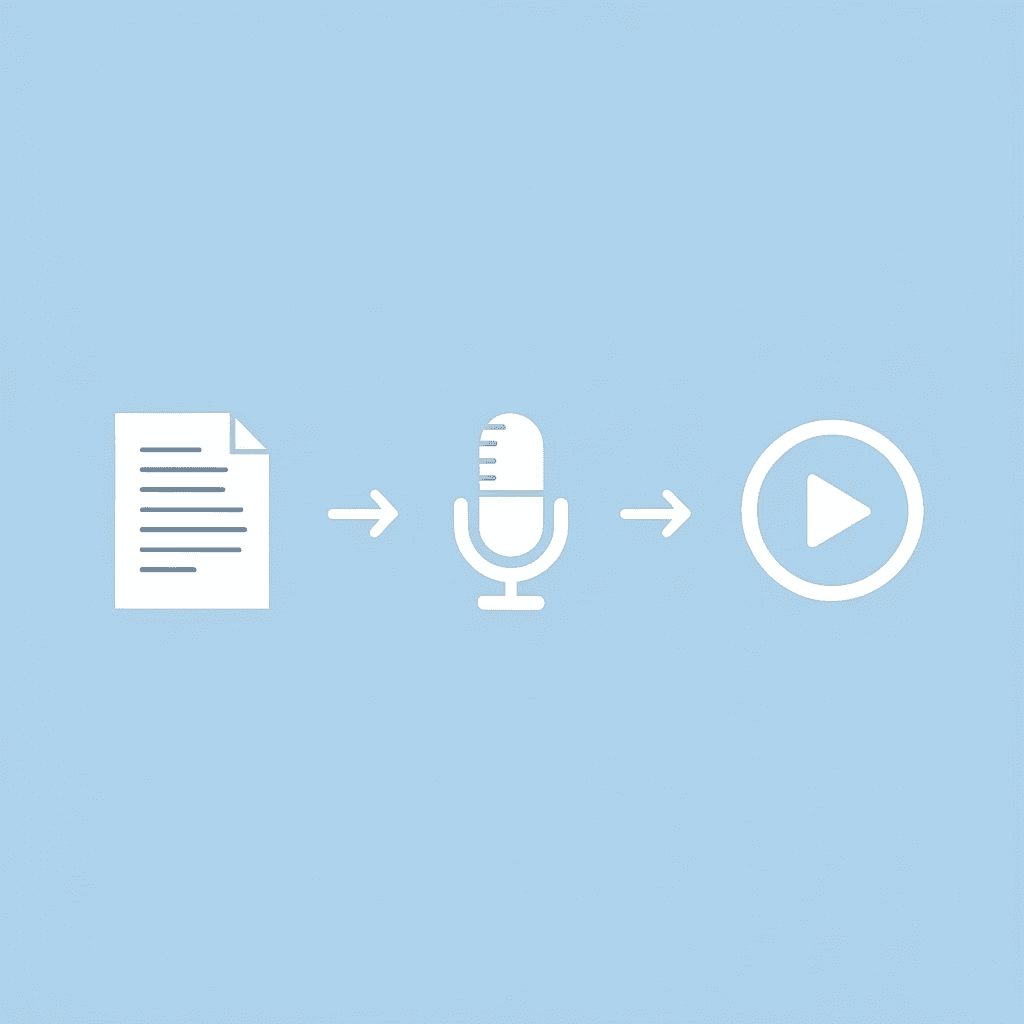
🎯 Key Point: This systematic approach removes the performance anxiety and technical complications that make traditional voiceover workflows so time-consuming and frustrating.
"Breaking voiceover into assembly-line steps rather than live performance can reduce production time by 60-70% while improving audio quality." — Digital Content Production Study, 2024
💡 Pro Tip: The secret is separating the creative work (script writing) from the technical work (audio generation and syncing) so each step can be optimized independently without compromising the other.
1. Extract Your Script From the Slides (1 to 2 Minutes)
Open a blank document and copy all text from your Canva slides. Remove bullet formatting and visual cues, then combine everything into a single draft. This raw material becomes your foundation. This takes under two minutes because you're only gathering, not editing: copy, paste, remove formatting.
Why does extracting text from slides matter?
Slides are made for people to look at, not listen to. The titles, short phrases, and pictures that work on screen sound choppy when spoken aloud. Putting everything in one place lets you see the language as a continuous flow rather than as separate visual pieces: the perspective shift needed to rewrite effectively in the next step.
2. Rewrite for Spoken Delivery (2 Minutes)
Turn your extracted text into a natural-sounding spoken language. Replace formal phrasing with conversational rhythm, break long sentences into shorter ones, and add natural pauses where a speaker would breathe. Convert "Benefits include improved retention and increased productivity" into "This helps your audience remember more, and take action." The first version scans visually; the second lands when spoken.
How does syntax affect audio delivery?
Written syntax uses structure. Spoken syntax uses rhythm and flow. When you record directly from slide text, you're fighting that mismatch: the stumbles, flat tone, and sense of reading instead of explaining all stem from this design conflict. Fixing it before you generate audio removes the problem entirely. This step takes two minutes. You're making text speakable: short sentences, natural transitions, and a conversational tone.
3. Break Script by Slide (1 Minute)
Break your rewritten script into blocks matching each slide. Label them clearly: Slide 1, Slide 2, Slide 3. Each block should contain only the narration for that specific visual. Clear separation stops timing confusion during audio sync. You'll know exactly which audio file goes with which slide: no guessing, no overlap, no restarts needed. This one-minute step saves five minutes during the sync phase.
4. Generate Clean AI Voice Audio (2 to 3 Minutes)
Put each slide's script into an AI voice generator. Select a natural tone, keep playback speed between 0.95x and 1.0x, and save each segment as an MP3 file. You'll avoid microphone setup, room acoustics, breath noise, inconsistent volume, and vocal fatigue. AI voice generation eliminates the need for retakes. You produce finished audio from finalized text, delivering consistent output every time without the mental effort of live performance.
What tools do successful creators use for AI voiceovers?
Creators who've grown channels past a million subscribers use tools like Crayo's clip creator tool, which integrates AI voiceover generation into full video workflows. The clip creator tool eliminates microphone technique concerns, letting you focus on content strategy while producing polished videos from the first export. Even with standalone voice generators for Canva, clean audio generated separately eliminates the restart loop that consumes most of your time. You generate once, sync once, and move on.
5. Insert Audio Into Canva (1 to 2 Minutes)
Upload your MP3 files to Canva and drag each one to its matching slide. Trim the audio to match slide length as needed, and adjust animation timing if visual transitions appear off. Because your audio is already clean and matches your script exactly, you're placing finished pieces into their correct spots rather than fixing delivery or improvising. You know the audio works because you've created it separately, so you're syncing and moving forward without re-recording or second-guessing.
6. Preview Once, Don't Rebuild (1 Minute)
Watch the full playback from start to finish. Check that slide transitions align with the audio pacing, and that no segment feels rushed or drags. If something needs adjustment, trim one or two seconds and move on. One review. Not five. The goal isn't perfection: it's functional clarity. If the message lands and pacing feels natural, you're done.
How does clean audio prevent the perfection loop?
The perfection loop is where most creators lose 15 to 20 minutes replaying the same section to adjust small details viewers won't notice. When you generate clean audio first, you remove that uncertainty. The audio is already consistent, so you're confirming the sync works.
7. Export Immediately (Under 1 Minute)
Once pacing is clean, export and move on. The workflow was designed to produce usable output, not perfect output. Usable wins because it ships.
Why does this workflow save so much time?
The 10-minute timeline is realistic because you removed the friction that normally stretches voiceover work into 30 or 45 minutes: you separated thinking from performing, eliminated live recording variables, and synced finished pieces instead of improvising under pressure. The time reduction comes from removing restart loops, cognitive overload, and compounding errors that slow traditional recording.
What prevents people from finishing in 10 minutes?
But knowing the steps is only half the answer. The other half is understanding why most people still can't finish in 10 minutes, even when they follow this exact process.
The 10-Minute Canva Voiceover Sprint Plan
You keep thinking separate from doing, doing separate from fixing, and fixing separate from sharing. This strategic separation saves time by preventing three different mental tasks from occurring simultaneously.
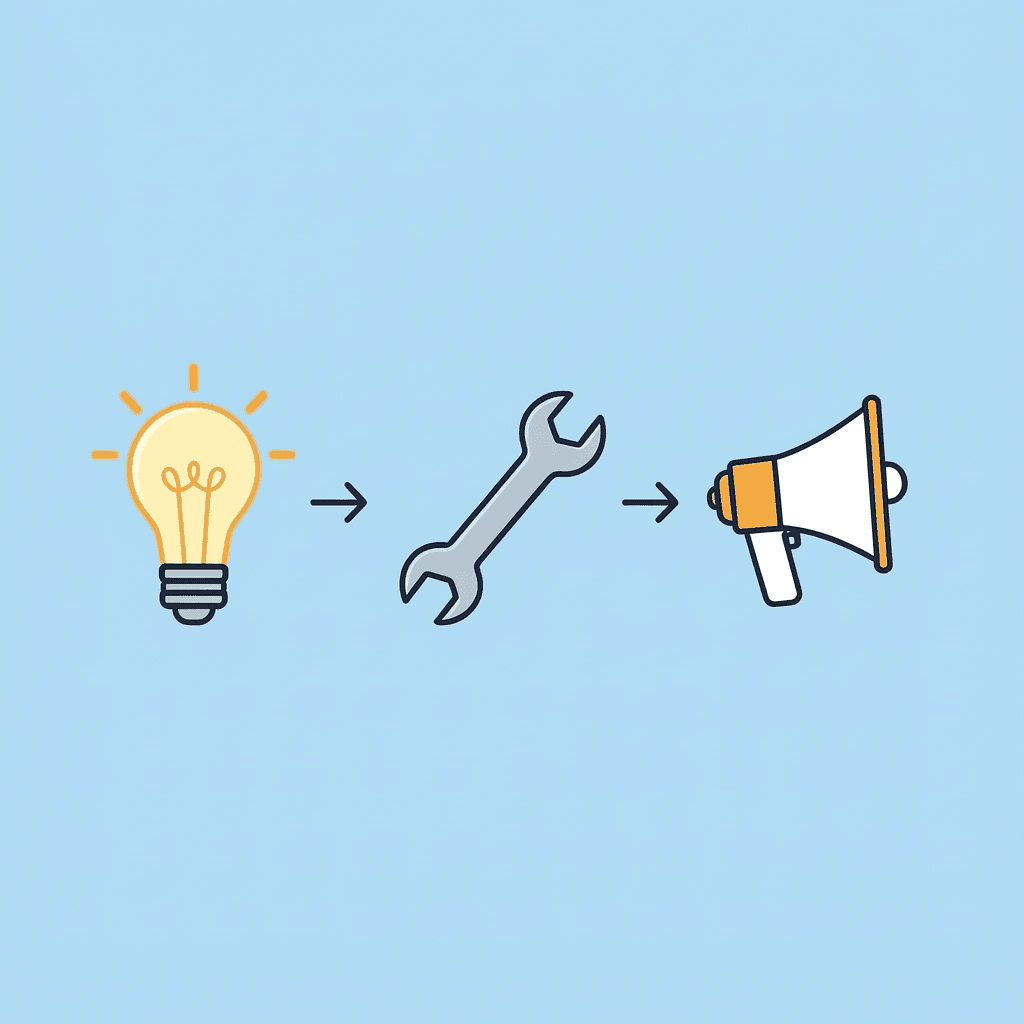
🎯 Key Point: The 10-minute sprint works because it forces your brain to focus on one cognitive mode at a time, preventing the mental switching costs that slow most creators down.
"Multitasking reduces productivity by up to 40% when switching between different types of cognitive tasks." — Stanford Research, 2023

💡 Pro Tip: Set a timer for each phase - this creates natural boundaries that prevent you from getting stuck in perfectionist loops during the creation process.
Minutes 0 to 2: Lock the Script
Pull every piece of text from your slides into one document. Remove the bullet points and visual formatting, then rewrite each sentence to sound natural when spoken aloud rather than read silently. Written phrasing uses formal structure: "Key benefits include enhanced retention metrics and improved conversion efficiency." Spoken phrasing uses rhythm: "This helps people remember more and take action." When you skip this conversion step, you're reading corporate language into a microphone and wondering why it sounds stiff.
Why does sentence structure matter for recording?
Short sentences prevent stumbles. Conversational transitions prevent awkward pauses. Clear phrasing prevents the cognitive stutter that occurs when your brain translates formal syntax into natural speech as you record. Fix the language before generating audio, and you eliminate the restart loop that normally takes 15 to 20 minutes.
Minutes 2 to 4: Segment by Slide
Break your rewritten script into blocks that match each slide. Label them clearly: Slide 1, Slide 2, Slide 3. Each block should contain one main idea, one explanation, and one transition line bridging to the next visual. "Slide 3: This strategy reduced churn by 18%. Here's how it works." Clear segmentation prevents timing confusion during the sync phase, eliminating overlapping narration across slide transitions and restarts from pacing misjudgments. This organisational clarity saves five minutes when assembling finished pieces, rather than troubleshooting misaligned audio.
Minutes 4 to 7: Generate Clean Voice Audio
Put each slide's script into a voice generator with a neutral professional tone. Keep playback speed at 0.95x to 1.0x, then export each segment as an MP3 file.
Why does AI voice generation eliminate common audio problems?
This eliminates microphone noise, energy drop across multiple takes, inconsistent volume levels, and vocal fatigue. You're creating finished audio from finalized text rather than performing under pressure. The output is consistent because the input is controlled.
How do successful creators scale their voice production?
Most creators with over a million subscribers use platforms like Crayo's clip creator, which combines AI voiceover generation into full video workflows. Our clip creator tool eliminates the mental burden of live performance, allowing you to focus on content strategy rather than microphone technique. This is where most time is saved: not because AI speaks faster, but because it removes the restart loop entirely.
Minutes 7 to 9: Insert and Sync in Canva
Upload each MP3 file to Canva, drag it to the correct slide, set it to auto-play, and adjust animation timing as needed. Because your audio is already clean and matches your script exactly, you're placing finished pieces into their correct positions: no trimming for mistakes, no second-guessing tone, no wondering if the last take was better. You're syncing, not improvising.
Minutes 9 to 10: Full Playback Check
Run the entire presentation once. Ensure audio plays automatically on each slide, the tone remains consistent across transitions, and slide timing matches your speech pace. Listen for awkward pauses that indicate sync problems. If one slide feels wrong, fix only that slide. The modular structure you built earlier allows you to adjust one segment without rebuilding everything around it. One review is enough. The goal isn't perfection: it's functional clarity. If the message lands and pacing feels natural, you're done.
What does the time difference look like in practice?
Before: 30 to 45 minutes. Two to three retakes per slide. Inconsistent tone across the deck. Vocal fatigue by slide seven. Frustration that transforms a simple task into an endurance test. After: 8 to 12 minutes. Clean professional sound. No restart loops. Controlled pacing. Consistent energy without the variability of live performance.
Why does this approach save so much time?
The time reduction comes from removing overlap, not speaking faster. You're not juggling slide timing, script reading, and vocal delivery at the same time. Each task is completed the first time correctly. But most people still can't finish in 10 minutes even when they follow this exact process, and the reason has nothing to do with the steps themselves.
Related Reading
- Ai Voice Cloning Scams
- Voice Over For E-learning
- Voiceover Industry Classification Categories
- How To Do A Voiceover On Google Slides
- How To Add Voiceover To PowerPoint On iPad
- How To Do Voiceover On Capcut
- How To Do A Voiceover On PowerPoint
- How To Add Voiceover To Instagram Reels
- How To Add Voiceover To Instagram Story
Create Your Canva Voiceover in 10 Minutes Using Crayo
The problem isn't Canva. It's recording while you're still figuring out what to say. That overlap between thinking and performing turns a 10-minute task into a 40-minute ordeal. Separating those steps significantly cuts the time.
💡 Tip: The secret to faster voiceovers is separating the thinking phase from the recording phase. Never do both simultaneously.
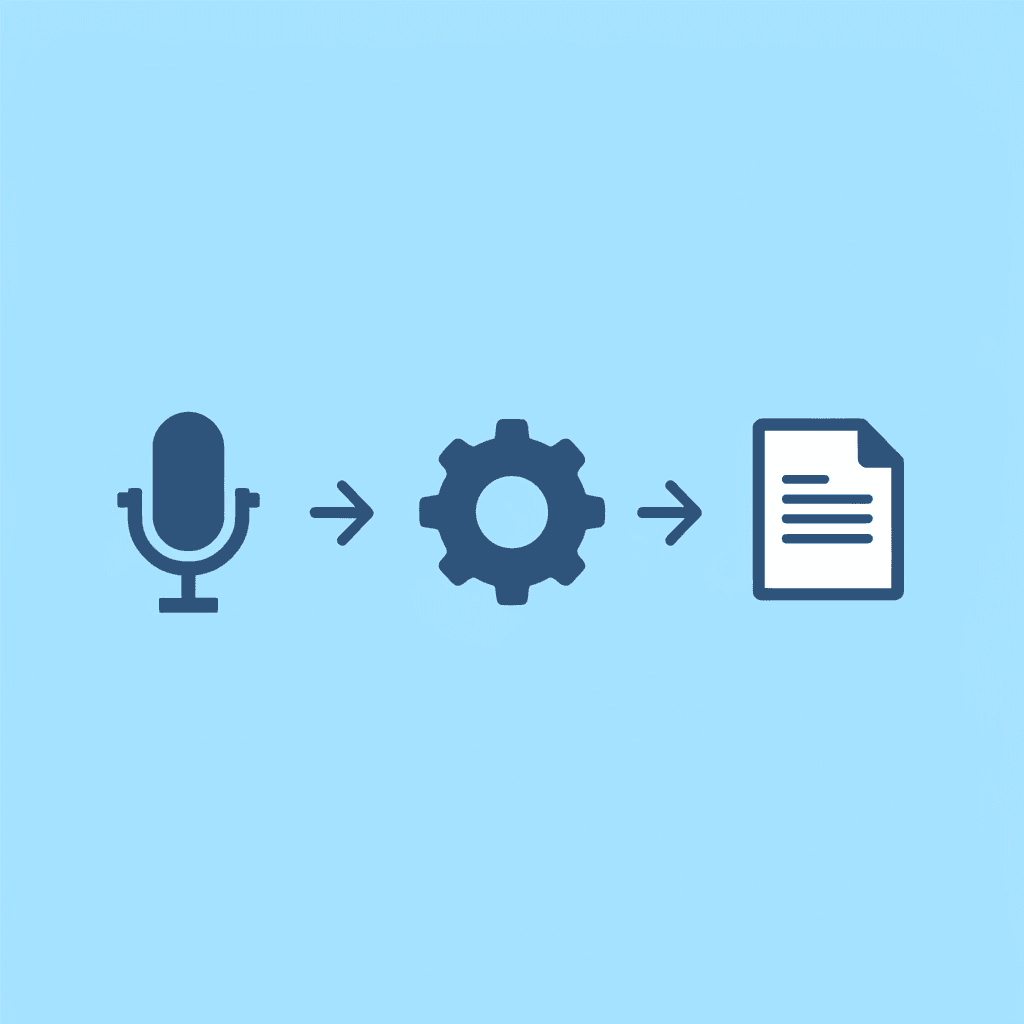
Paste your script into Crayo instead of repeatedly hitting the record button. Choose a natural voice, set pacing to 0.95x or 1.0x, and export clean MP3 files for each slide. Upload them to Canva and sync once. No retakes, mic setup, or vocal fatigue. In under 10 minutes, you'll have clean delivery, consistent tone, and professional pacing.
"Professional sound isn't about better equipment—it's about better workflow." — Content Creation Best Practice
🎯 Key Point: Using Crayo eliminates the trial-and-error cycle that makes voiceover work frustrating and time-consuming. Open Crayo now. Paste your first slide script and generate the voice file. Drop it into Canva and notice how different it feels when the audio is finished before you start assembling. Professional sound isn't about better equipment: it's about better workflow.
✅ Best Practice: Complete your audio files before opening Canva to maintain focus and avoid workflow interruptions.
Related Reading
- AI Voiceover Generation Tools
- Uberduck AI Alternative
- Play.ht Alternatives
- Murf AI Vs Elevenlabs
- Murf AI Alternatives
- Speechify Alternative
- Wellsaid Labs Alternative
- Resemble AI Alternative
- Lovo.ai Alternative Free
- Elevenlabs Alternative